

Read a completed proposal
Open the client account’s Optimization tab and select its dated Proposal link. Check the client and account below the title before reading the result. This example uses Maya Patel’s Revocable Trust in the synthetic Evergreen Advisory practice.
Ask Tilt Agent: “For Maya Patel’s Revocable Trust proposal, show the full proposed allocation, the main trades, turnover, costs, and the settings used by that run.”
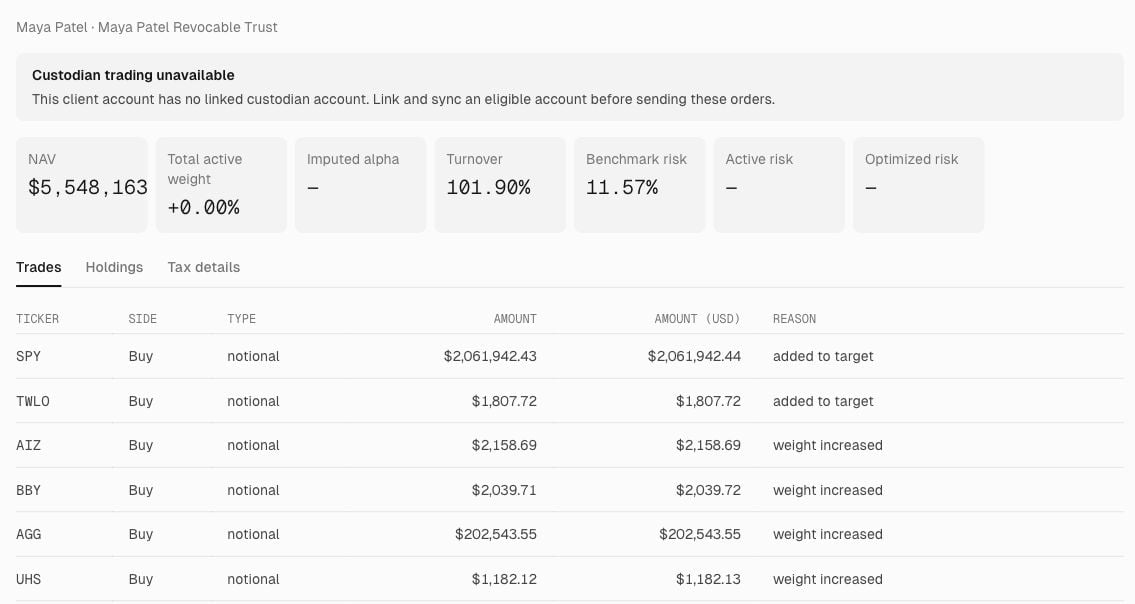
The proposal page keeps the account identity, summary metrics, and detailed result tabs together.
Compare account scenarios with a backtest
One account backtest contains two scenarios that differ in one setting. You can run it from the account page or ask Tilt Agent to run the same comparison. In the account interface, you start with $1,000,000 of synthetic USD cash and rebalance monthly using the account’s applied Setup. Tilt uses historical prices and the account’s configured tax rates. Your current holdings and tax lots stay outside the simulation, and running a backtest leaves the account’s holdings and orders unchanged.Run a comparison
- Open Clients, choose the client, and select the account by name. In Setup, check the model, sleeves, and tax settings. Apply or discard queued changes.
- Open Optimization. Select Backtest beside the Backtest row to open New backtest. Select the row itself to reopen the latest saved result.
- Choose Tax gamma, Loss threshold, or Holdings cap and enter the comparison values.
- Choose a Period of 1, 3, or 5 years and an Ending date. The default ending date is yesterday in UTC. Choose an earlier date to examine a historical period.
- Select Run backtest. The saved backtest page opens and shows progress until both scenarios finish. You can leave and reopen it from the account’s Backtest row.
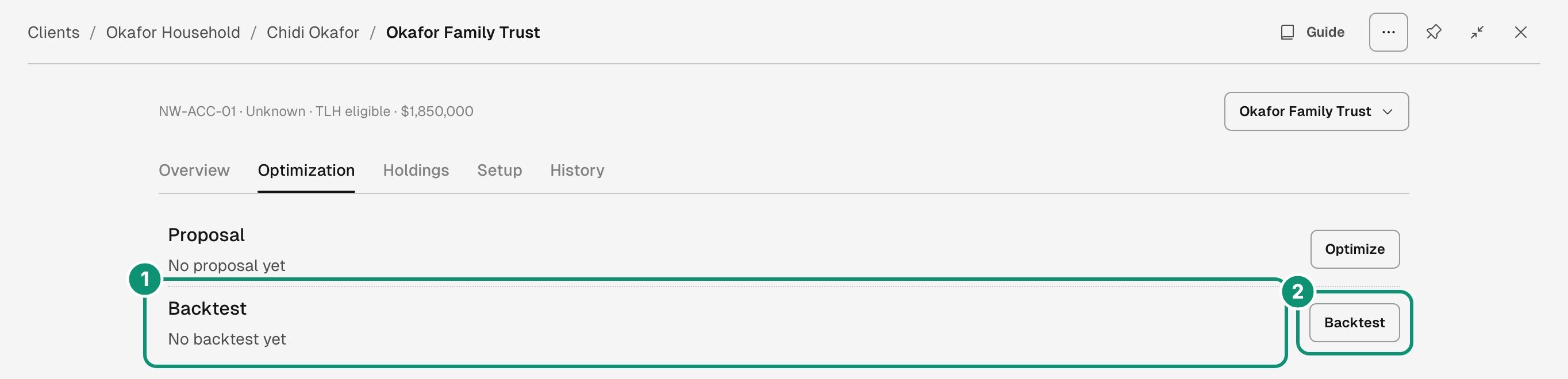
On Optimization, the Backtest row opens the latest result. Its Backtest button starts a new comparison.
- Open the latest saved comparison from the Backtest row.
- Start a new comparison with the Backtest button.
This example compares gamma 0 with gamma 1 over three years ending September 30, 2026, for Maya Patel’s Revocable Trust. Gamma 1 is an example input, not a recommended setting.
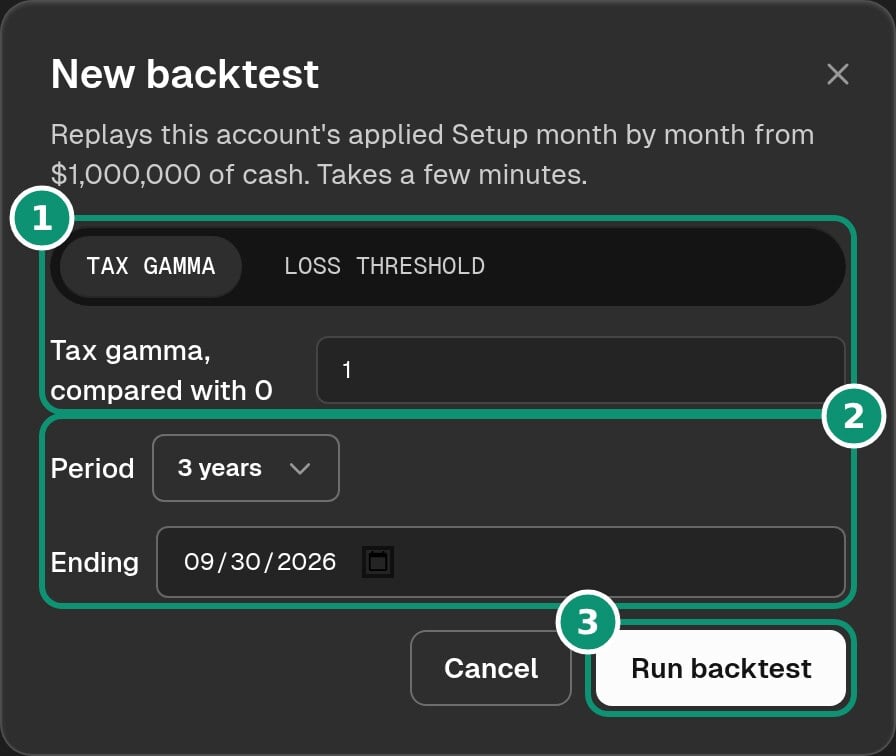
Choose the comparison, its values, and the historical period before selecting Run backtest.
- Choose the comparison and enter its values.
- Set Period and Ending.
- Select Run backtest.
Read the saved results
Check the account identity and period at the top of the page. The report includes the index return and recorded tax rates when available. Select Hypothetical to read the replay assumptions.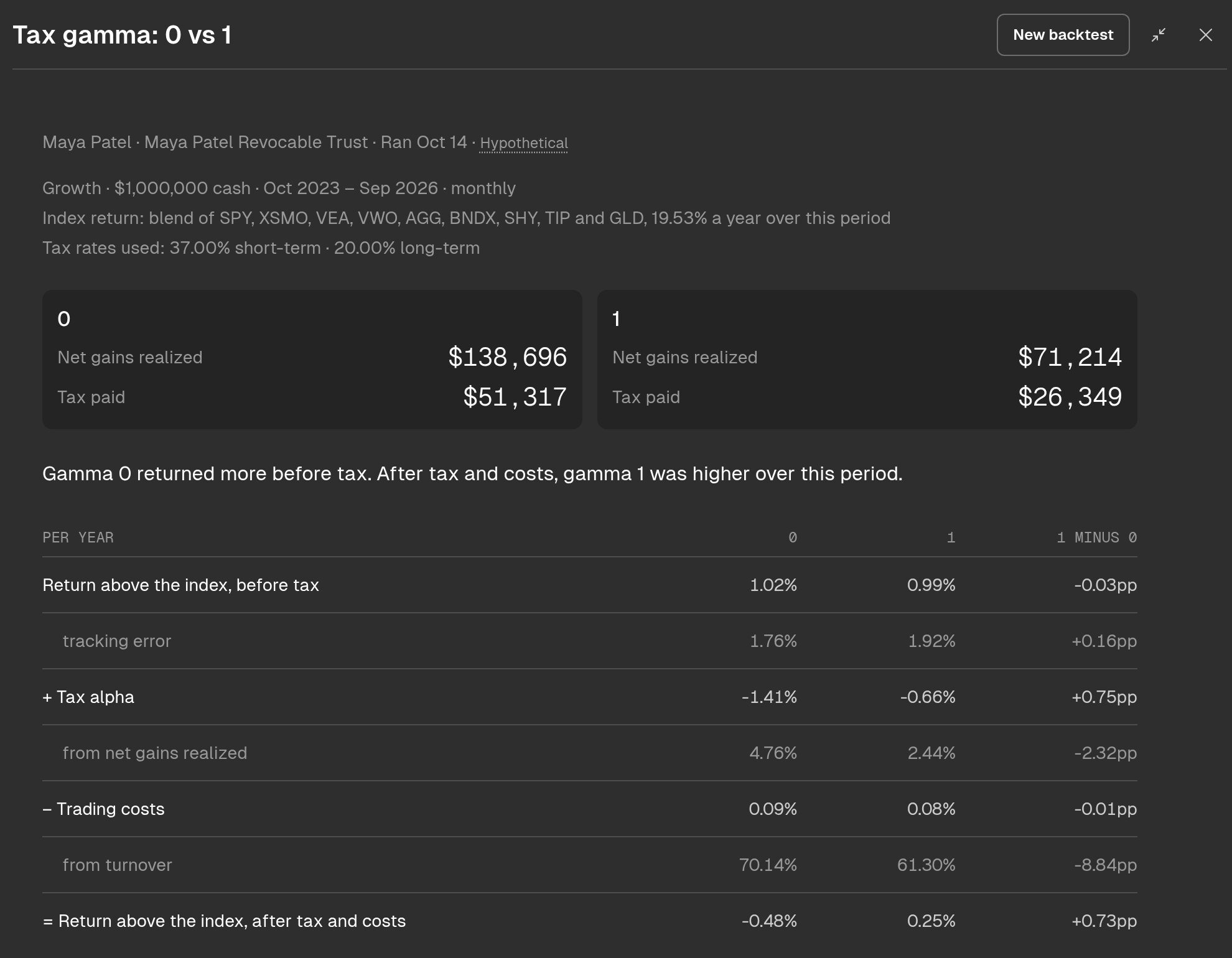
The completed comparison separates whole-period dollar totals from the per-year return table.
When the run lacks index returns, the table shows Return before tax and Return after tax and costs, plus predicted tracking error. Read those return rows as portfolio returns rather than returns above an index.
The chart shows cumulative net losses harvested as a percentage of starting value. Net gains can make this signed measure negative. Read it as realized gains and losses, not portfolio value or investment return.
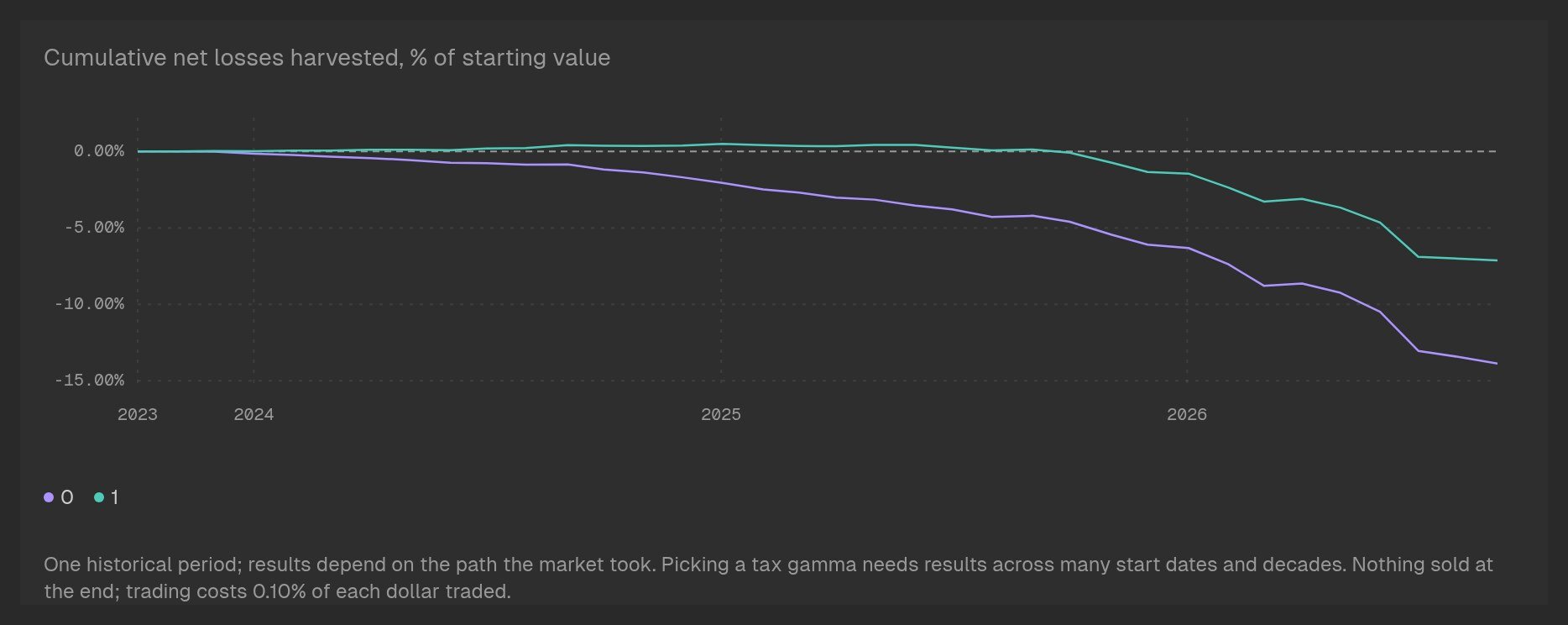
Use the chart to compare cumulative net losses and read the assumptions below it before interpreting the result.
Repeat the comparison
Select New backtest on a saved backtest page. The dialog keeps that backtest’s comparison values, period, and ending date. Running it again uses the account’s currently applied Setup, so the same dates do not guarantee the same result. After you change Setup, an older backtest can show Setup changed since this backtest. Read those results as an analysis of the earlier Setup. The index-return label becomes the index used for this backtest rather than attributing the saved return to the current benchmark.Run it with Tilt Agent
Ask: “For Maya Patel’s Revocable Trust, run a three-year backtest ending September 30, 2026, comparing tax gamma 0 against 1. Show me the saved comparison.” The agent-run backtest becomes the account’s latest saved backtest. Use Open on its comparison card to visit the results page. For a follow-up, ask about that saved result, for example: “Explain the tax difference using the recorded gains, losses, and tax rates.” Open the saved backtest and ask about it in chat. Check Looking at above the message input before asking a follow-up about the comparison.If you cannot run or read a backtest
The concept pages explain optimization tradeoffs, reference portfolios, and tax estimates.