

1. Set up a method the first time
When you open a firm whose rules you don’t meet yet, Tilt shows the firm’s sign-in page: Add a passkey, or Set up two-step sign-in. Right after you sign in to Tilt, the same page asks for the firm. Not now skips it for now; opening the firm asks again.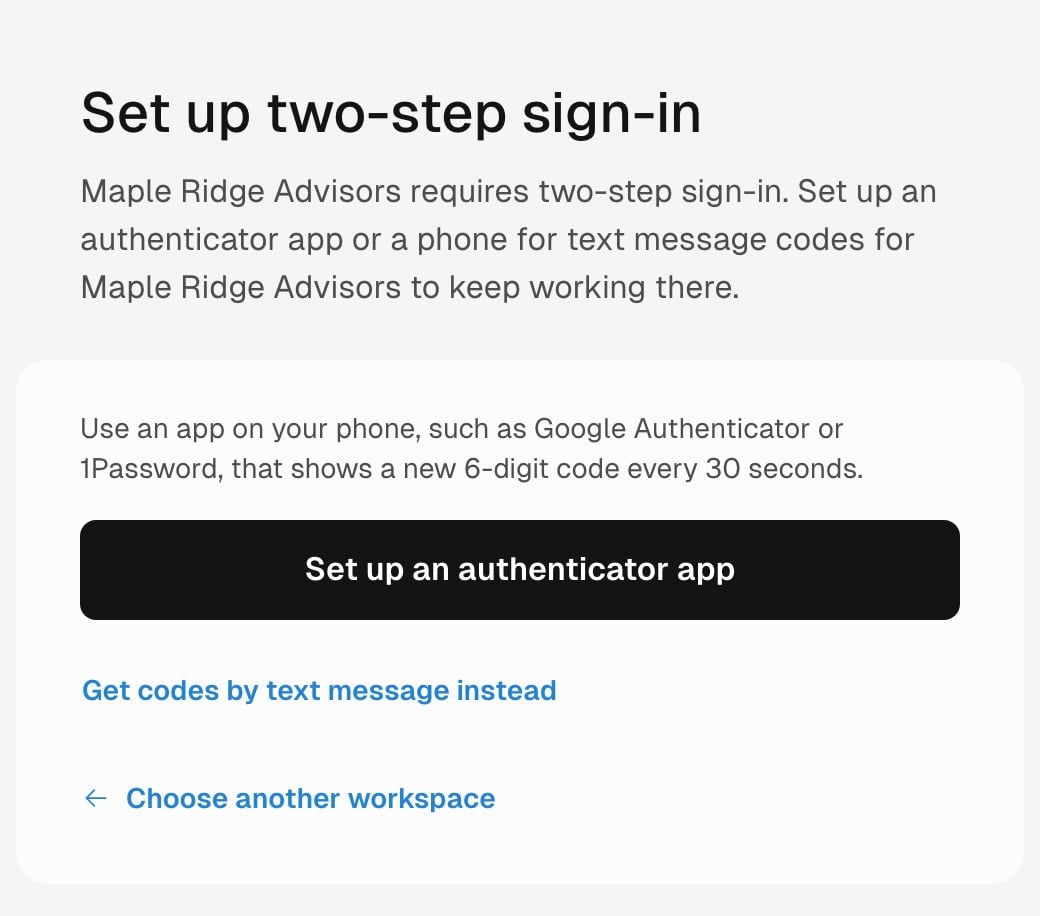
The sign-in page of a demo firm, Maple Ridge Advisors, that requires two-step sign-in and allows an authenticator app or text messages.
- Choose what to set up: Add a passkey, Set up an authenticator app, or Set up text message codes. When the firm allows both two-step methods, the page starts with the app; select Get codes by text message instead to use your phone.
- Confirm it’s you with a code Tilt emails you, when the page asks. Your first method for a firm always starts with an emailed code. If you signed in to Tilt with an emailed code in the last 10 minutes, that code counts and Tilt skips this step.
- Finish the setup:
- A passkey: select Add a passkey and confirm with Touch ID, Face ID or your device’s PIN.
- An authenticator app: scan the QR code with an app such as Google Authenticator or 1Password, or select Can’t scan? Enter this key and type the key into the app. Enter the 6-digit code the app shows and select Turn on.
- Text messages: enter your mobile number, then the 6-digit code Tilt texts you, and select Turn on. Tilt texts codes to US, Canadian and UK mobile numbers.
2. Confirm it’s you when the firm asks
The firm asks again when its Ask members again setting runs out, when you come back after the firm’s inactivity logout, and on every new sign-in. Each browser you sign in with, and Tilt for Mac, asks on its own.- Passkey: select Use your passkey and confirm with Touch ID, Face ID or your device’s PIN.
- Authenticator app: enter the code your app shows for Tilt and the firm, then select Continue.
- Text message: select Send a code, then enter the code. When you have both an app and a phone for the firm, the page starts with the app; select Text me a code instead to switch.
Each firm has its own methods
A passkey, authenticator app or phone you set up for one firm counts for that firm only.- Authenticator apps: the app shows one entry for each firm, under Tilt, with your email and the firm’s name. Use the entry for the firm you’re opening.
- Passkeys: a member of two firms that each require a passkey has a passkey for each. Your password manager shows one entry per firm, with your email and the firm’s name. Any of your passkeys signs you in to Tilt with Sign in with a passkey on Tilt’s sign-in page, and it counts as the passkey check for its own firm. Opening the other firm asks for that firm’s passkey.
- Phones: the same phone number at two firms is set up and confirmed separately for each.
Manage your methods
Open Settings > Sign-in methods, in the Personal group. It appears once a firm asks you for a method, or while you still have one. Each firm that asks, or where you still have a method, has its own section, and the firm you opened the page in comes first.- Add another method, or remove one. Removing a method, or adding one when you already have a method for the firm, needs a check with one of your methods for that firm from the last 10 minutes. The page asks for it when you need one.
- An owner can’t remove their last passkey for a firm that requires one.
- When a firm stops asking for a method, yours stays listed so you can remove it. A passkey you keep still signs you in to Tilt.
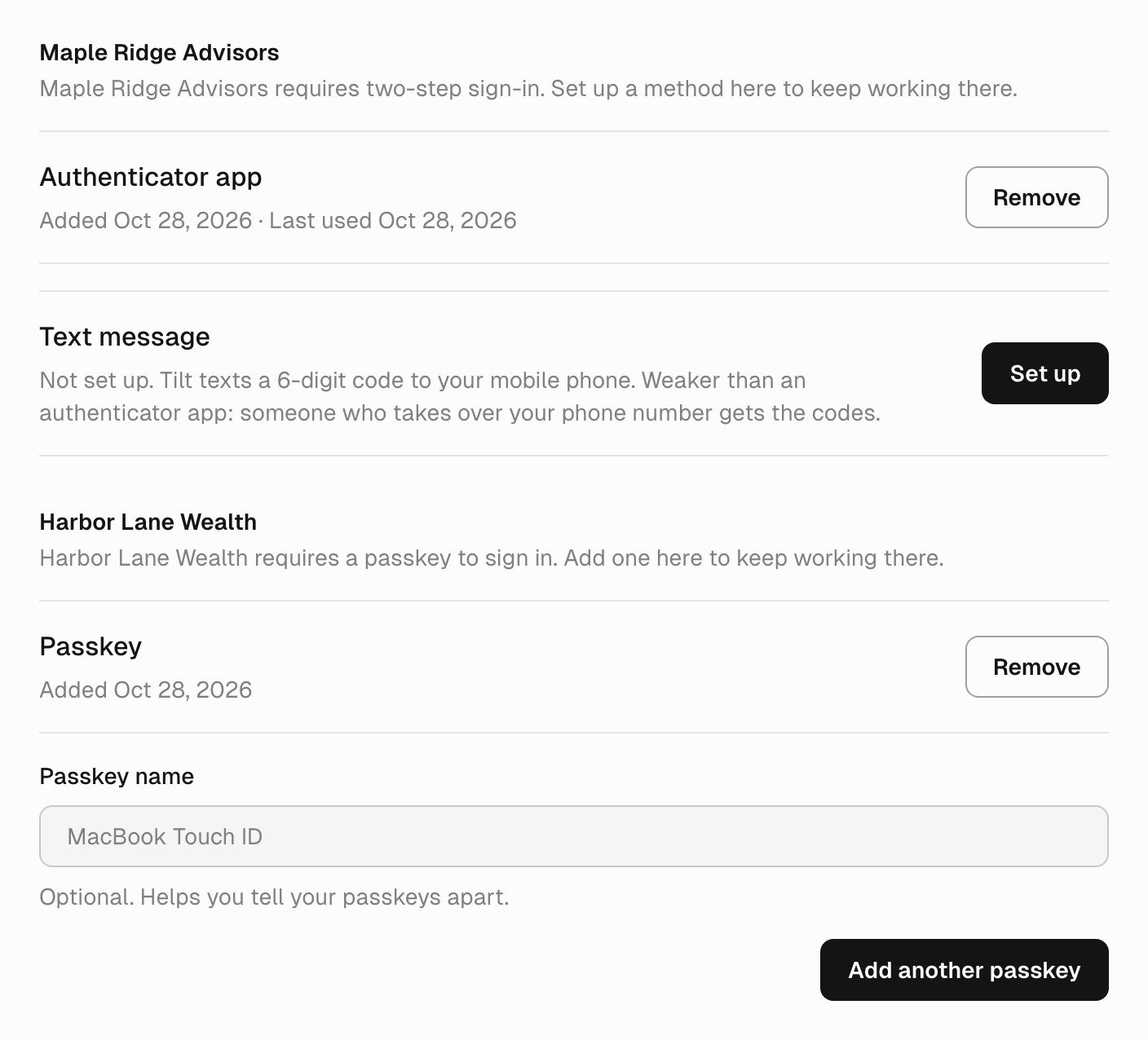
Settings > Sign-in methods for a member of two demo firms. Maple Ridge Advisors has their authenticator app; Harbor Lane Wealth has their passkey.
Passkeys work on tilt.now
Tilt’s passkeys belong to tilt.now, and a passkey works only on the site it was made for. On tilt.io and app.tilt.io, the page links to the same page on tilt.now, where you add or use your passkey.Tilt for Mac
Tilt for Mac asks each firm for its own checks when you open the firm in the Mac app. Checks you passed in your browser don’t count there.- Two-step sign-in: enter your authenticator app code or a texted code in the Mac app. You can also set up an authenticator app or a phone there, starting with an emailed code.
- After the inactivity logout: sign in to the firm again with Email me a code, or with Continue with Google when your Tilt account signs in with Google. Google’s sign-in opens in your browser.
- Require a passkey: in Tilt for Mac 1.30.1 or newer, select Continue in your browser when the firm asks for your passkey, or when its sign-in page asks you to add one. Your browser opens so you can use your passkey for the firm, or add one first, and then you’re back in the Mac app. If your browser isn’t signed in to Tilt as you, sign in there first. The check counts for the Mac app only. An older Mac app asks you to update it first.
If you lose your device
Ask an owner of the firm to reset your sign-in methods for that firm in Settings > Security. The reset removes your methods for that firm only, and Tilt emails you about it. The next time you open the firm, you set up a method again, starting with an emailed code.- If you still have another method for the firm, you can remove the lost one yourself in Settings > Sign-in methods.
- If the device held methods for several firms, ask an owner of each firm. A reset at one firm doesn’t change your methods at another.
- If you’re the firm’s only owner, contact Tilt support.