1. Open or create a model
Open Models in the sidebar. Select an existing model to review it, or choose Create model to name a new one. A newly created model needs sleeves and target weights before an assigned account can use it for optimization. You can also ask Tilt Agent to propose a model. Describe the exposures and target weights you want, then ask it to show the complete allocation before saving. Review sleeve membership and any nested sleeve weights before confirming the proposal.2. Set the allocation
On Allocation, select Add sleeve to choose an available sleeve. A sleeve joins at 0%; enter its target percentage and adjust the other targets so the total reaches 100%. Tilt keeps allocation edits in the change queue and requires a complete allocation before you can apply them.
Growth's Allocation view shows sleeve implementations, editable target percentages, and the total. The screenshot shows the first rows of the allocation.
3. Check the impact and save
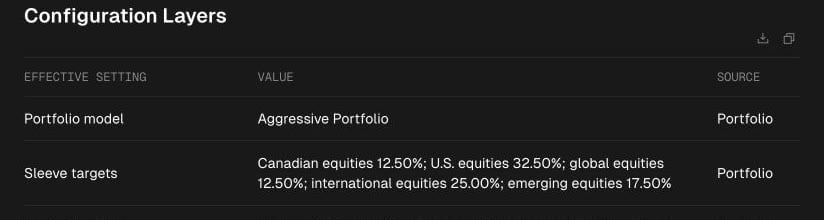
Open Accounts to see which client accounts follow the model. Changes to a shared model can affect those accounts. Account-specific settings can override inherited settings, so inspect a named account when you need to know its effective result.
Accounts lists the accounts that follow Growth. This excerpt shows Alex Wright's IRA and the Okafor Family 529.