

1. Optimize the household
Open the household’s Optimization tab and select Optimize under Household proposal. You can also open any account in the family, then its Optimization tab, and select Optimize household. Tilt plans the whole family once, within its budget at that moment, the same way the Rebalance plan page does. Each account’s trades are its share of that plan. When the run finishes, the household’s Optimization tab shows it as Latest proposal, and each account’s Optimization tab shows the row Household proposal.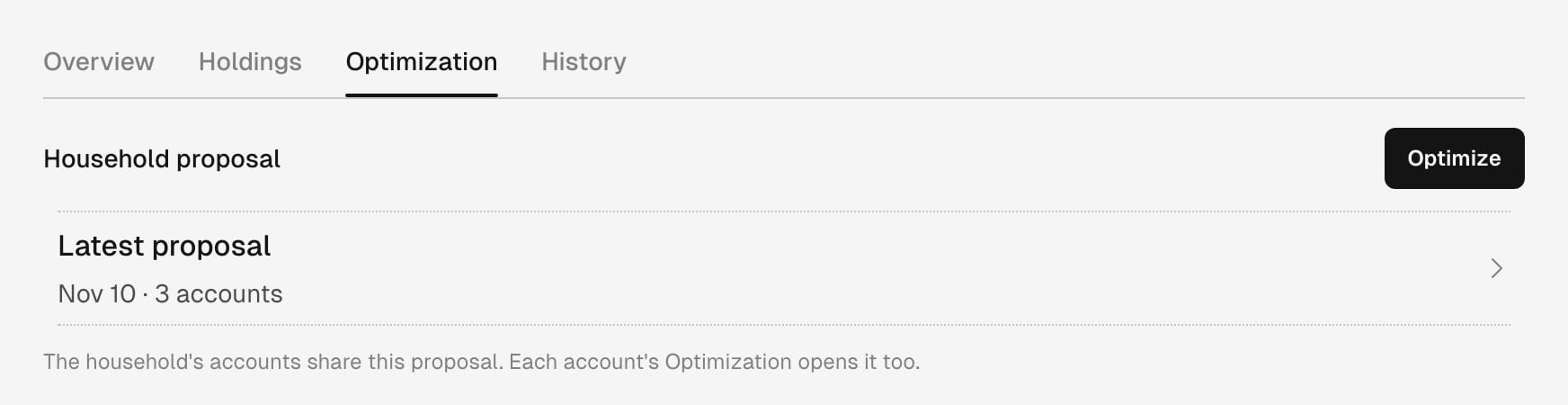
The household's Optimization tab, with the latest run under Latest proposal.
2. Review the household proposal
Select Latest proposal on the household, or Household proposal on any of its accounts. Both open the same page, which covers every account in the run. Its title names the household and the date, and the line below says how many accounts were optimized together and which day’s close the holdings and prices come from. Check these sections in order: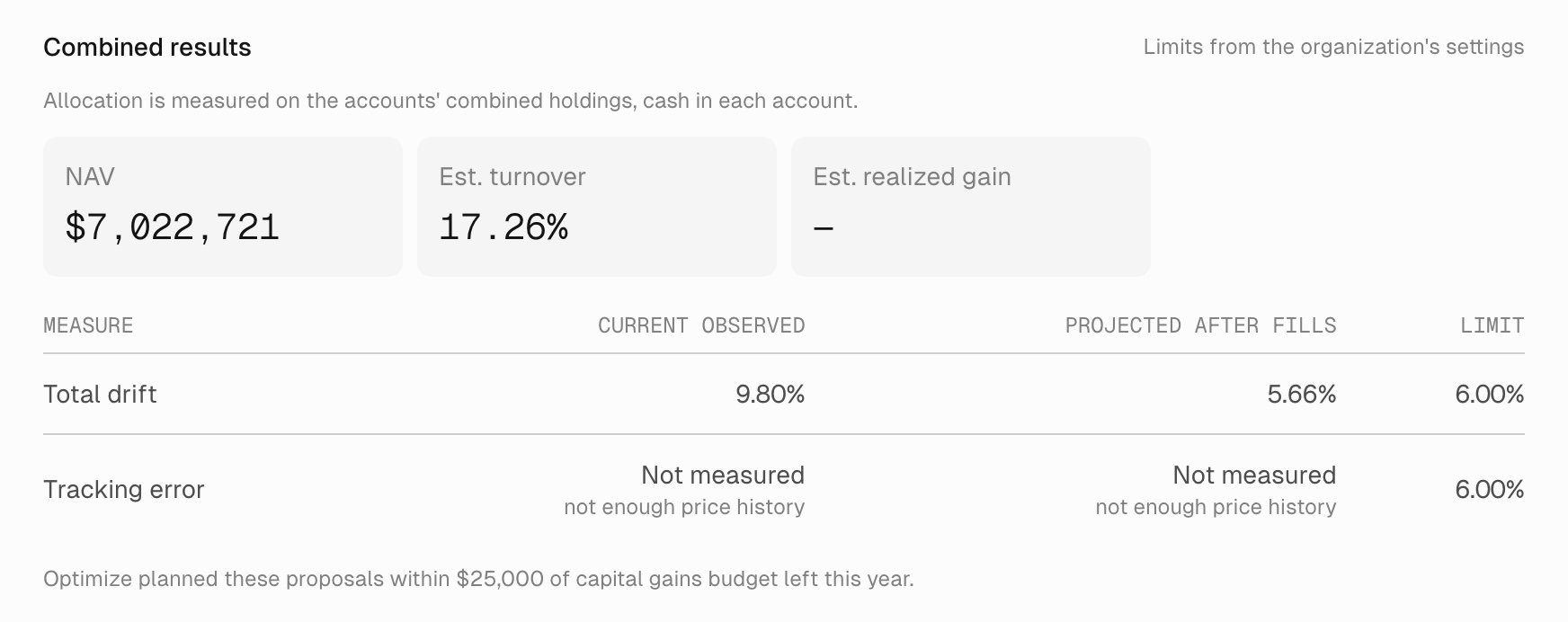
Total drift moves from 9.80% to a projected 5.66%, inside the 6.00% limit.
The proposal no longer matches
Combined results shows figures only while the proposal is complete and current for every account. Otherwise it can read “No results: this proposal no longer matches”, name the accounts, and add “Holdings, settings or the household changed since it was made, or its orders filled.” A proposal goes out of date when an account’s holdings or settings change, an account joins or leaves, the budget left changes, the household’s Optimize accounts together or your firm’s Allow accounts to be optimized together goes off, or a newer run finishes for one of its accounts. The next daily check is such a run, so expect a saved proposal to last only until then. Filled orders change holdings, so a sent proposal reads the same way. You can’t send a proposal that’s out of date. Select Optimize again, or use the next morning plan.3. Approve and send together
Approve the family as one. Approving any account’s part covers every account in the run, and an account with no trades sends nothing. You can send a morning plan from either place below. A run you started with Optimize isn’t in To review, so it goes from its proposal page.- On the proposal page, select the Send to button, which names your custodian, and check each account’s order check and its projected cash in the dialog. If your firm trades by file, the page shows Export from Trading instead.
- In Trading > To review, select the household. Its accounts are selected together, and each reads Approved with the household. Select Approve and send, or Approve if your firm trades by file or the selection sends nothing.
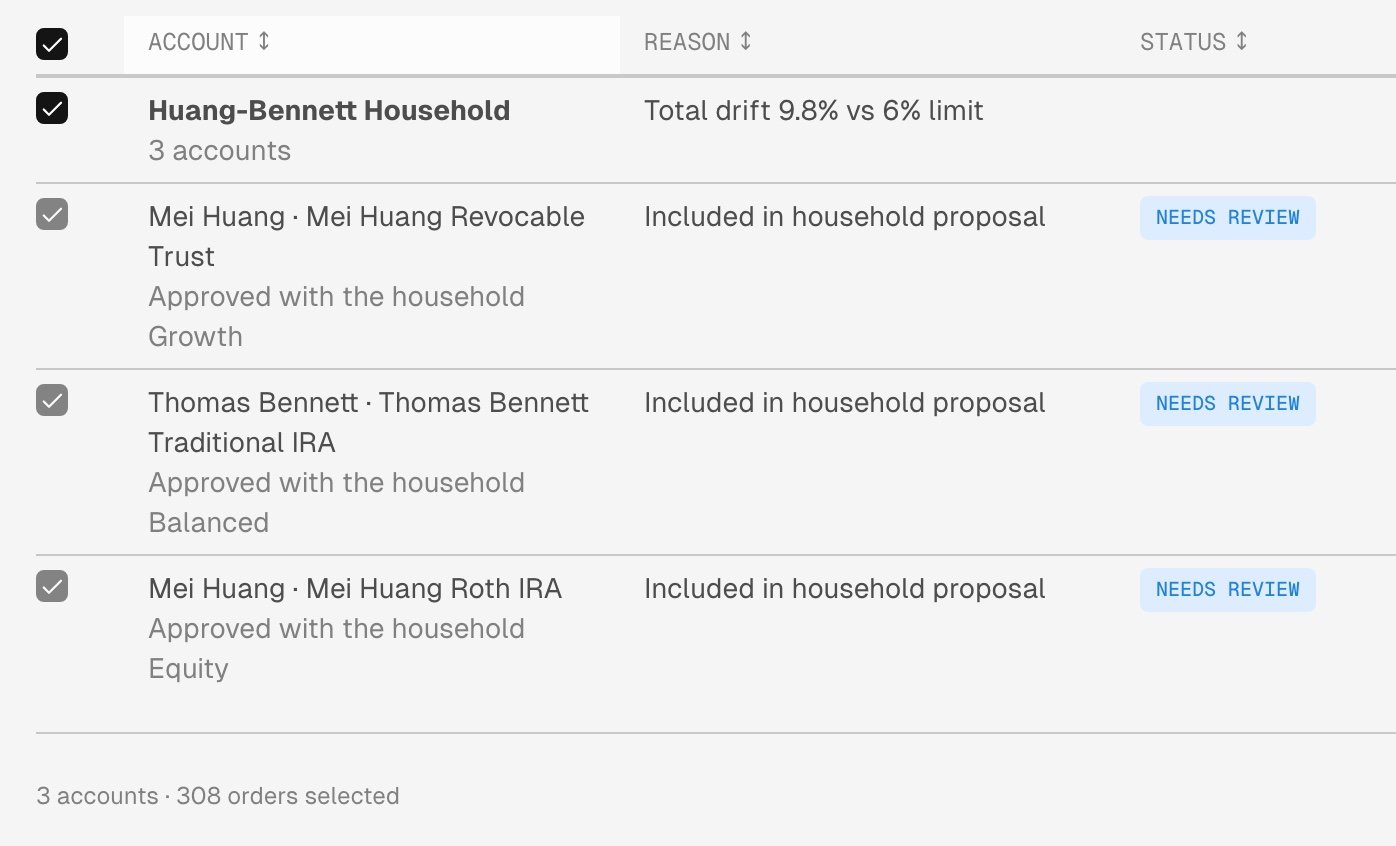
Selecting the household selects every account in the run.
What can stop a send
Three things can stop a send:- Who is sending. You need to be eligible under the trade release rules of every account with trades. If you aren’t eligible for one of them, none of the family goes out. A flag alone doesn’t stop an eligible sender.
- Checks before sending. If any account fails its order check or its health blocks trading, the family can’t be sent until that’s resolved.
- Checks as orders go out. Tilt sends each account’s orders as their own batch, so a refusal at this stage can stop one account while the others go ahead. Inspect each account’s outcome.
4. Follow the orders and record realized gains
Open Trading > Sent and select the send. It lists each order and fill by household and account, and says when an account in the run has no orders in the send. Sending starts the orders, and fills arrive after that. Once trades fill, enter the realized gains on each taxable account with Add realized gains and Confirm records. Read an account’s Overview explains both. Next, follow the family each morning.Fix a family plan that fails
One account that can’t be planned stops the whole family, and every proposal of the run fails with the same reason. The causes below stop Optimize and the morning plan alike. While the accounts are optimized together, select Optimize household on an account to see the reason: the failed proposal gives it and usually names the account. With the setting off, Optimize plans that account alone, so it won’t show why the family failed.
One proposal can also fail while the others complete. Combined results then reads “No results: the optimization failed for” and names the account, and the family can’t be approved. That account’s proposal gives the reason.
Turning off the household’s Optimize accounts together lets each account optimize on its own, and leaves every other household as it is.
Tilt provides portfolio technology, not investment, tax or legal advice, and is not a registered investment adviser or broker-dealer. The advisor makes all investment decisions, including whether to accept a proposal and submit trades, directly or through approval rules the advisor configures. Trades are executed through the client’s custodian. Estimates depend on the data and assumptions recorded for the account; confirm the client’s tax treatment with a qualified tax professional.