

The construction pipeline

The result is the Tilt’s constituents: the selected securities and their weights on the evaluation date.
Find your way around
Select a Tilt in Library to open its Tilt view. In chat, select View details on a Tilt card or select a Tilt reference in a sent message to open the same view without losing your place in the chat.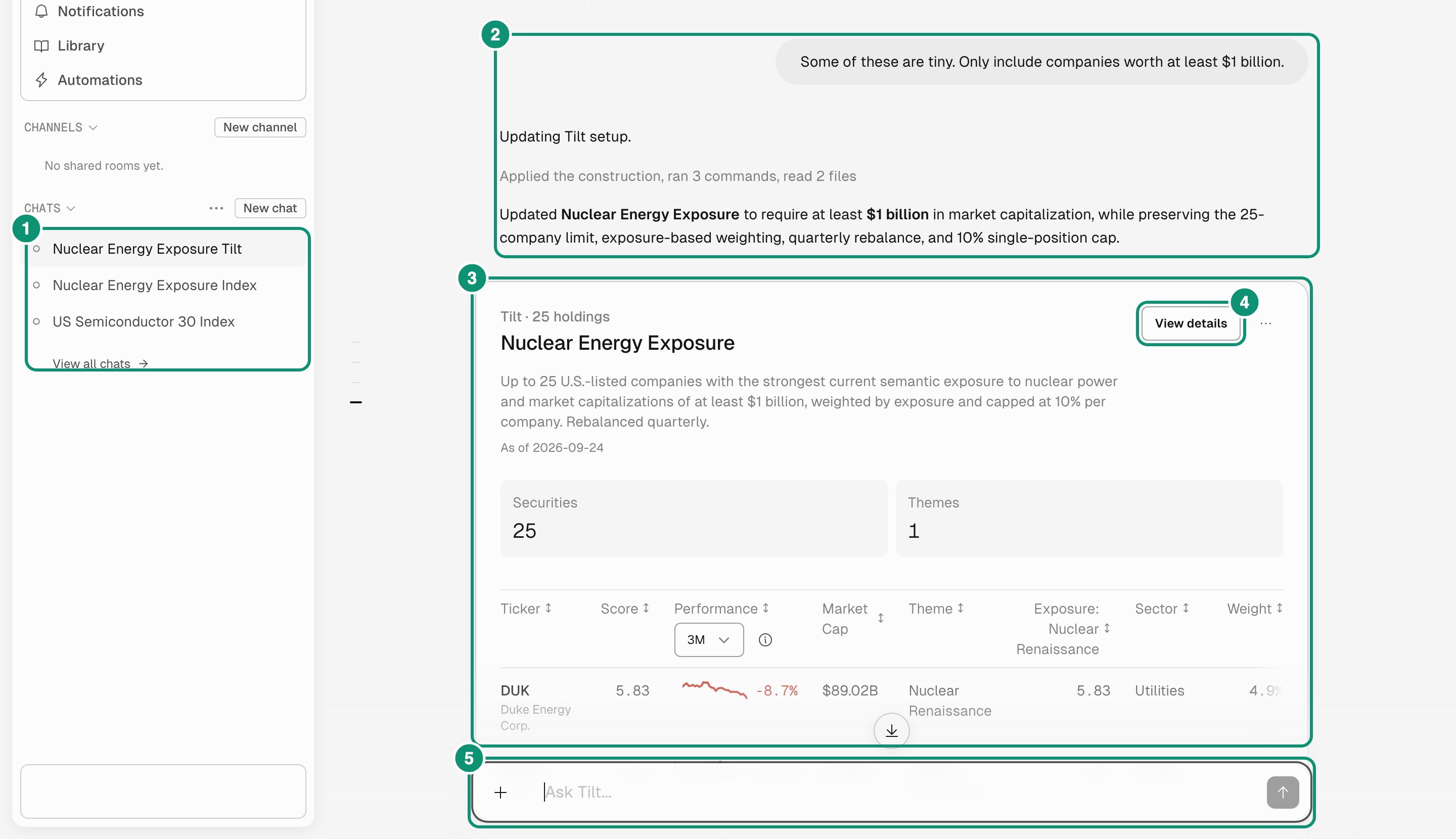
The chat view.
- Chats lists your conversations with Tilt Agent.
- The conversation shows your requests and Tilt Agent’s replies.
- The Tilt card summarizes a Tilt that Tilt Agent created or changed.
- View details opens the Tilt view.
- The message box takes your next request, such as a new Tilt or a change to its rules.
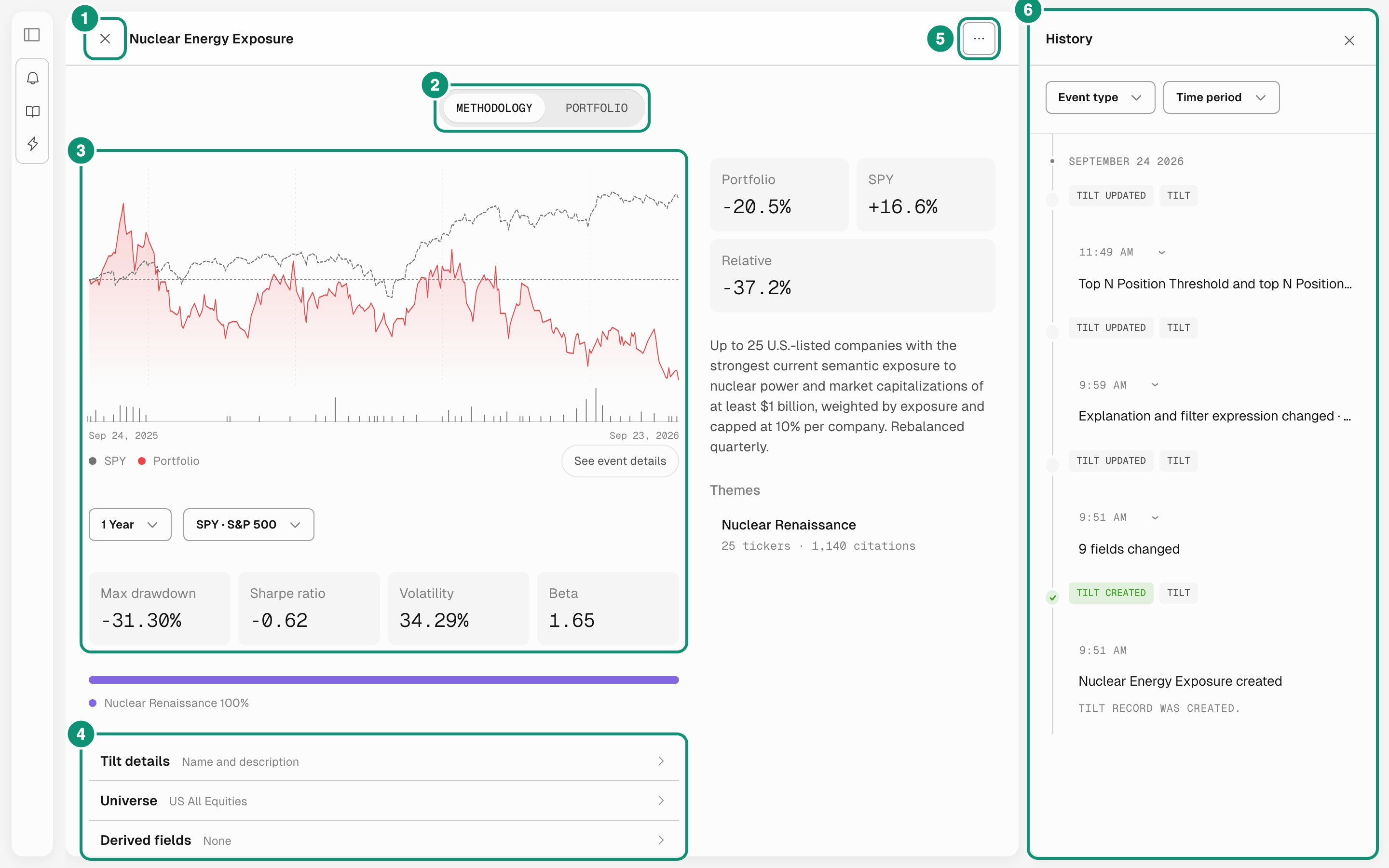
The Tilt view, with History open.
- Close returns to the chat. A Tilt opened from Library shows Back to Library instead.
- Methodology shows the rules and a backtest. Portfolio lists the constituents and weights.
- The backtest compares the Tilt with a benchmark over a period you choose, with risk statistics.
- The methodology sections hold the construction rules, one section per stage. Open a section and edit it. Each edit joins the change queue at the bottom of the Tilt view. Open the queue and select Apply to save the changes and re-evaluate the Tilt.
- The actions menu has History, Export to Excel, and Publish to Marketplace.
- History lists every methodology change, with who made it and when.
A first example
This Tilt takes US companies worth more than $5 billion with strong free-cash-flow margins, ranks them by revenue growth and return on equity, and holds the top 20 by free-float market cap:market_cap is in millions of US dollars.
Next steps
Expression reference
Fields, operators, and functions for each rule.
Selection and weighting
How filters, scores, limits, weights, and caps combine.
Build a thematic Tilt
Build and refine a nuclear energy Tilt with Tilt Agent.
Choose an integration
Compare Tilt’s interface, Tilt Agent over MCP, and the REST API design preview.