

The objects you work with
A sleeve is a building block of a model portfolio. It can represent an asset class or another investment implementation. A model supplies target allocation to assigned accounts; account settings can tailor how Tilt implements that model. Build a model portfolio walks through both levels.

The advisor workflow, from a reusable model to an account proposal.
Find your way around
Start in a chat with Tilt Agent. Name the client, account, or model you want to work on. Tilt Agent can show the current state in a message or table, ask for a decision, and provide the next action. A workflow card shows which step is current or blocked. Open a linked account or proposal when you need its full review view. Return to the chat to ask a follow-up about the same client and account. For example, ask: “Show me the portfolio assigned to Taylor Morgan’s account and its sleeve weights.” The production demo account uses Aggressive Portfolio. Check the client and account named in the reply before asking for a change. If you advise more than one organization, select the organization you mean before starting account work.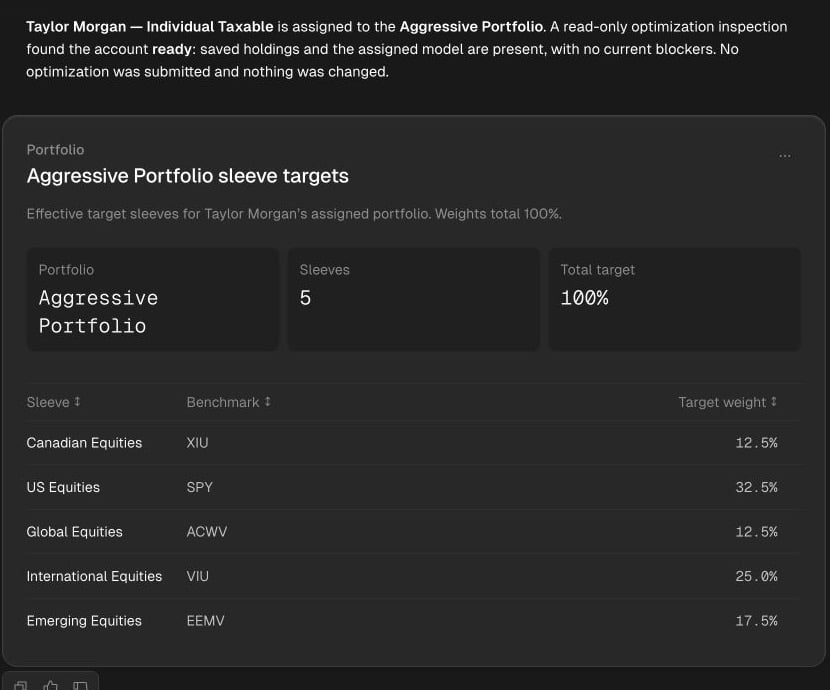
Tilt Agent shows Taylor's assigned portfolio and sleeve targets in chat.
A review boundary
An optimization produces a proposal. Running it, reading its reports, or opening its review view does not place an order. Trade approval and brokerage execution require separate review in the account interface. Review a rebalance covers that boundary.Choose a task
Daily briefing
Understand today’s book coverage, breaches, and accounts needing attention.
Build a model portfolio
Define sleeves and weights, choose implementation settings, and assign a model to an account.
Review a rebalance
Check readiness, run an optimization, and inspect the saved proposal.
Onboard a client
Set up a new client and account, then check what is ready for optimization.
Tailor an account
Assign a shared model and add client-specific settings.
Understand settings and rules
Find the source of an effective setting and inspect Dynamic Rules.
Review your book
Find account setup, holdings, and proposal exceptions across clients.
Optimize several accounts
Confirm a cohort, follow each result, and review its proposals.
Read reports and backtests
Examine a proposal’s evidence and compare account scenarios.
Manage monitoring policies
Inspect drift, cash, tracking-error, or exposure policies.