

1. Choose the timeout
Open Settings > Security. Security appears under Organization in the Settings menu while you’re in your firm. Only an organization owner can change the setting. Under Inactivity logout, choose Off, 15 minutes, 30 minutes, or 1 hour in Sign out after, then select Save changes. Every firm starts at Off.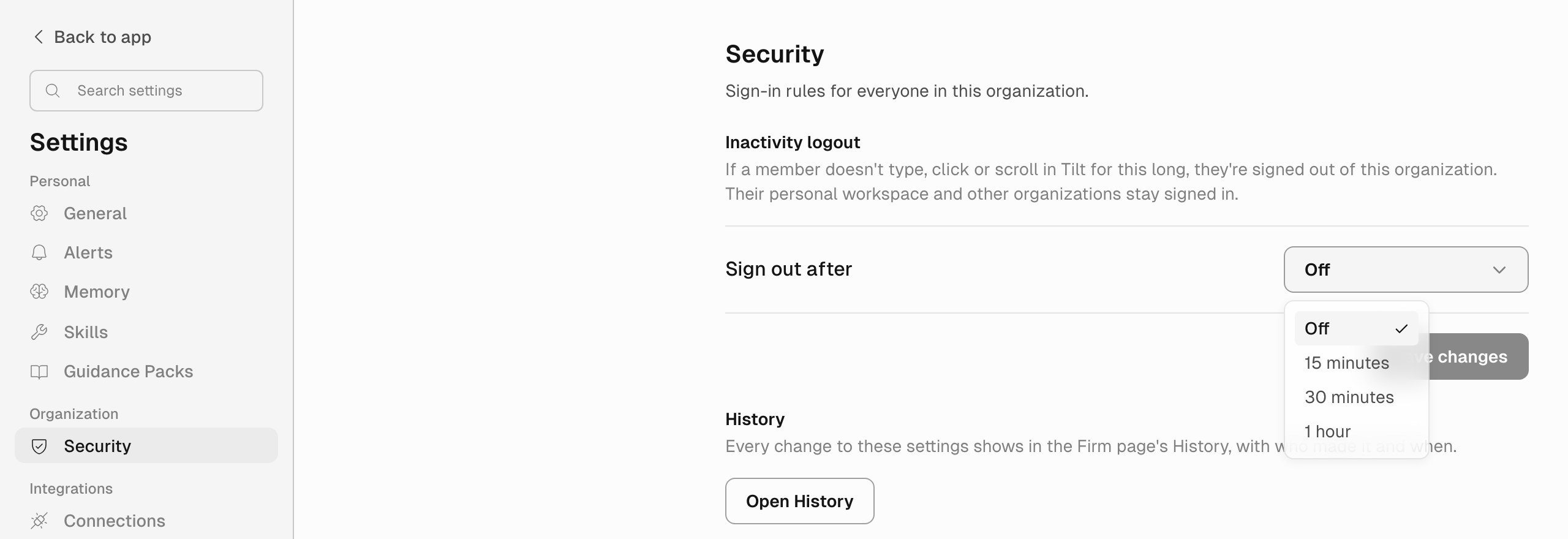
An owner choosing the timeout.
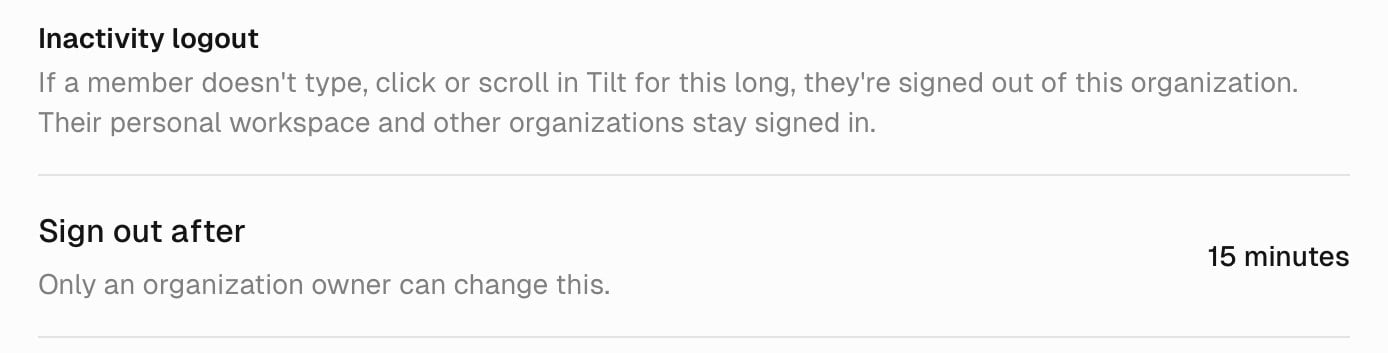
What other members see once the owner saves 15 minutes.
2. Check the change in History
Each save adds an entry to the firm’s History. Select Open History on the Security page, or open Firm in the left sidebar, then History. The entry reads Changed settings and lists the old and new timeout. Its About column says Security, its Kind column says Firm, and By names the owner who saved it. See who changed an account and why explains each column.
The History entry for turning the inactivity logout on. The owner's email address is blurred.
What counts as activity
The rest of this page describes what everyone in the firm sees once the timeout is on, owners included. Typing, clicking, scrolling, and tapping in a Tilt tab count as activity. Moving the pointer without clicking doesn’t count, and neither does a page that updates on its own. Activity anywhere in Tilt in the same browser counts, including your personal workspace and your other organizations. Each browser you sign in with keeps its own count. Tilt for Mac keeps its own count too; see Tilt for Mac. A Tilt Agent reply that is still running also keeps the firm open. While a reply you started in the firm runs and a tab of the firm is open, the firm stays open for up to one extra timeout period. With a 15-minute timeout, a long reply can keep the firm open for up to 30 minutes after your last activity.Before you’re signed out
A minute before the timeout runs out, an open tab of the firm asks Are you still there? and counts down. Select Stay signed in to keep working. It counts as activity, so the timeout starts again.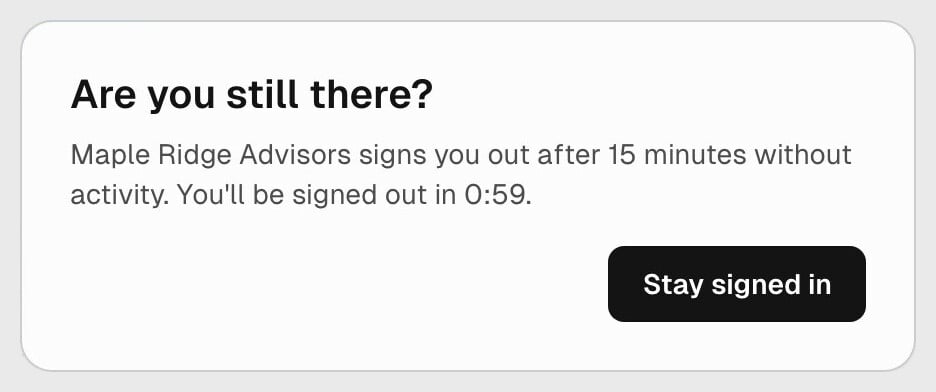
The question a minute before a demo firm, Maple Ridge Advisors, signs the person out.
Sign in to the firm again
When the timeout runs out, Tilt signs you out of that firm only. A tab open in the firm moves to the firm’s sign-in page, which says why you were signed out. Opening the firm later, from another workspace or a new tab, leads to the same page.- Select Email me a code. Tilt sends a code to the email address on your Tilt account.
- Enter the code and select Continue.
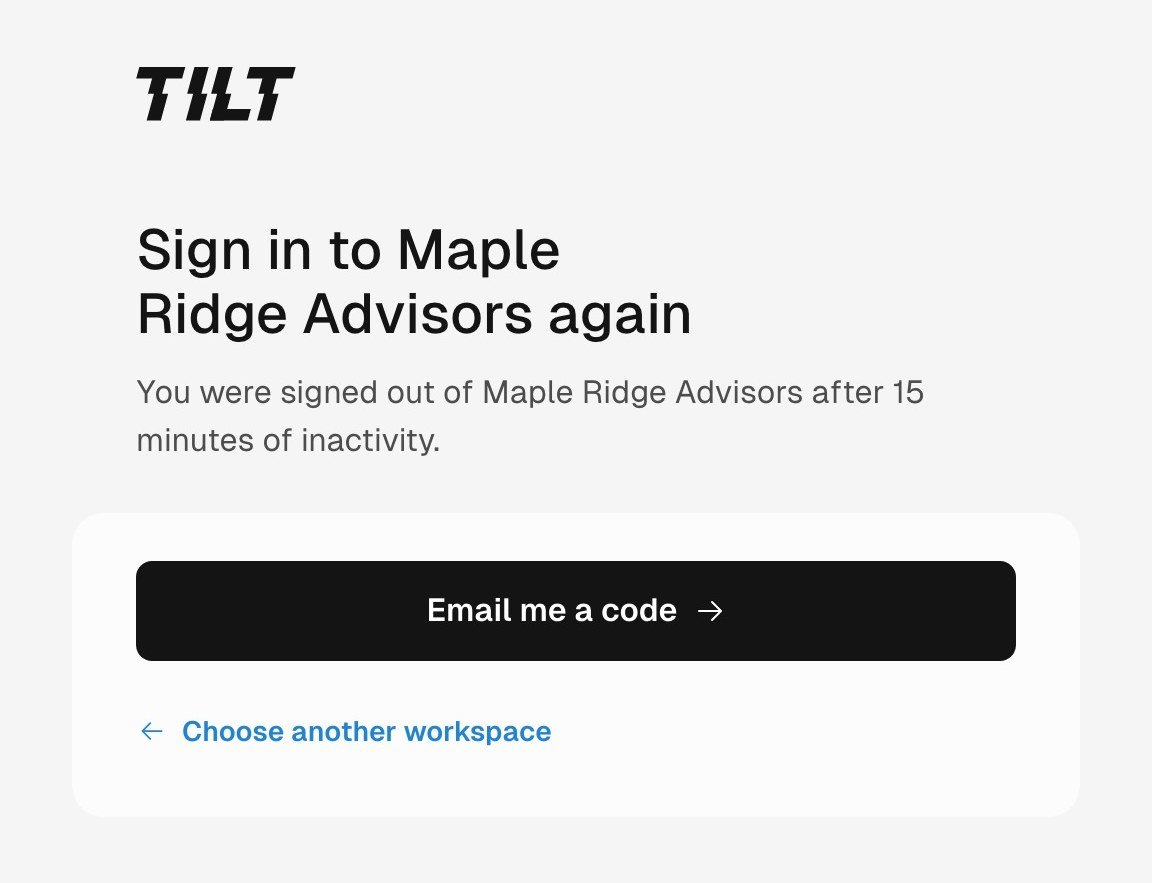
The firm's sign-in page after 15 minutes without activity.
Tilt for Mac
Tilt for Mac keeps its own count of activity. Working in your browser doesn’t keep the firm open in the Mac app, and working in the Mac app doesn’t keep it open in your browser. Activity in the Mac app’s page tabs counts for the Mac app. In the Mac app, Are you still there? covers the whole window, page tabs included. When the timeout runs out, the window moves to the firm’s sign-in page, and you sign in again there with a code. You sign in to Tilt for Mac through your browser. If your browser was already signed out of a firm, or its timeout had already run out there, the firm opens signed out in the Mac app too. Sign in to the firm again in the Mac app.What keeps running
The inactivity logout applies to people signed in to Tilt. These keep working while someone is signed out of the firm:- Automations and other background jobs in the firm.
- Tilt Agent replies that had already started.
- Apps connected to Tilt, such as Claude or ChatGPT.
- Requests made with a Tilt API key.