

Read the Client book
The Client book card shows the report date and how many accounts were evaluated. Its status badges count evaluated accounts as breached, drifting, or holding. Total AUM comes from the organization’s aggregate holdings. Needs attention includes accounts with drift, data quality, or account health reasons that warrant a closer look; it can exceed the breached count. Accounts covered shows the evaluated count against the total when coverage is incomplete. A note below the figures can identify gaps such as unevaluated households, unavailable clients, stale account data, or skipped accounts. Check that note before treating the summary as a review of the whole book.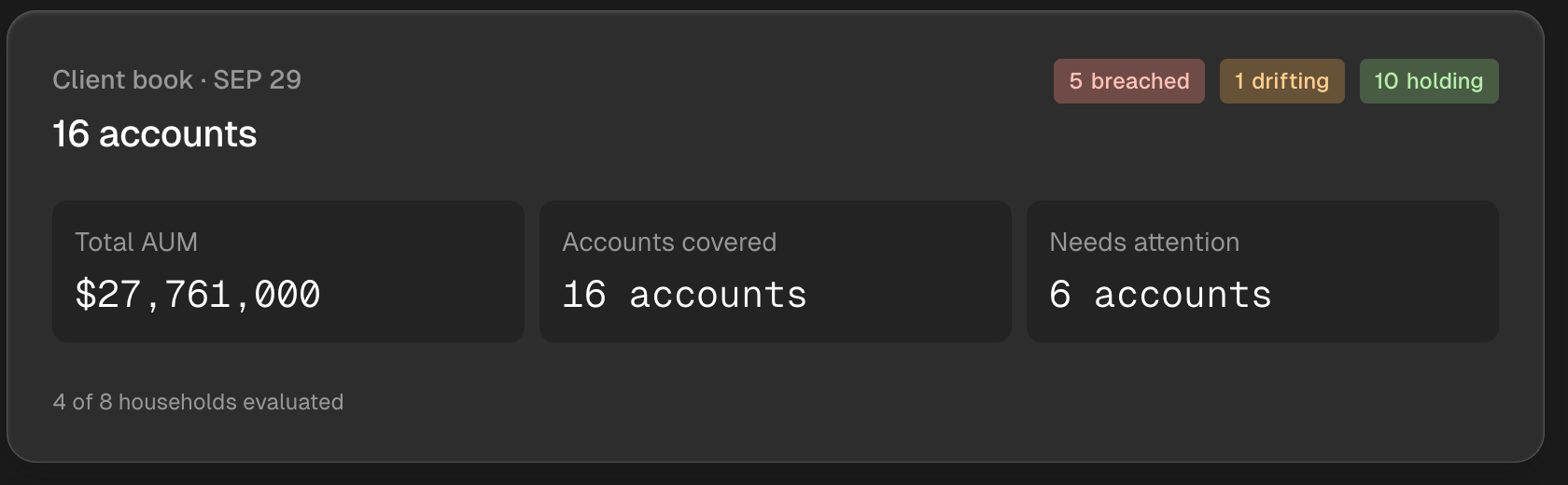
The dated Client book card shows account status, coverage, AUM, and accounts needing attention.
Examine today’s breaches
When at least one account breached a monitoring rule, Today’s breaches shows the affected clients and accounts. The selected account displays a leading breach, followed by a table of rule categories, measured values, limits, rule sources, and statuses. Use Next and Previous to move through the breached accounts. Inspect account opens a closer review; Review monitoring rules shows the rules that apply to that account. The example below shows a measured value alongside its organization rule limit. Compare the value with the limit and inspect the named account before deciding what to do. The card appears only for breached accounts; other accounts needing attention can still appear in the Client book count.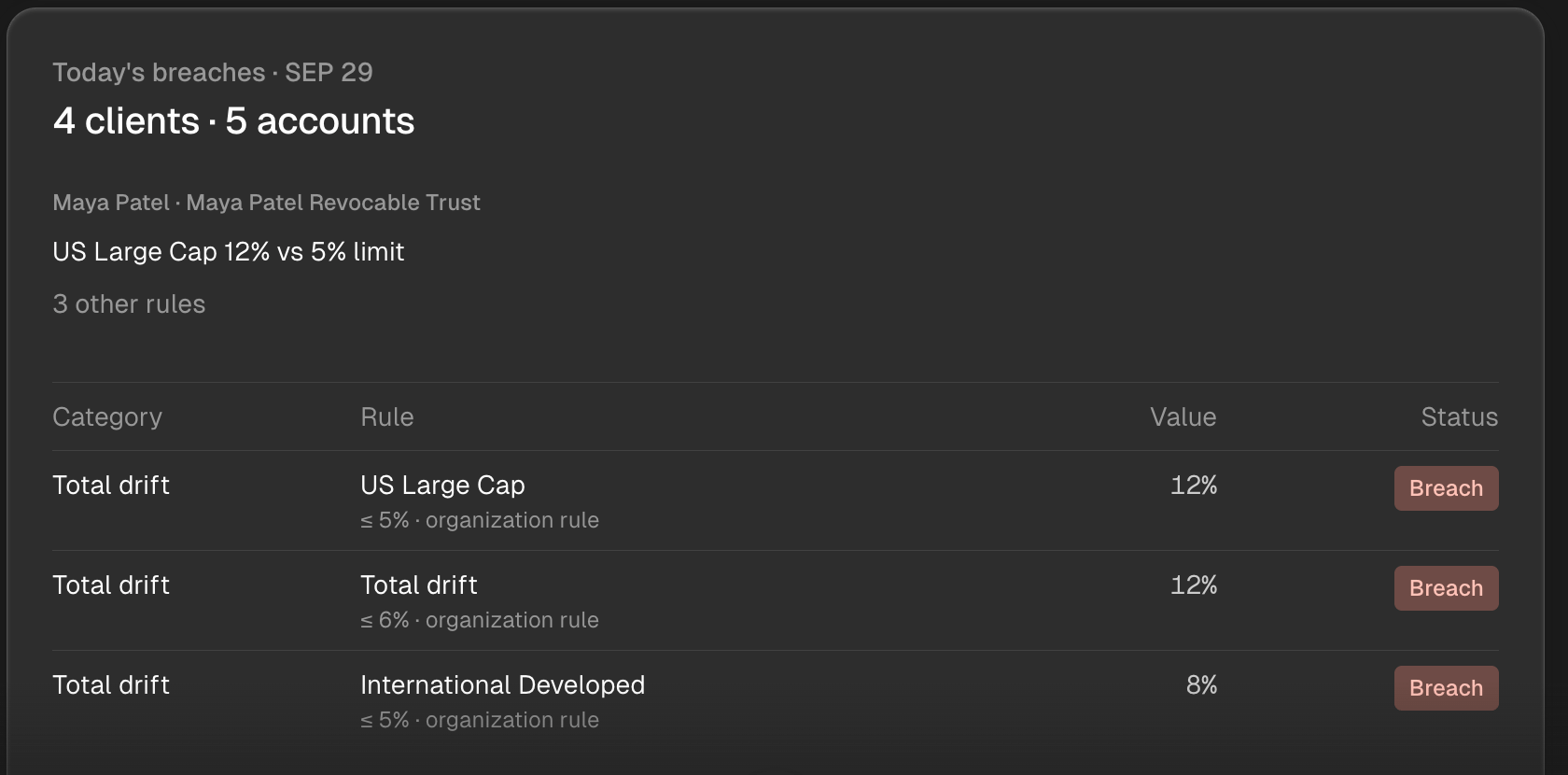
The breach card shows the selected account's measured values beside the limits of its monitoring rules.
Choose a follow-up
Next steps offers follow-ups based on the current report. Depending on the results, you can review attention accounts, check optimizations or rebalance proposals, review book health, or explore exposures. Select a follow-up to continue in Tilt Agent, then inspect the account or proposal it opens. Review a rebalance explains the separate proposal and trade decisions. If today’s completed report is still unavailable, Tilt Agent asks you to retry the briefing. Wait for a current result before relying on its counts or breach detail. For a broader review of account setup, holdings freshness, and the proposal queue, review your advisor book.Review proposed orders
If the briefing offers Check rebalance proposals, it opens a Daily optimization review for the breached accounts. The review shows its evaluation date and separates accounts that are Ready, Needs attention, or are Approved. Each account row shows its status, proposed order count, turnover, and estimated cost. Use Review details to open an Account proposal before selecting it for approval. The account proposal shows turnover, transaction cost, estimated tax due, cash buffers, and the proposed orders. Use the order list’s Next and Previous controls to review every order when the list spans pages. Check the account, order sides, tickers, and amounts alongside the metrics; a summary count alone does not show the full proposal.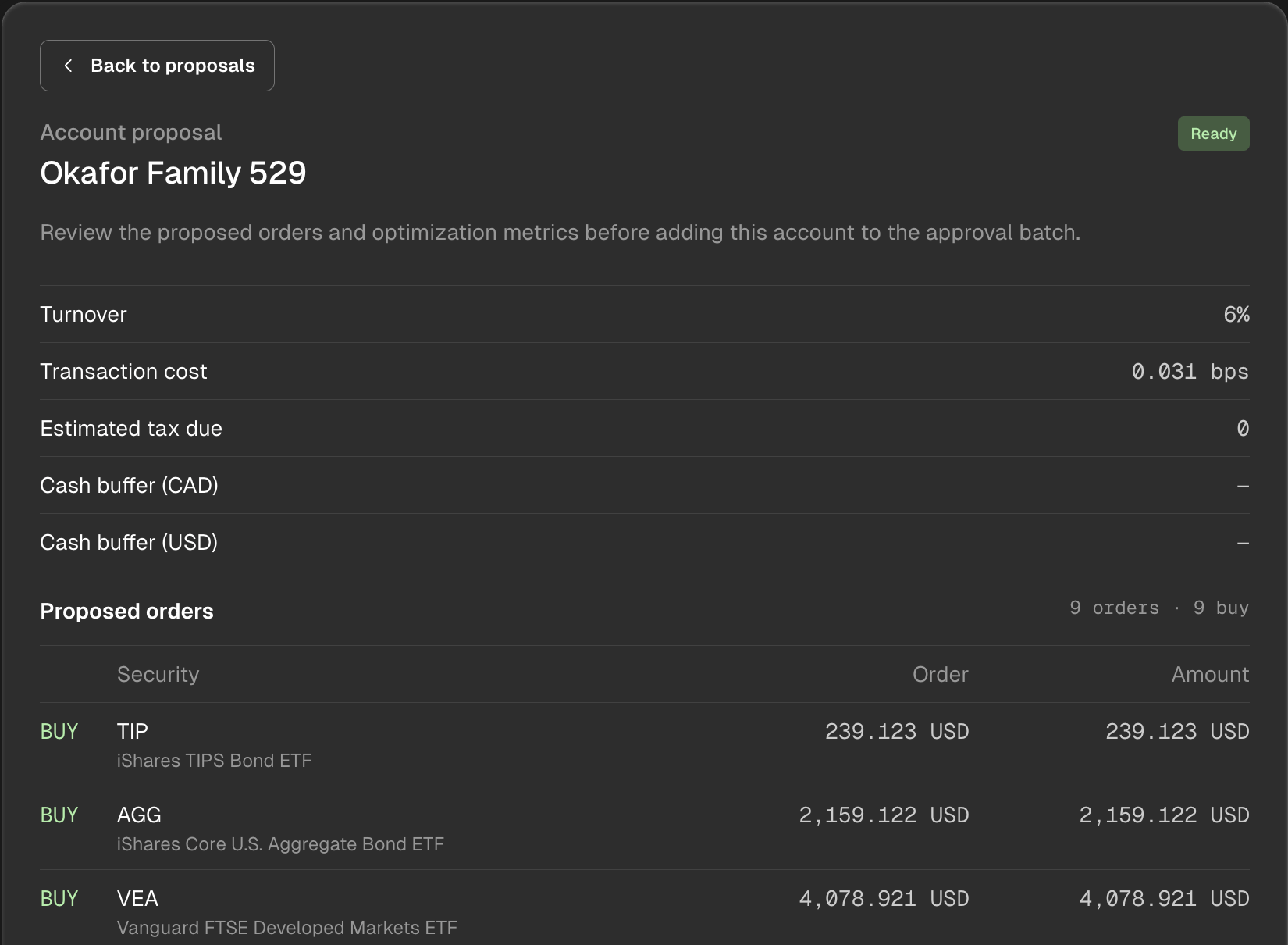
The Account proposal shows optimization metrics and proposed orders before batch selection.
Decide whether to approve proposals
Select only the ready proposals you have reviewed. You can select an account from its detail view or the review table; Select all ready includes every eligible proposal. Approve selected records approval for that batch. The review says explicitly that no trades will be placed, and a recorded approval shows its count and time. Accounts needing attention cannot be selected until their blocker is resolved.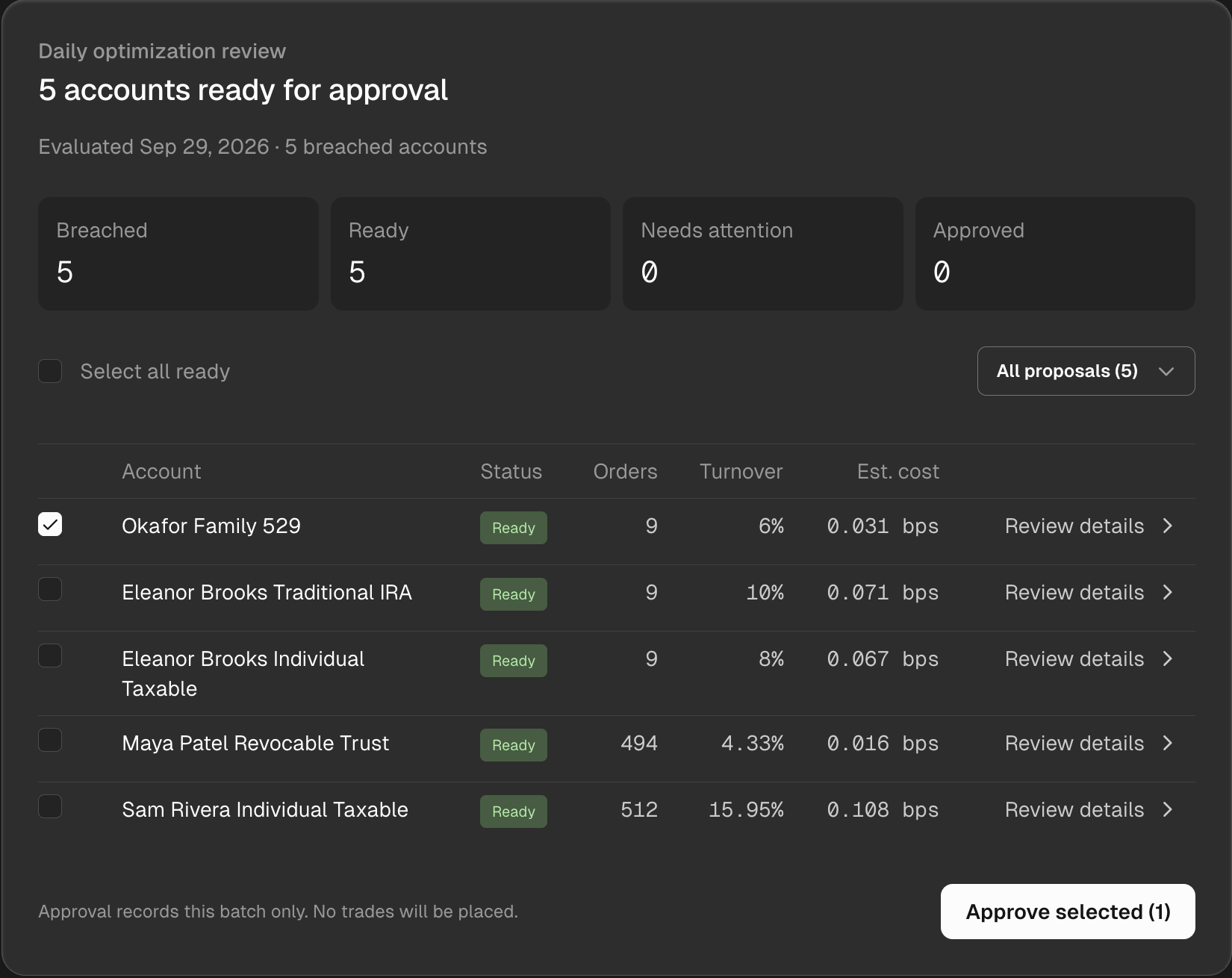
One ready proposal is selected for batch approval; the notice states that no trades will be placed.