

Who can do what
Your firm’s trade release rules can narrow who may send a particular proposal. Viewers see Read-only. You can inspect proposals and refresh their status.
1. Open the list
Open Trading and select To review if it isn’t already open.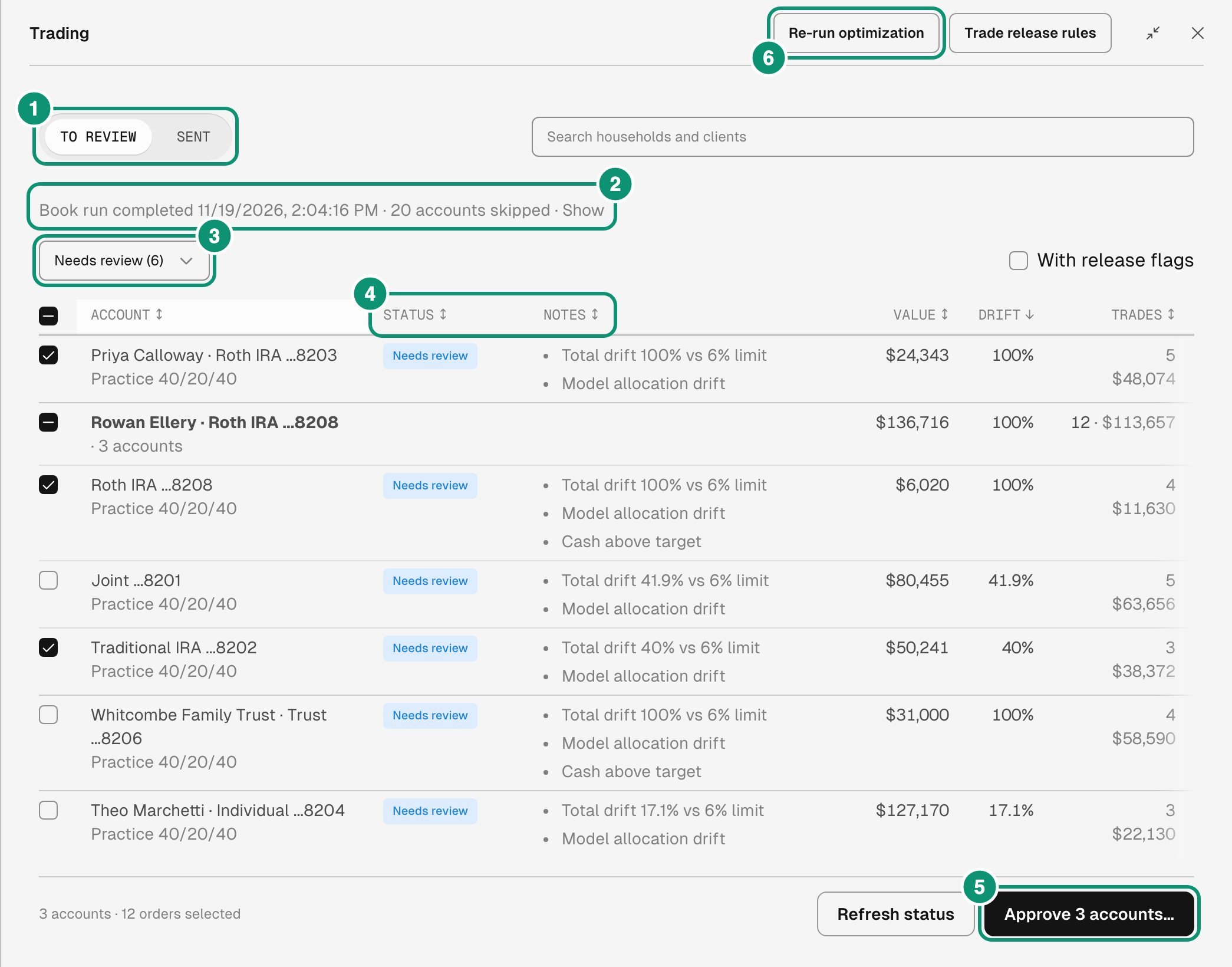
To review on a made-up firm, with three accounts selected.
- To review holds the proposals from the latest finished check. Sent, beside it, is a second list of every send and trade file your firm has made. A send is one approval’s trades on their way to the custodian.
- The line that begins Book run completed says when that check finished. Show lists the accounts it skipped. If a newer check is still running or failed, a notice names the check the proposals come from.
- The menu filters the rows. It opens on Needs review when any account needs review. Choose All to find any account the check listed, then read its Status and Notes to see what happened to it.
- Status and Notes are the columns to read first. The row also shows the Account with its model, and the proposal’s Value, Drift, Trades, Est. tax, and Est. cost. In a narrow window, scroll the table sideways for the last columns.
- The approve button acts on the rows you select.
- Re-run optimization makes new proposals.
2. Read Status and Notes, then act
Decide: Needs review
Needs review means the proposal is finished, has trades, and nobody has approved it. Notes say why the check listed the account, for example Total drift 41.9% vs 6% limit or Cash above target. Open the proposal, then approve it. Two kinds of note call for a closer look first:- A note that begins At current prices or This account has warns that the account’s cash may not cover its buys.
- A note that begins Release rule matched: names a release rule that flagged the proposal.
Fix: Needs attention and Skipped
Needs attention means something stopped the account, and Notes give the reason.
Other reasons name what to repair, such as the account’s link to its custodian account.
Skipped means the check couldn’t evaluate or optimize the account, so it has no proposal. Notes give the reason. Fix it when it’s yours to fix: for It has no model the optimizer can run., assign a model. The account is evaluated again at the next check.
Finish a trade file: Account paused
Account paused means a trade file that holds the account’s trades isn’t resolved yet. Tilt makes no new proposal for the account and takes no new approval until the file is. Select View trade file and finish the file’s steps. Other accounts keep trading, except accounts optimized together with a paused one.After a trade file: Exported
Exported means the account’s trades went into a trade file, and that file no longer pauses the account. Notes say where the file stands for this account, and View trade file under the note opens it.
To review lists the accounts of the latest daily check. Tilt matches a file’s trades when it imports the custodian’s next daily files, and it runs that day’s check straight after. A row that reads Execution accounted for is therefore soon replaced by the account’s row from the new check. After that, open the file from the Sent list to see how it ended.
The list reads each note when it loads. If someone cancels the file or records a submission report while you have Trading open, select Refresh status to see the new note.
Wait or follow
These rows need nothing from you on this list. Follow their sends on the Sent list.Nothing to do
3. Approve the accounts
- Select the checkbox of each account you want to trade. Accounts that are optimized together share one decision: select their grouping row’s checkbox to take them all.
- Select the approve button below the list. It reads Approve and send when the accounts send orders to your custodian, and Approve when they go to a trade file or the approval places no trades.
- Read the confirmation. It lists the accounts, the orders, and the buys and sells, and its note says whether Tilt places orders.
- Confirm.
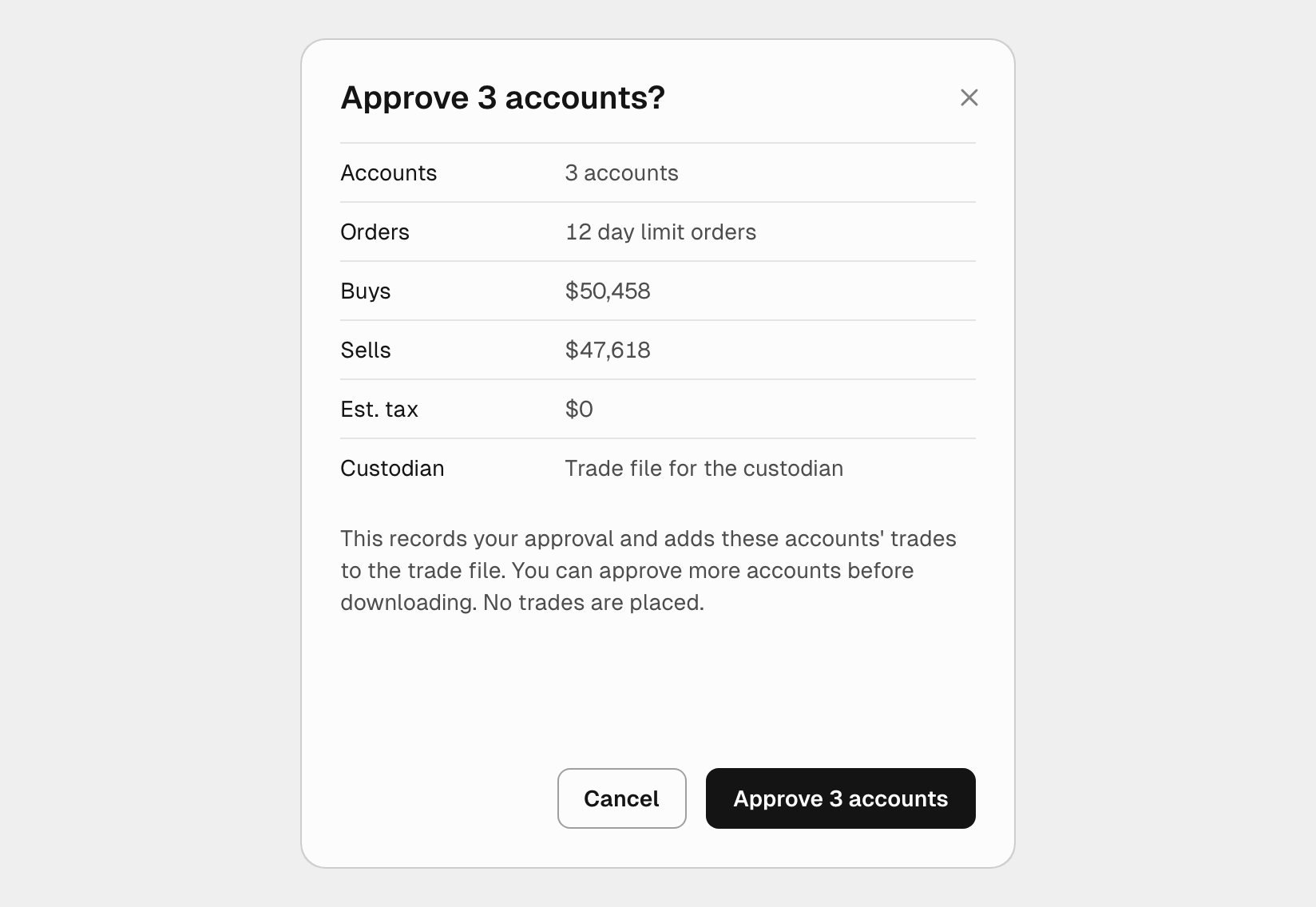
The confirmation for three accounts whose trades go to a trade file.
If Tilt refuses, the list says Approval was not recorded. with the reason, and reads the proposals again. These reasons need a step outside the dialog: