

Who can do what
Tilt Agent can’t link or unlink an account for you.
1. Open the list of custodian accounts
On Clients, select Link custodian accounts. The button appears for firm owners once the firm has a custodian connection.
Link custodian accounts sits in the Clients page's action row.
2. Fill the rows with suggestions
When Tilt has a suggestion for at least one account, Use suggestions appears beside Not linked. Select it. Tilt fills each row it can and leaves the rest for you. Nothing is linked yet.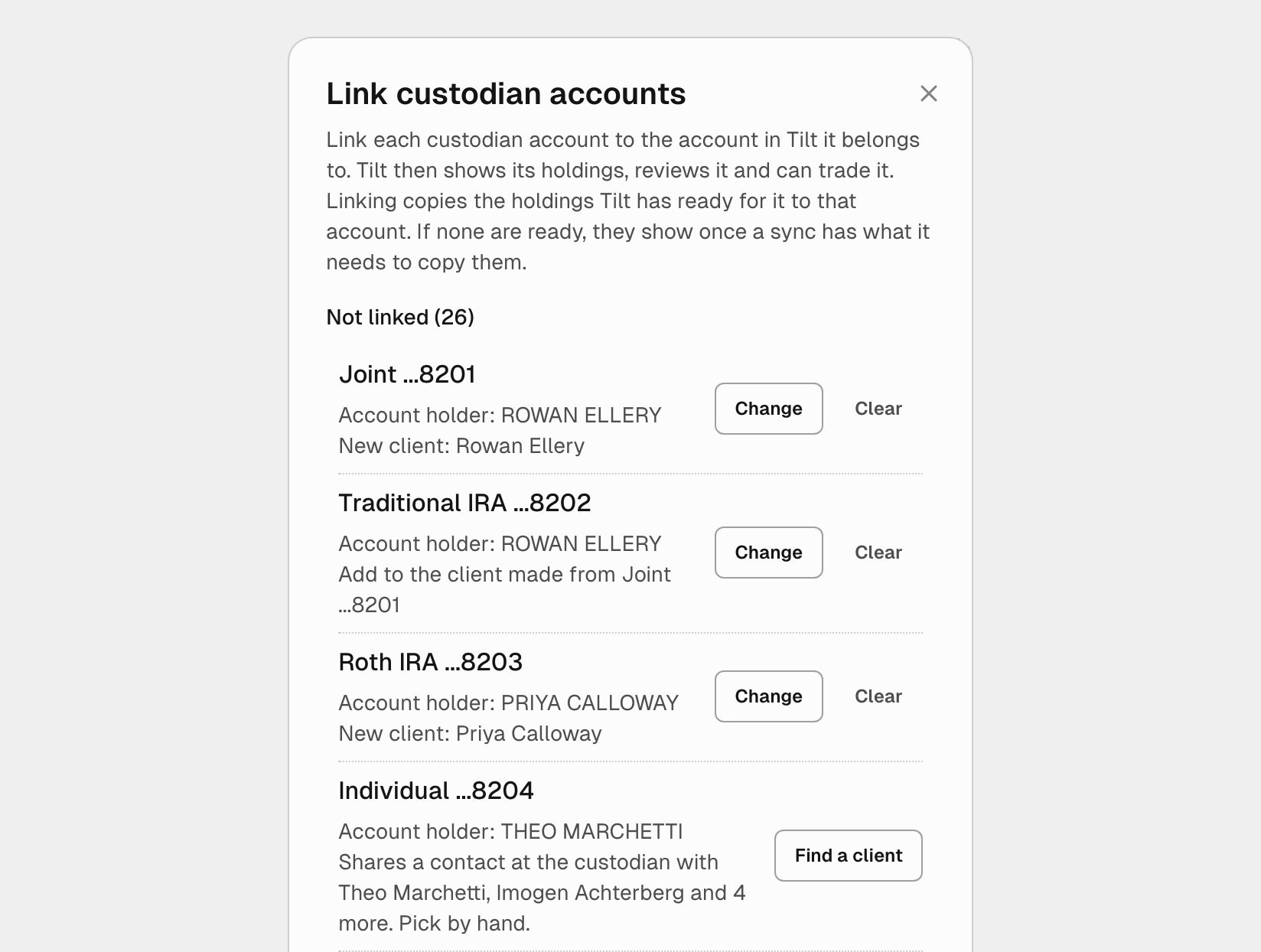
After Use suggestions on a made-up firm: three rows are filled, and Individual ...8204 waits for a pick by hand.
A row that reads Shares a contact at the custodian with some names, then Pick by hand., stays empty. Its contact belongs to accounts under more than one name, such as two spouses or a person and a trust, so you decide which client it goes to.
3. Pick a client yourself
Select Find a client on an empty row, or Change on a filled one. Clear empties a row.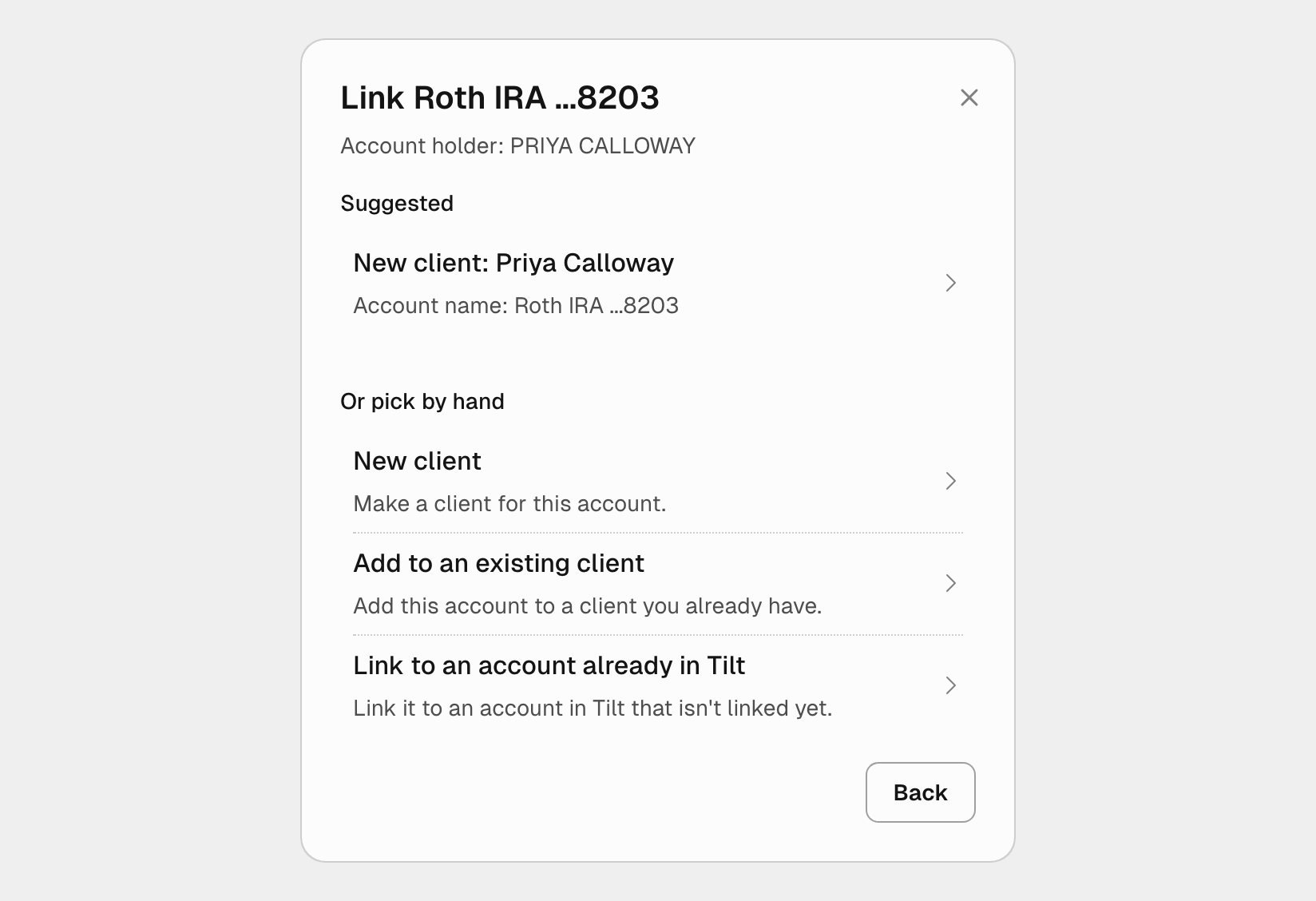
One account's choices: Tilt's suggestion, then the three ways to pick by hand.
Each pick returns you to the list. A search result can carry a note:
Tilt holds your picks only while the dialog is open. Closing it before you link drops them.
4. Link the accounts
Select the Link button, which names how many accounts you picked. Tilt links them one at a time, and each account moves to Linked as it is saved. If Tilt refuses one account, the others stay linked and the refused row says why. For each linked account, Tilt:- copies the holdings and cash it already has for the custodian account to the client’s account. If none are ready, they arrive with the next sync. For a Schwab files connection, that is the next business day’s files.
- takes the custodian’s tax type, unless you chose one for the account yourself.
- records the link, with any client and account it made, in History. See what History covers.
Set up the linked accounts
A linked account is monitored and reviewed like any other account, so it needs the same setup:- Assign a model to each account you want Tilt to manage.
- Set the firm’s monitoring values. Accounts use built-in drift thresholds until you set your own. The cash band is checked only after you set a Cash band watch for the firm, a model, or the account. If the Monitoring dialog shows Monitoring is off for the firm, the daily check doesn’t run for your firm until Tilt turns monitoring on.
- Review the accounts that a check finds over a limit on Trading, under To review. See Approve and send trades from Trading.
Trade an account an outside manager runs
A custodian can report that a manager outside your firm runs an account. Tilt shows that account’s holdings but proposes and sends no trades for it. On Clients the account carries a Locked tag, and the Trading section of its Setup tab reads Monitor only. If your firm trades the account itself:- Open the account and go to Setup, then Trading.
- Select Mark as traded by the firm.
- Under Why does the firm trade this account?, enter the reason.
- Select Mark as traded by the firm.
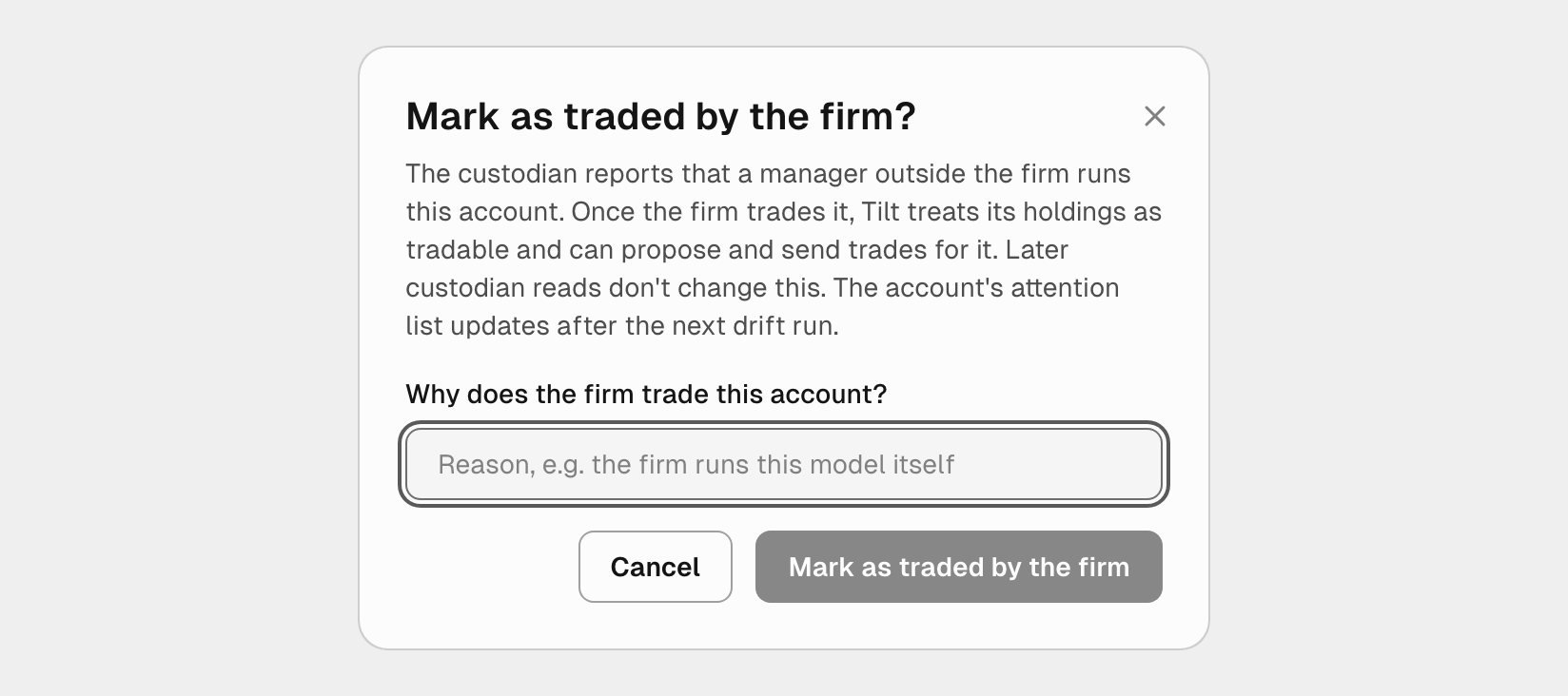
Tilt asks for a reason before the firm takes over trading of an account.
Unlink an account
On Clients, select Link custodian accounts. Under Linked, select Unlink… on the account’s row, then Unlink in the confirmation.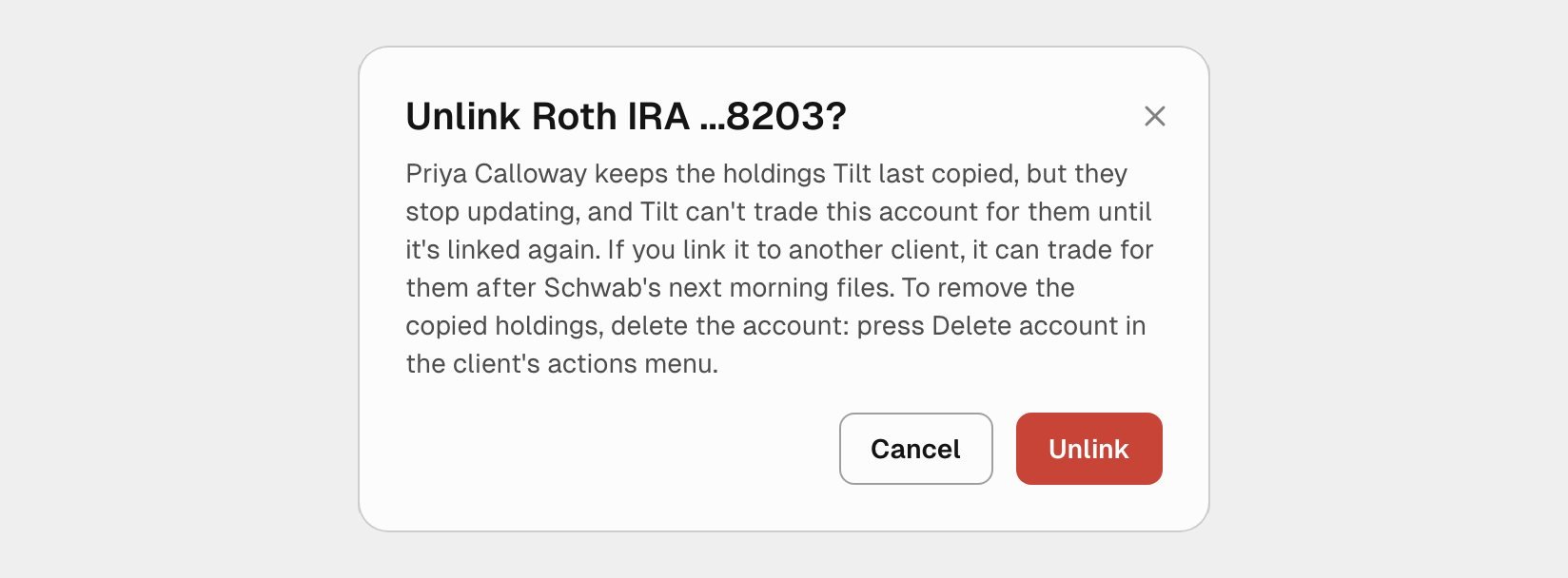
The confirmation says what the client keeps and what stops.
- the client and the account stay in Tilt, with the holdings Tilt last copied. The holdings stop updating.
- Tilt can’t trade the account for that client until you link it again.
- the custodian account returns to Not linked, ready to link to the same client or another one. On a Schwab files connection, an account you link to a different client can trade for them after the next morning’s files.