Fields hold single facts on your households, clients, and accounts, such as a review tier or an assigned advisor. Your firm keeps one list of fields, in the Firm page’s Setup. A field you add there appears on every record of the kinds you pick. Keep facts in fields covers setting a field’s value on a record. Firm owners and editors can add, change, and delete fields. Other members see the list.

See what each field holds and uses

Open the Firm page, select Setup, and select Fields under Firm records. Each row shows a field’s type, the records it goes on, how many of them hold a value of their own, and the rules and automations that use it. Use Search fields to find one by name.
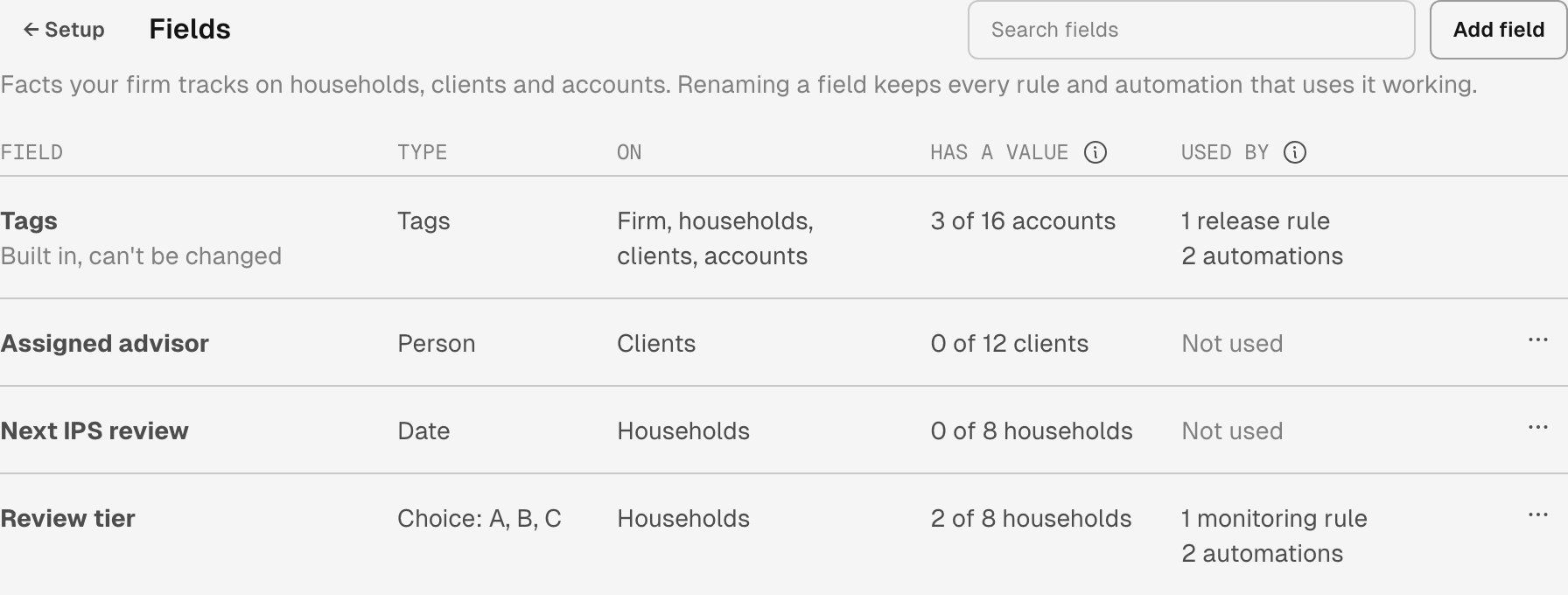
Fields in the firm's Setup, with Search fields and Add field. Tags is built in and can't be changed; 3 of 16 accounts have a value, and 1 release rule and 2 automations use it. Assigned advisor, a person field on clients, has a value on 0 of 12 clients and is not used. Next IPS review, a date field on households, has a value on 0 of 8 households and is not used. Review tier, a choice of A, B or C on households, has a value on 2 of 8 households and is used by 1 monitoring rule and 2 automations.

Review tier has a value on 2 of the firm's 8 households. A monitoring rule and two automations use it.

Has a value counts the records that hold their own value. A household’s value counts once, not again for each of its clients and accounts. Used by counts the rules and automations that read the field.

Add, rename, or delete a field

  • To add a field, select Add field. Name it, pick its type and the records it goes on, and list the choices for a choice field. The field starts empty on every record.
  • To rename a field or change its choices or records, open the field’s actions and select Edit. Rules and automations keep reading a renamed field. You can’t change a field’s type after you add it.
  • To delete a field, open the field’s actions and select Delete. Deleting a field removes its values from every record, and you can’t undo it. Each record’s History keeps the value it held, but Tilt can’t restore the field.
Tags is built in, so you can’t rename or delete it. You can still change the tags on any record. Each change waits in Queued changes until you select Apply firm changes, and the firm’s History records it. If Tilt can’t apply a change, such as removing a choice that records still hold, the change stays queued with the reason.

Delete a field something uses

You can’t delete a field while a rule or an automation uses it. Delete lists each one instead. Select a monitoring rule or a trade release rule to open it in Setup, or select one of your own automations to open it. Change each one so it no longer reads the field, then delete the field.
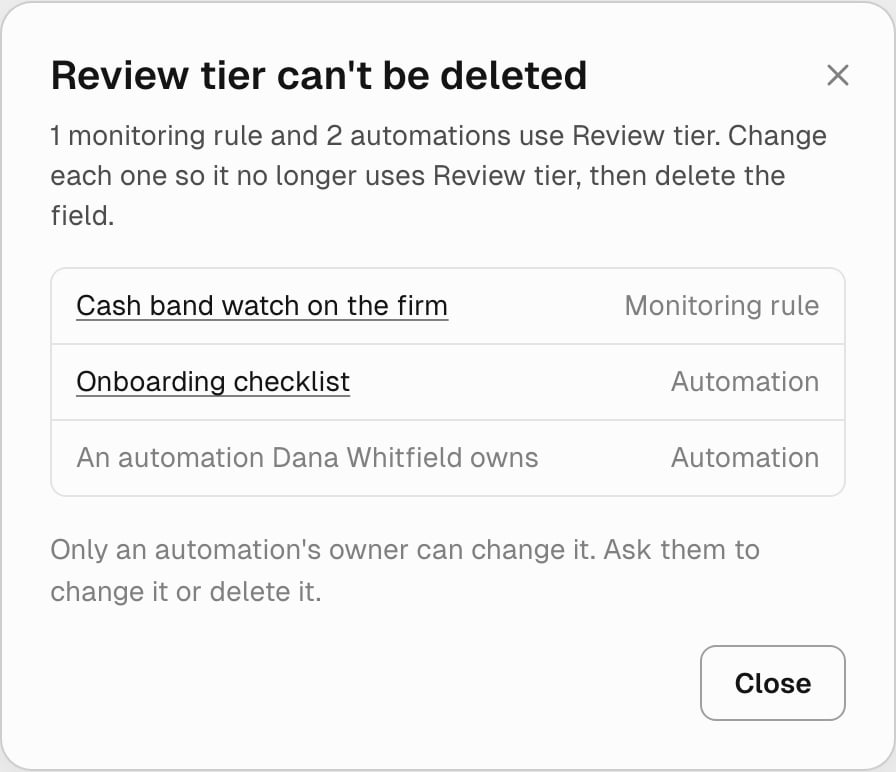
A dialog titled Review tier can't be deleted. It says 1 monitoring rule and 2 automations use Review tier, and to change each one so it no longer uses the field. It lists Cash band watch on the firm, a monitoring rule, and Onboarding checklist, an automation, each as a link, and An automation Dana Whitfield owns. Below the list: Only an automation's owner can change it. Ask them to change it or delete it.

Review tier can't be deleted while a monitoring rule and two automations use it.

A rule that names a field still uses it when the rule is turned off, so change or remove the rule itself.
  • Trade release rules and the firm’s Setup rules and constraints. You can change these and delete the field in one apply. Queue the rule change first. Delete then shows that rule crossed out, with Stops using it when you apply, and lets you queue the delete. Tilt applies your rule changes first and deletes the field after them.
  • A firm monitoring watch. You can change a watch’s values in Setup, but not an entry’s condition. Ask Tilt Agent to change or remove the condition, apply its change review, and then delete the field.
  • A model’s or an account’s own rules. These block the delete until you apply their change. Then delete the field.
  • Automations. An automation belongs to the person who made it, so a colleague’s automation shows only who owns it. Ask them to change it or delete it. Turning an automation off doesn’t stop it using the field.

Ask Tilt Agent

Tilt Agent can add a field, and it can rename, change, or delete one through a change review that you apply. It won’t prepare a delete for a field something uses. It names what uses the field instead and can prepare the rule changes first. Ask it “What fields do we track?” to see each field with its values and uses.