

1. Add a rule as an organization owner
Open Settings, then Firm settings > Trading & costs > Trade release rules. Only organization owners can edit these rules. Add a rule and give it a name that explains why the proposal needs attention. Choose a condition, set any threshold or lookback, and use Add AND condition to combine conditions. Use the condition reference to check each measurement and its coverage. All conditions within a rule must match. If you combine security-trade conditions, the same security and direction must satisfy them. Account conditions can combine with that qualifying trade. For example, a rule for a trade over $100,000 AND over 5% of its security’s average daily dollar volume does not match when one ticker meets only the dollar threshold and another meets only the volume threshold.2. Choose who can send flagged proposals
Under Eligible organization members, select at least one current member per rule. Selected members still need trading permission. Owners cannot bypass a rule.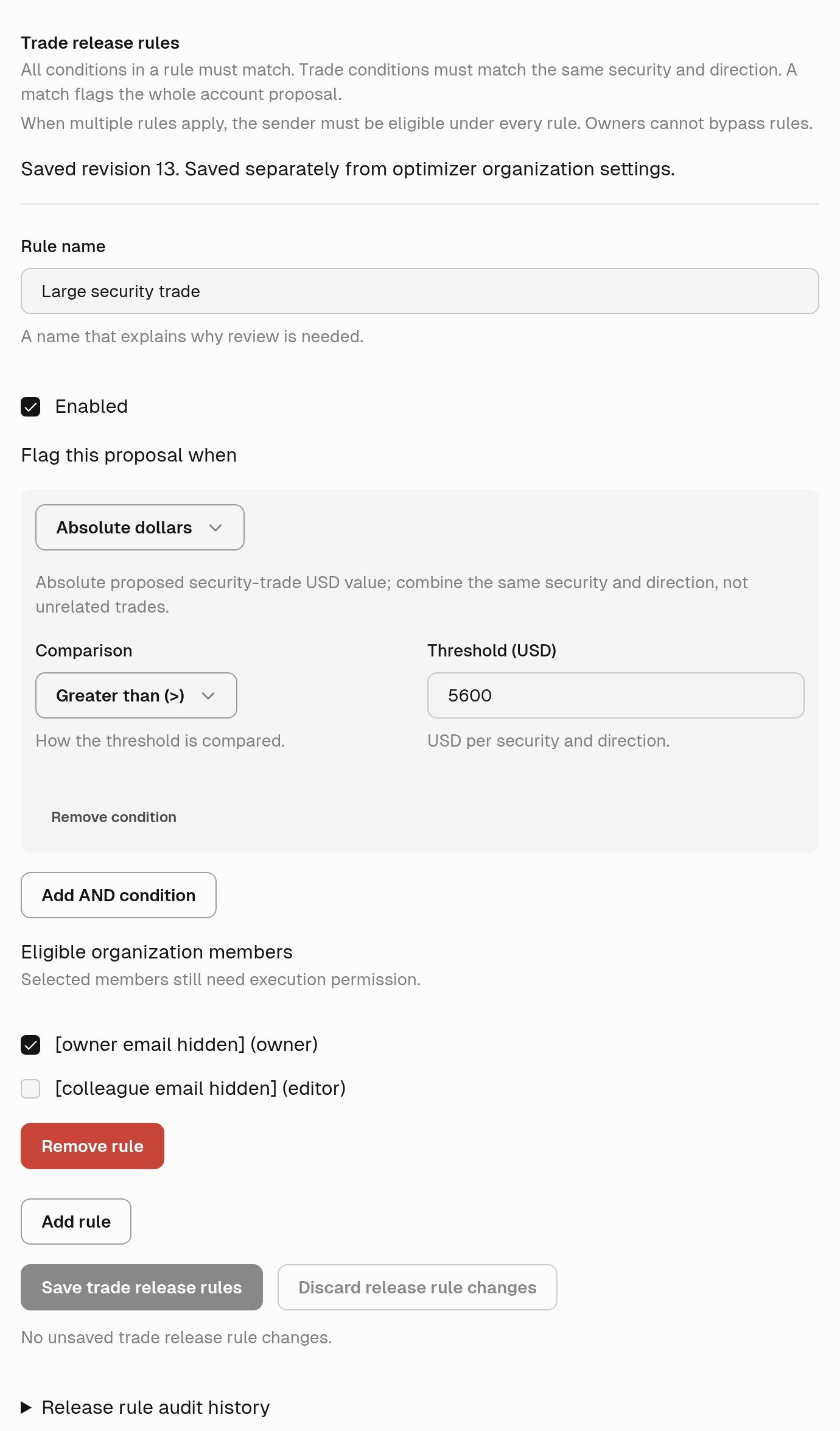
A saved rule in a demo firm flags security trades over $5,600 and limits sending to the selected member. Test-account emails are hidden.
3. Review and save the policy
Check each rule’s Enabled setting, conditions, and eligible members, then select Save trade release rules. These rules save separately from the other firm settings on the page. Check overlapping rules together so the intended sender remains eligible. Tilt retains who changed the rules and the before-and-after configuration. You can also ask Tilt Agent for a change review before saving:Show me a Change Review for our firm’s trade release rules. Add a rule named Large trades for security trades greater than $100,000, with Tyler as the eligible sender. Preserve the other rules. Show the complete policy before and after, and do not apply it yet.Ask for the review explicitly. Check that it covers the right firm and shows the complete policy, including unchanged rules, conditions, and eligible members. Apply replaces the firm’s complete release policy and requires an organization owner. If someone changed the saved policy after preparation, request a fresh review. Saving a policy does not send trades. Follow Review a rebalance to inspect flags and make a separate send decision.