Use History to investigate a change to a client account, review who acted, and follow the conversation behind it. History also appears on client, household, and model pages.

1. Open History for the right scope

Open Clients, find the client or household, and choose the scope you want to review. Then select History. Check the name above the view before interpreting a row. An entry appears on the objects it concerned when it was recorded. Moving a client to another household does not move earlier entries to the new household.

2. Read the row

History lists the newest entries first, grouped by day. Dates and times use your browser’s local time zone. Scroll down to load older entries automatically. On a wide screen, read the columns from left to right:
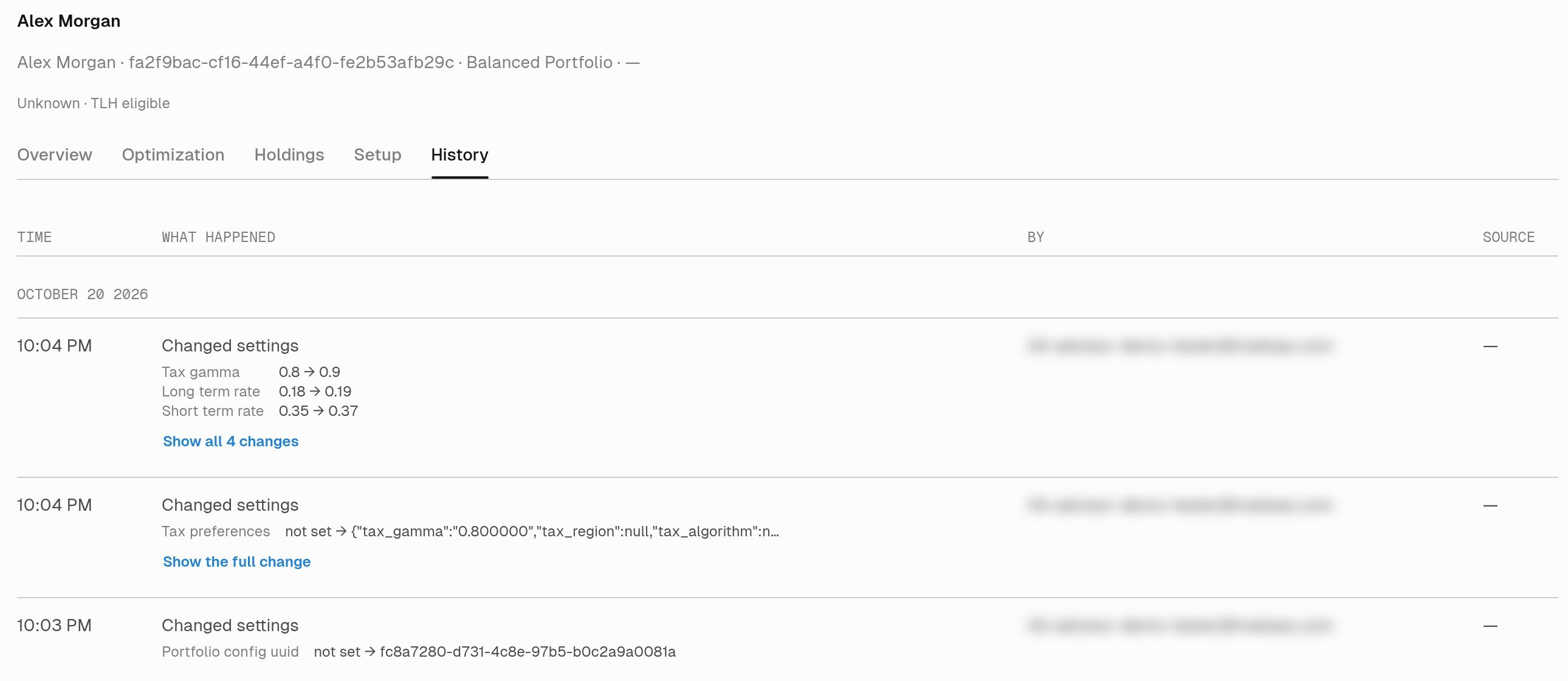
Alex Morgan account with History selected. The table shows Time, What happened, By, and Source. The latest Changed settings row lists three tax fields and a Show all 4 changes button. Source shows a dash for these direct app changes.

History for the synthetic Alex Morgan account. The latest entry has four changed fields; three appear in the compact row. Advisor email addresses are blurred.

On a narrow screen, the same information appears as a list under each day. Conversation links read From a conversation. If the view says No history yet., there are no recorded entries for that scope. See History coverage before treating an empty view as evidence that nothing happened.

3. Inspect every changed field

Under What happened, select Show all N changes when the row contains more fields than it displays. If a value is shortened, select Show the full change or Show the full changes. The row expands in place to show every listed field with its complete Before and After values, including multiline lists and objects. not set means the value was absent or empty; switches read on and off. Select Show less to return to the compact row.
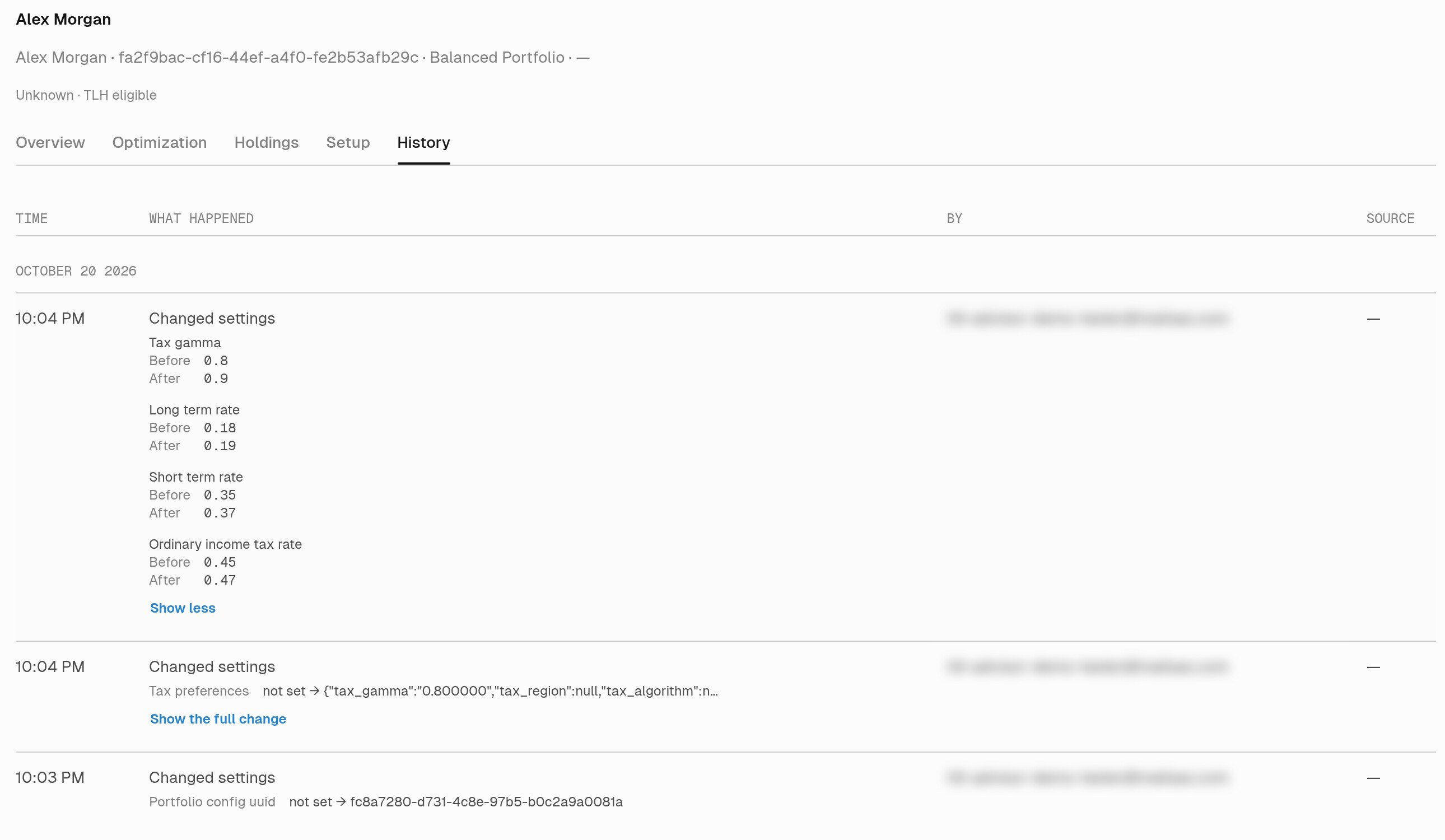
Expanded Alex Morgan History entry showing Before and After values for Tax gamma, Long term rate, Short term rate, and Ordinary income tax rate, followed by Show less. Advisor email addresses are blurred.

The expanded entry reveals the fourth field, Ordinary income tax rate, changing from 0.45 to 0.47. Show less returns to the compact row.

A proposal or automation entry can describe a decision or outcome without listing changed settings. Read the action as well as any field values. For example, An automation ran, no changes records a completed check that made no changes.

4. Open the conversation behind the change

Select Conversation in Source, or From a conversation in the narrow layout. Read the request and review discussion alongside the row’s saved changes. An entry remains visible even when you cannot open its conversation. In that case, the table says Private conversation; the narrow layout says From a conversation you don’t have access to. History does not grant access to the conversation. A dash in Source does not mean the action had no cause; direct app actions and system jobs need not have a conversation. For supervision, check what History records and what it leaves out. To review the trade decision itself, follow Review a rebalance.