

1. Open Monitoring in Firm Setup
Open Firm in the left sidebar, then Setup. Under Defaults for models and accounts, select Monitoring. The dialog shows the firm’s four watches:
Monitoring policy management lives in Firm → Setup. Use Automations for scheduled assignments and their signals.
2. Edit firm values
Select a watch in the Monitoring dialog to edit its firm limits in the focused editor. The watch list shows each watch’s status and, on wider screens, its current values. Switching watches keeps your queued edits. If the firm has no policy of a type, select Set firm values to start one. When the dialog shows Monitoring is off for the firm, you can still edit the watches, and they run once Tilt turns monitoring on for the firm. Select Done to return to Setup. Your edits stay in Queued changes, alongside other firm setting changes. Open the queue, review each watch and its values, then select Apply firm changes to save. Changing a field or selecting Done alone does not save the policy. Applying a change doesn’t start a check, so new limits apply from the next daily check. For a model or account override, select Manage overrides under that watch. The Overrides tab lists the models and accounts with their own policies. Search by name and select a row to edit it, or select Add override to create one. Check the account and client names before editing. Edits on this page have their own Queued changes and Apply action. For a policy with conditions or schedules, edit each entry’s values in the manual editor. Applying those edits preserves the entry’s conditions, schedule, dates, and priority. Use Tilt Agent to change which conditions or schedules apply.3. Inspect the effective policy with Tilt Agent
Ask Tilt Agent: “Show the cash-band monitoring policy for Taylor Morgan’s account, including any portfolio or organization policy it inherits. Do not change it.” Read the scope of each returned policy. In this demo, Taylor’s account has no explicit override for these policy types, so the organization policies apply.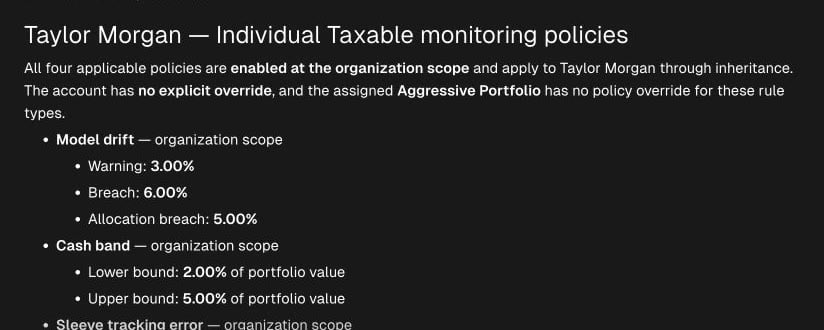
Tilt Agent shows the applicable monitoring policies and their organization scope for Taylor's account.