

Who can do what
Tilt Agent can’t download a trade file or record a submission for you.
1. Approve the accounts
On Trading, under To review, select the accounts and approve them. The confirmation shows Custodian as Trade file for the custodian. Approving adds the accounts’ trades to the file your Schwab connection is still collecting. You can approve more accounts into that file until someone downloads it. A notice above the list then reads This trade file is ready to download and submit at Schwab. To find the approved accounts, choose All in the menu above the list. An account whose trades went into the file has the status Account paused.If trades stay out of the file
Each account needs Schwab’s files for the last trading day before today. If Tilt doesn’t have them when you approve, it records the approval and keeps that account’s trades out of the file. The account’s row reads Needs attention with a reason such as Tilt does not have this account’s Schwab files for Monday, November 9, which trades sent today need., and a notice above the list reads Trade file not generated. Approving again doesn’t help. Once Tilt has imported those files, select View file details in the notice and then Export to try the waiting trades again. When the daily check runs explains when the files arrive.2. Download and freeze the file
- Select View trade file in the notice, or open the row that begins Trade file on the Sent list.
- In Download the trade file, select Download trade file.
- Read Download and freeze?, then select Download and freeze.
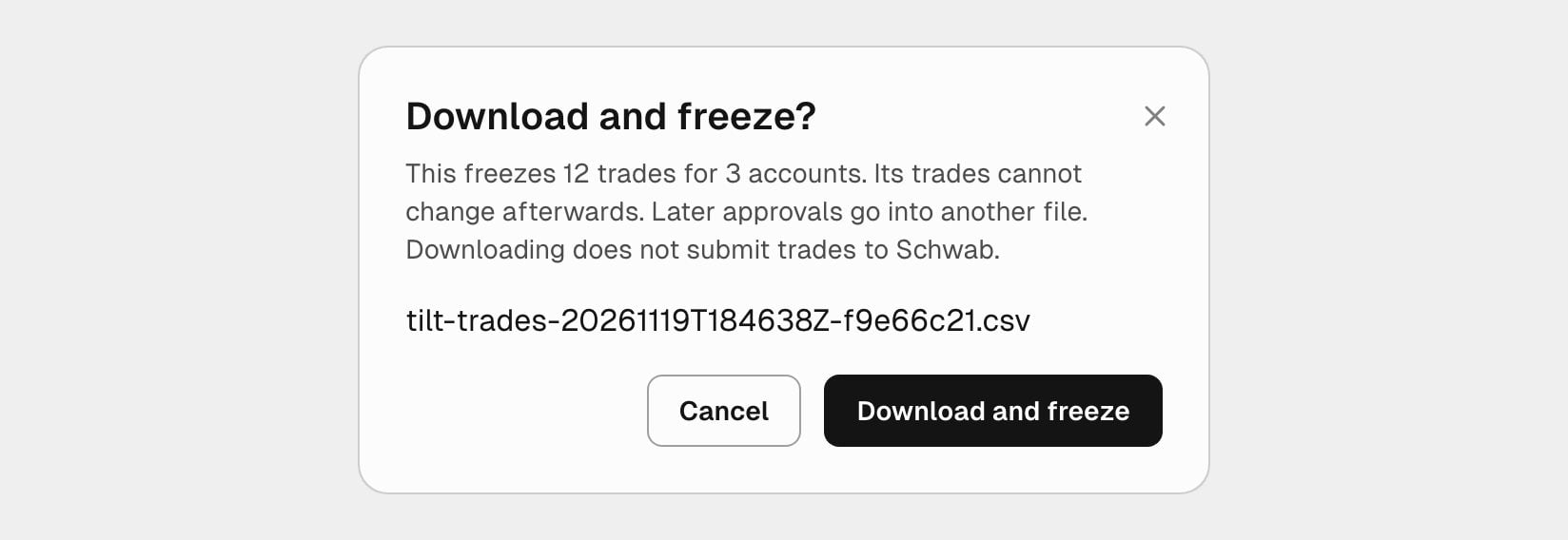
The first download freezes the file.
3. Submit the file in Schwab
Submit in Schwab on the file’s page lists the steps to take in Schwab Advisor Center: import the file, review each order and its lot instructions, validate, then submit.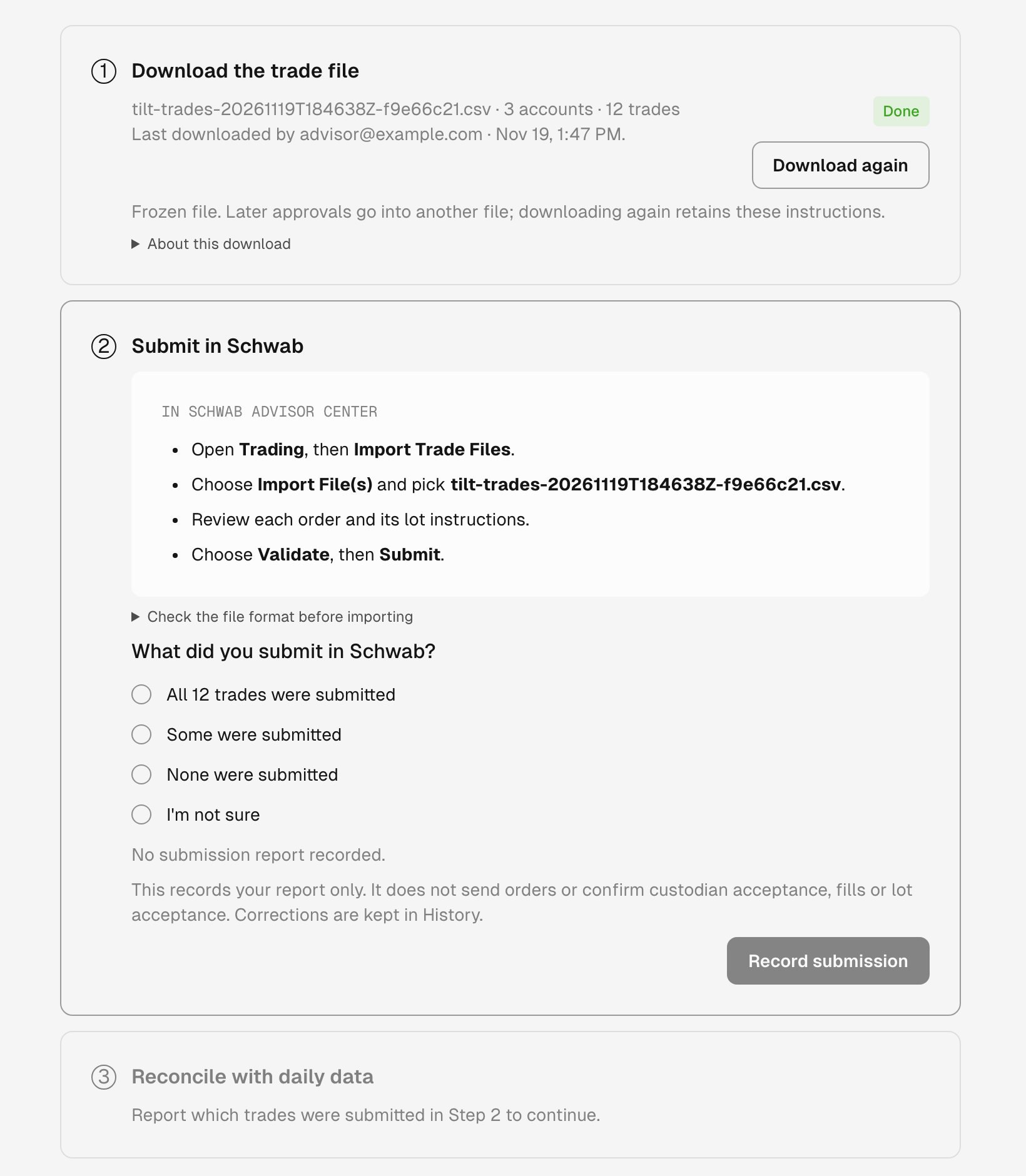
A downloaded file, waiting for you to submit it in Schwab and record the result.
4. Record what you submitted
Under What did you submit in Schwab?, pick one answer and select Record submission.
The report records your answer only. You can change it later with Correct submission report, and History keeps each correction.
Decide each rejected trade
After a Some report, Fix rejected trades lists the trades you marked Rejected. Decide each one:- To record that the trade won’t be placed, select Drop, give a reason, and select Record drop.
- To trade the account again, select Return for a new proposal. When no unresolved file still holds the account, select Optimize on the account’s Optimization tab, then review and approve the new proposal.
5. Let Tilt reconcile the trades
Tilt compares each submitted trade with the trade activity in Schwab’s daily files. Schwab delivers a trading day’s files the next morning, so a fill usually shows the morning after it happens. The third section’s heading reports where the file stands: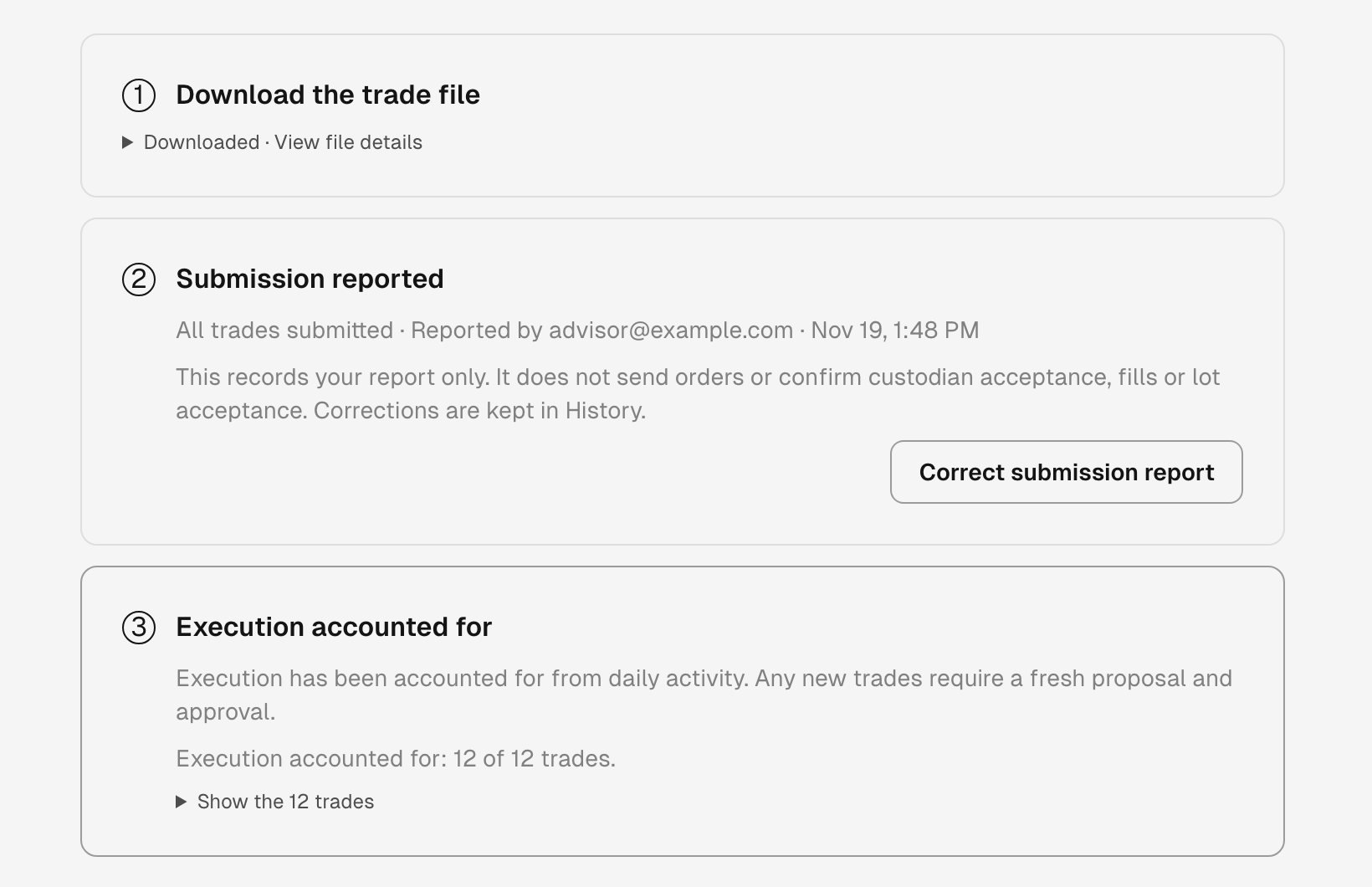
Every submitted trade is accounted for, so the file's accounts can trade again.
While an account is paused
An account in an unresolved trade file shows Account paused on Trading. Tilt makes no new proposal for it and takes no new approval, and you can’t unlink it. Other accounts keep trading, except accounts optimized together with a paused one. The pause ends when Tilt has accounted for every trade you submitted for the account, when you report None were submitted, or when you cancel the file. After a Some report, each rejected trade also needs a decision. After the pause, the account’s row on Trading reads Exported until the next daily check replaces the list, and its Notes say how the file ended for that account. An account also stays paused while one of its trades isn’t settled, for example while a good-‘til-canceled order is still open at Schwab, or while Schwab shows more activity for a trade than you reported. Check the order in Schwab first, and correct the report only if it misstates what you submitted. Changing an accurate report can end the pause while an order is still live.Cancel a trade file
Before any submission report, you can close a file without trading:- On the file’s page, select Cancel trade file….
- Read Cancel the trade file?, then select Cancel trade file.