

With both rules on, members do both: they sign in with a passkey and also enter a two-step code. A passkey is a way to sign in, so it never counts as the two-step code.
Every firm starts with both rules off. Only an organization owner can change them, and the owner passes the same check before Tilt saves a new rule, so the owner can’t lock themselves out.
1. Choose the rules
Open Settings > Security in your firm. Security appears under Organization in the Settings menu. Members who aren’t owners see each rule read-only, with Only an organization owner can change this.- To require a passkey, check Require a passkey to sign in to this firm (Touch ID, Face ID or a PIN) under How members sign in.
- To require two-step sign-in, check Require two-step sign-in under Two-step sign-in, then choose the Allowed methods: Authenticator app, Text message, or both. Tilt starts with Authenticator app, and at least one method stays checked.
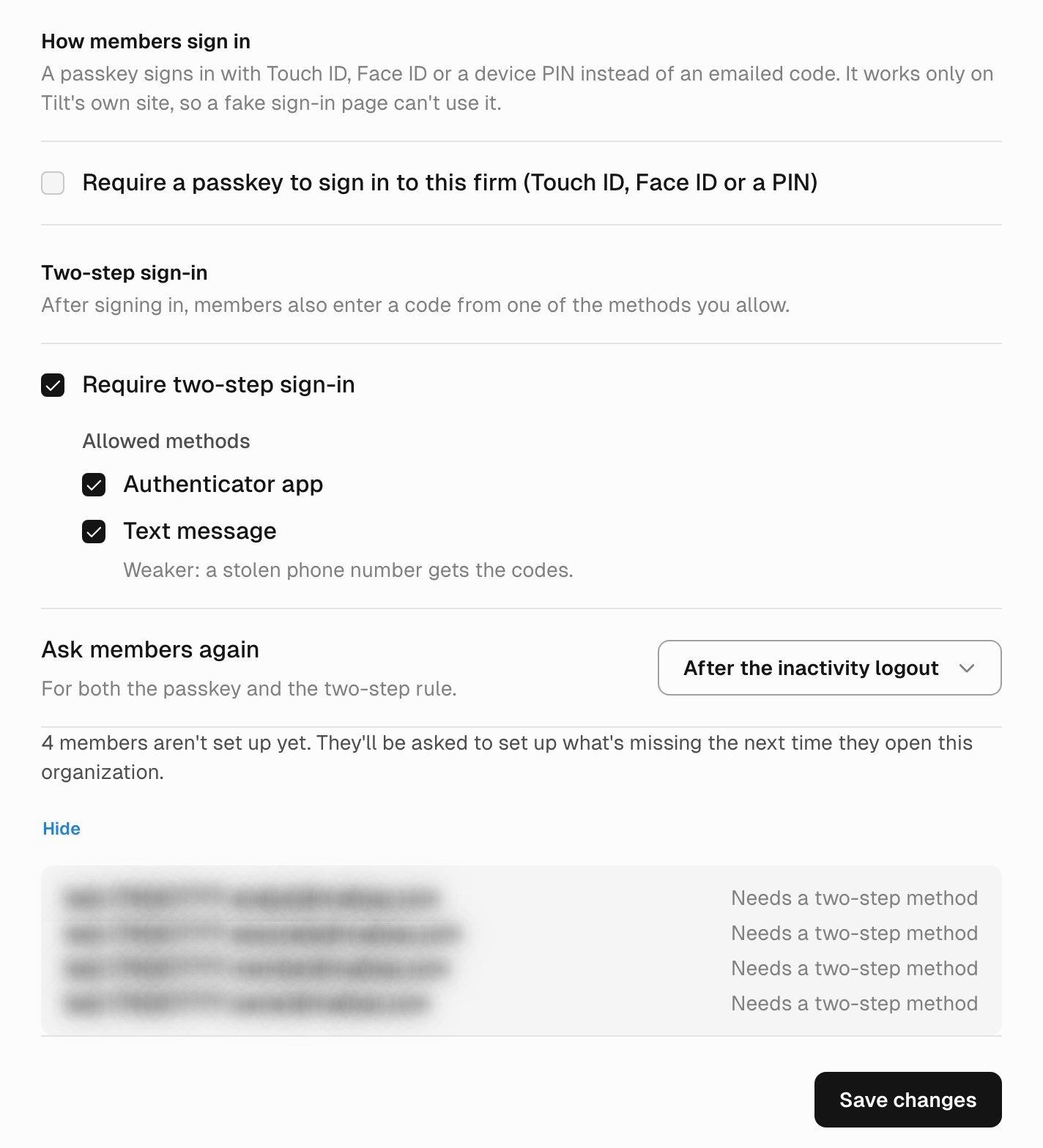
An owner turning on two-step sign-in for a demo firm, Maple Ridge Advisors, before saving, with See who open. Test-account emails are blurred.
Ask members again
Ask members again sets how long a member’s passkey or two-step check counts before the firm asks for it again. It covers both rules.
Coming back after the inactivity logout always asks again. While the inactivity logout is Off, After the inactivity logout isn’t offered, so choose Every 24 hours or Every 7 days.
Each sign-in has its own checks. A member who signs in on a second browser, or in Tilt for Mac, confirms it’s them there too.
See who isn’t set up yet
While either rule is checked, the page counts the members who don’t have what the rules on the page need, for example 4 members aren’t set up yet. Select See who to list them by email, each with what they need: Needs a passkey, Needs a two-step method, or both. The count follows the page as you change the rules, so you see who a change affects before you save it. Every member is set up. means nobody is missing anything. Only methods set up for this firm count. The first time a rule goes on, every member shows as not set up, you included.2. Confirm it’s you and save
Select Save changes. Before Tilt saves a rule you’re turning on, or a change to the allowed methods, it asks you to pass a check the new rule accepts, for this firm, in the last 10 minutes. The page runs the check in place:- Require a passkey: add a passkey for the firm with Add a passkey, or use the one you have.
- Require two-step sign-in: set up an allowed method for the firm with Set up an authenticator app or Set up text message codes, or enter a code from the one you have.
What members see
The next time a member opens the firm, Tilt shows the firm’s sign-in page instead. It asks them to add a passkey or set up two-step sign-in for the firm, starting with a code Tilt emails them, or to confirm it’s them with a method they already set up. Right after they sign in to Tilt, the same page asks for the firm, with Not now to skip it until they open the firm. Sign in to a firm that requires a passkey or two-step sign-in walks members through it. Methods belong to one person in one firm. A member’s authenticator app, phone and passkeys for your firm never count at another firm, and theirs from another firm never count at yours. When you turn a rule off or stop allowing a method, members keep the methods they set up. They can remove them in Settings > Sign-in methods. If you turn the rule back on, those methods count again.Reset a member’s lost device
While your firm requires a passkey or two-step sign-in, or members still have methods for it, Members’ sign-in methods on the Security page lists each member’s passkeys and two-step methods for your firm: the kind of method, a passkey’s name, when it was added and last used, and the last two digits of a phone. A member without what the rules need shows Not set up. Methods a member set up for another organization never show here. To reset a member who lost their device:- Select Reset beside the member.
- Read the dialog and select Reset. If you haven’t confirmed it’s you in the last 10 minutes, Tilt asks first: with a code from your email when the firm requires neither rule, otherwise with your own method for the firm.
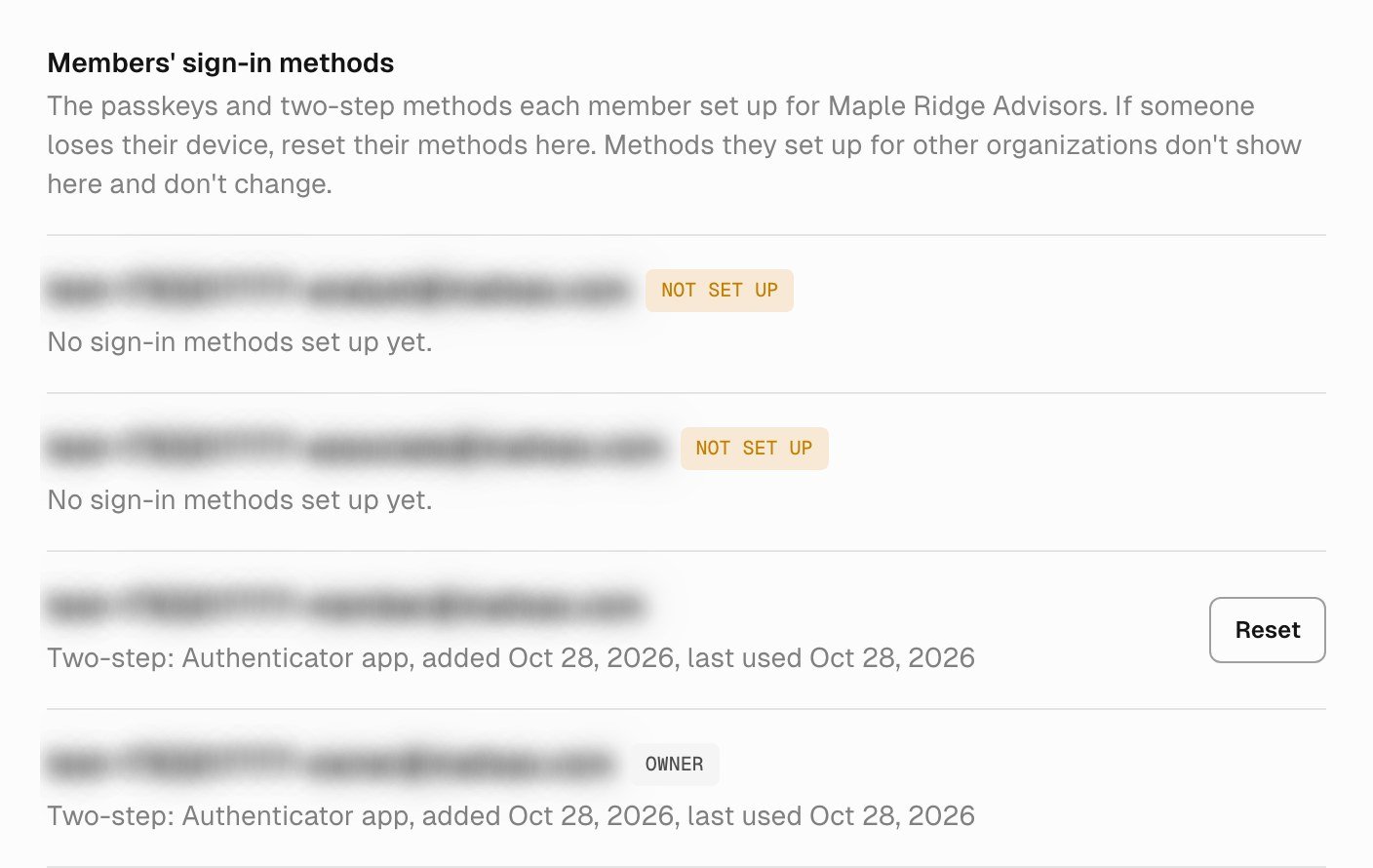
Members' sign-in methods in Maple Ridge Advisors. Test-account emails are blurred.
If you’re the firm’s only owner
You can’t reset your own methods. Another owner of your firm can. If you’re the only owner and you’ve lost the device with your methods, contact Tilt support. Tilt support resets your methods for this firm only, the firm’s History shows Tilt support as who made the reset, and Tilt emails you about it.API keys, connected apps and Tilt Agent
The rules apply to people signed in to Tilt. These keep working in the firm whether or not a member meets the rules:- Requests made with a Tilt API key.
- Apps already connected to Tilt, such as Claude or ChatGPT.
- Automations and other background jobs.
- Tilt Agent replies that had already started.