

1. Find models with customized accounts
Open Models in the sidebar. The Configurations column summarizes each model: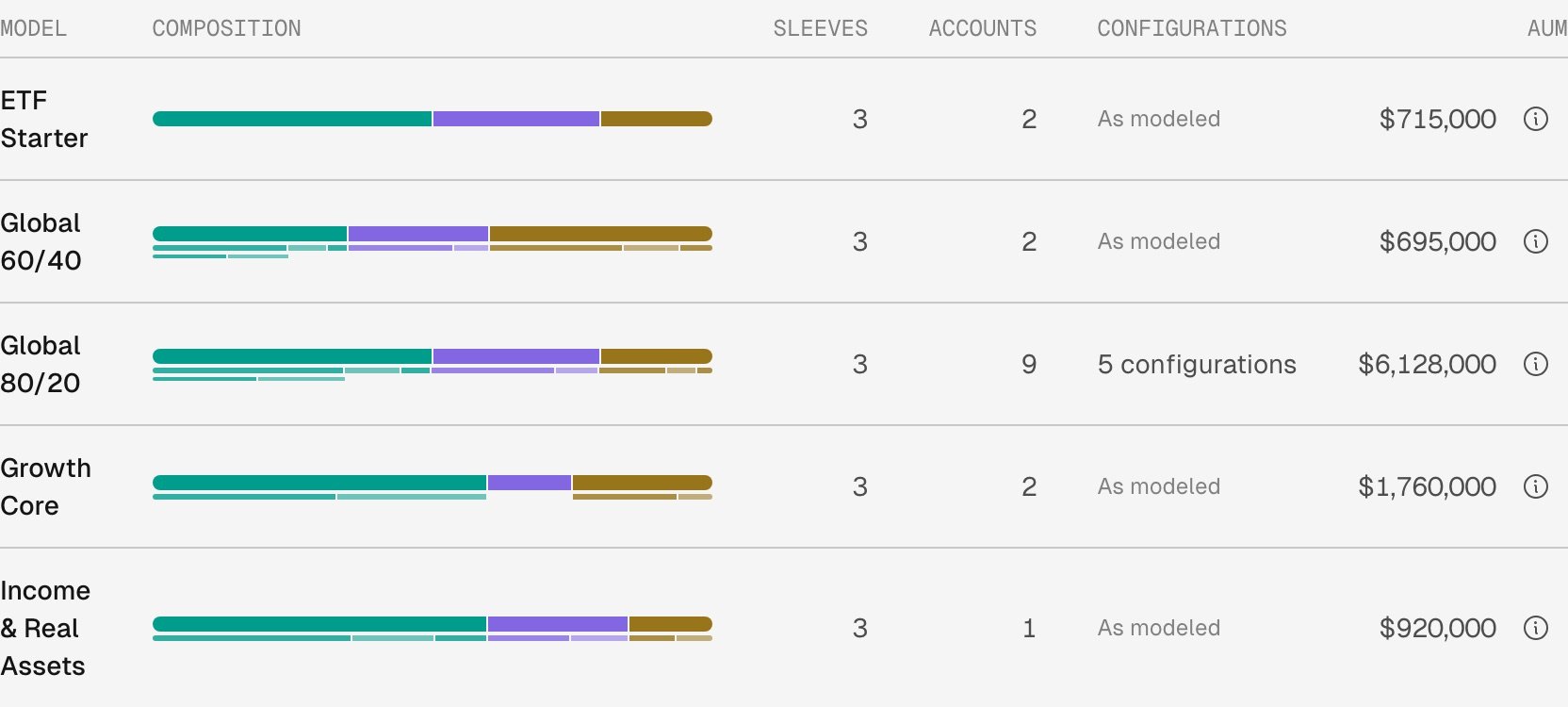
Global 80/20's 9 accounts form 5 configurations. The other models' accounts all follow their models.
2. Read the groups
Configurations sits below the Allocation tree. As modeled comes first. The other groups follow, the largest number of accounts first, then the largest value. Each group lists the sleeves it changes and what its accounts set there, with its account count, its value, and a bar for its share of the model’s value.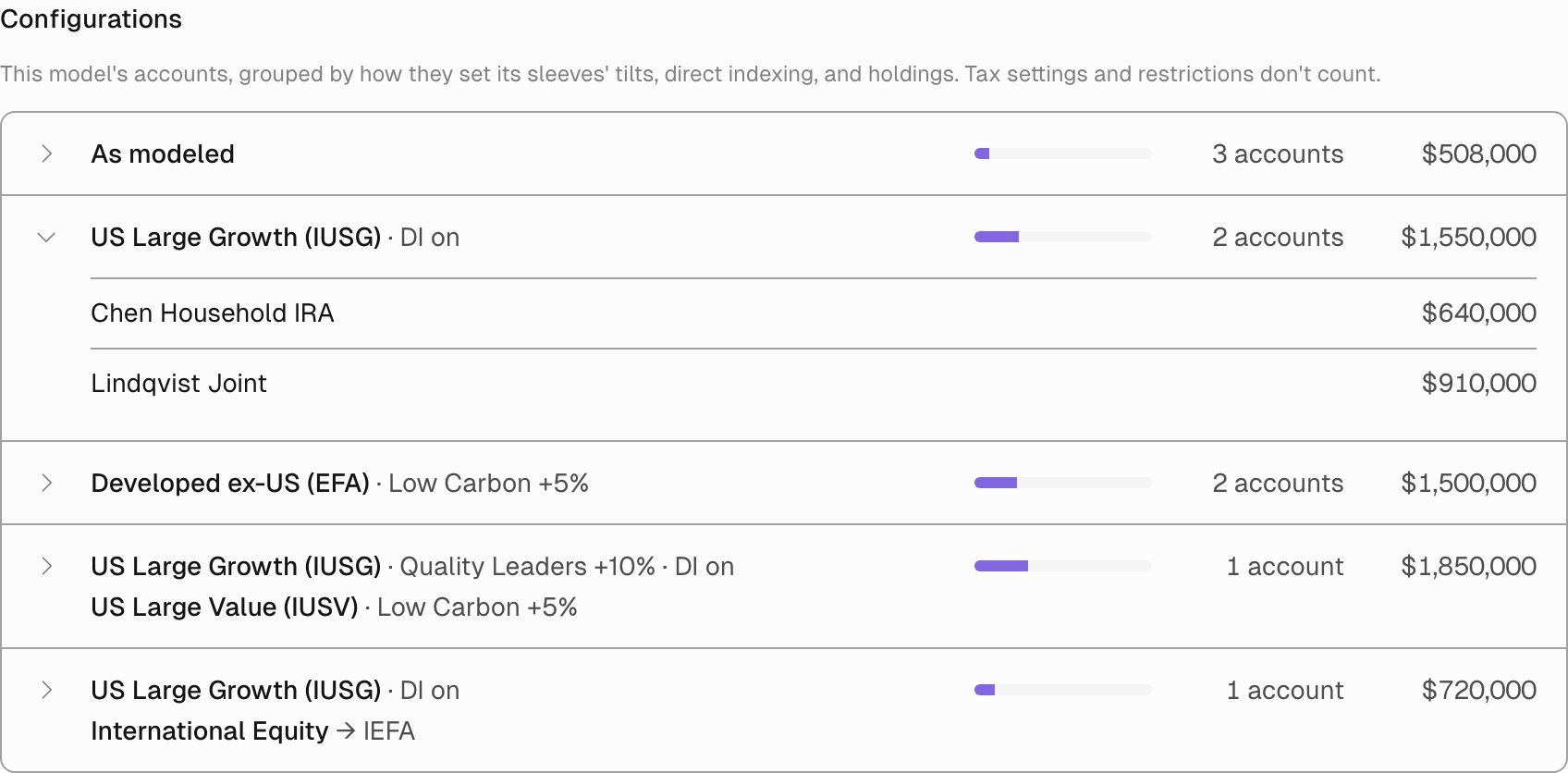
Global 80/20's five configurations, with the US Large Growth direct indexing group open to its two accounts.
Hover over a sleeve name to see its full place in the model, such as US Equity › US Large Cap › US Large Growth (IUSG). Select a group to list its accounts, then select an account to open its Setup.
3. Check one sleeve
The Allocation tree adds a Customized in column when any account differs from the model. A sleeve’s count opens a list of the accounts that customize it, each with its change, under the model’s own setting. A composite shows how many accounts change something inside it, such as 4 accounts inside.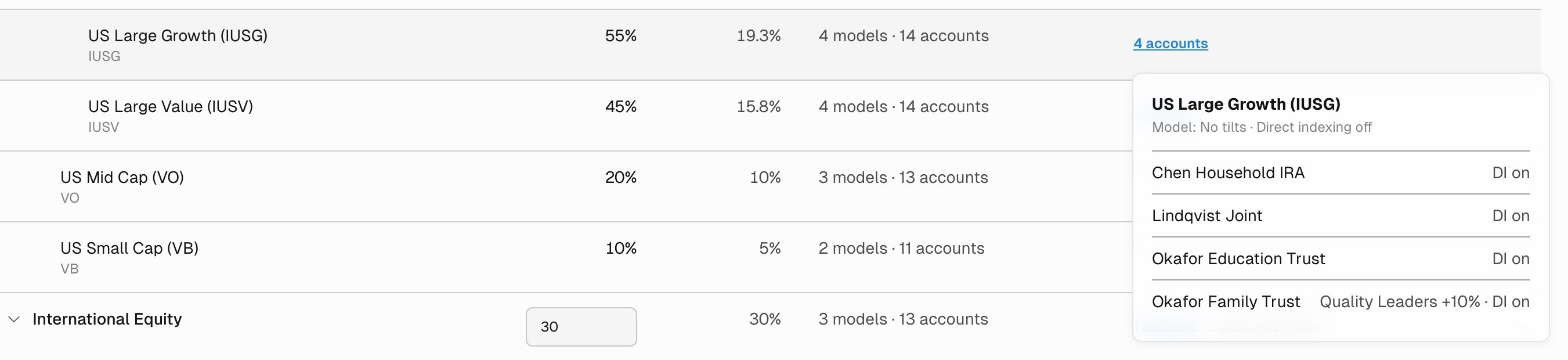
Four accounts customize US Large Growth. The model sets no tilts and leaves direct indexing off.