


An account combines saved settings with any matching Dynamic Rules.
1. Open the rule editor
For one account
- Click Clients in the left navigation. Check More if it is hidden.
- Click the client’s name in the list.
- Select a named account near the top of the client page. Use the more menu if the account is hidden. A client with one account opens that account automatically.
- Click Setup, beside Optimization and Holdings. These tabs appear when you select an individual account rather than All accounts.
- Scroll past Model and Sleeves to Settings.
- Click the Rules row below Constraints. The Rules dialog opens.
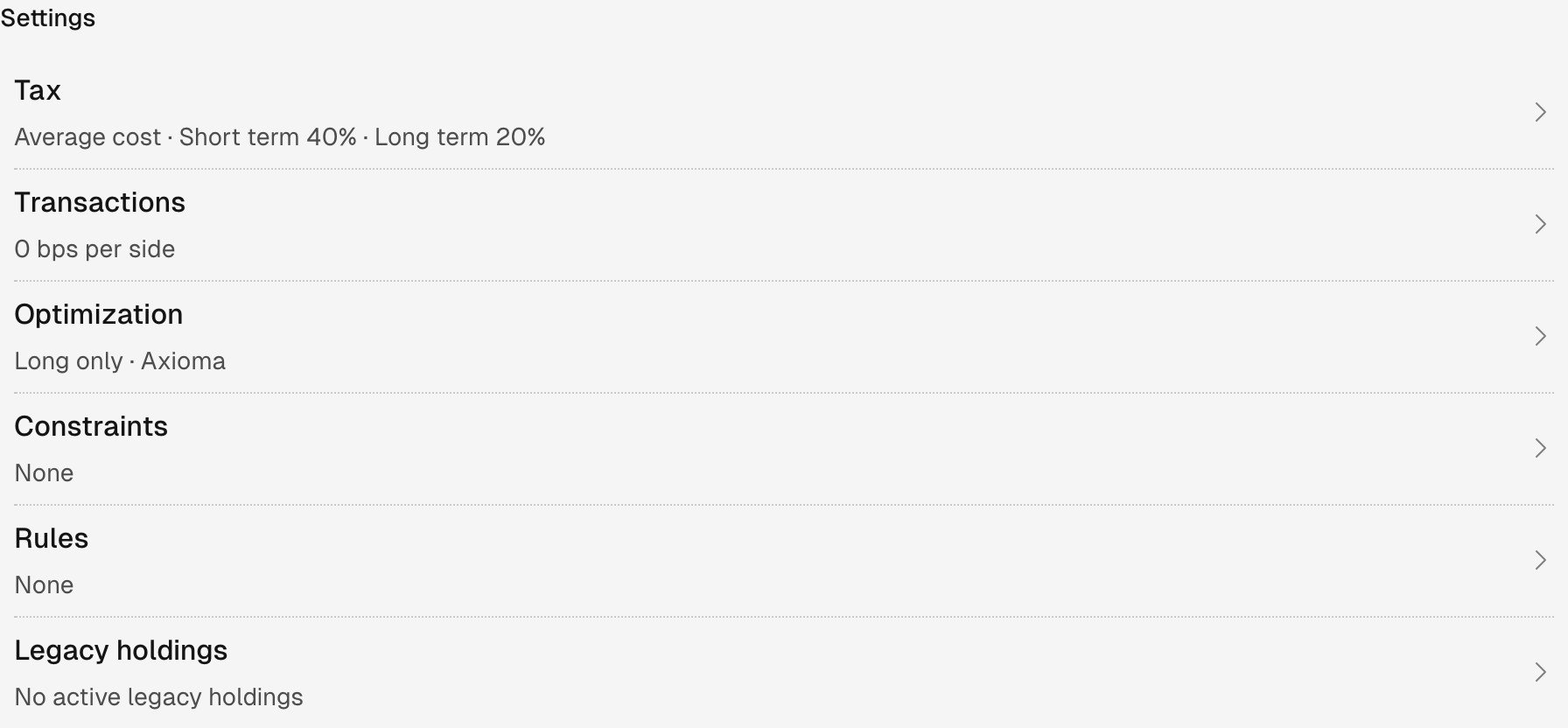
Open Rules from the Settings list in the account's Setup tab.
For a model
- Click Models in the left navigation, or under More.
- Click the model’s name.
- Click Setup on the model page.
- Click the Rules row.
For the organization
- Click Firm in the left sidebar.
- Click Setup, then Rules.
2. Add a conditional setting
In the rule editor:- Click Add a rule for… and choose USD cash buffer.
- Enter 3 in the value field. The field shows %, so this means 3%.
- Click Add a condition.
- Choose account value, is below, and enter 250k. Money fields accept values such as
$250,000,250k, and1M. - Review the sentence: set the USD cash buffer to 3% when account value is below $250,000.
- To limit the rule to a date window, click Add dates on the card and enter the dates. If you supply both a condition and dates, both must hold.
- For an account or model, click Queue changes. Organization edits queue as you make valid changes.
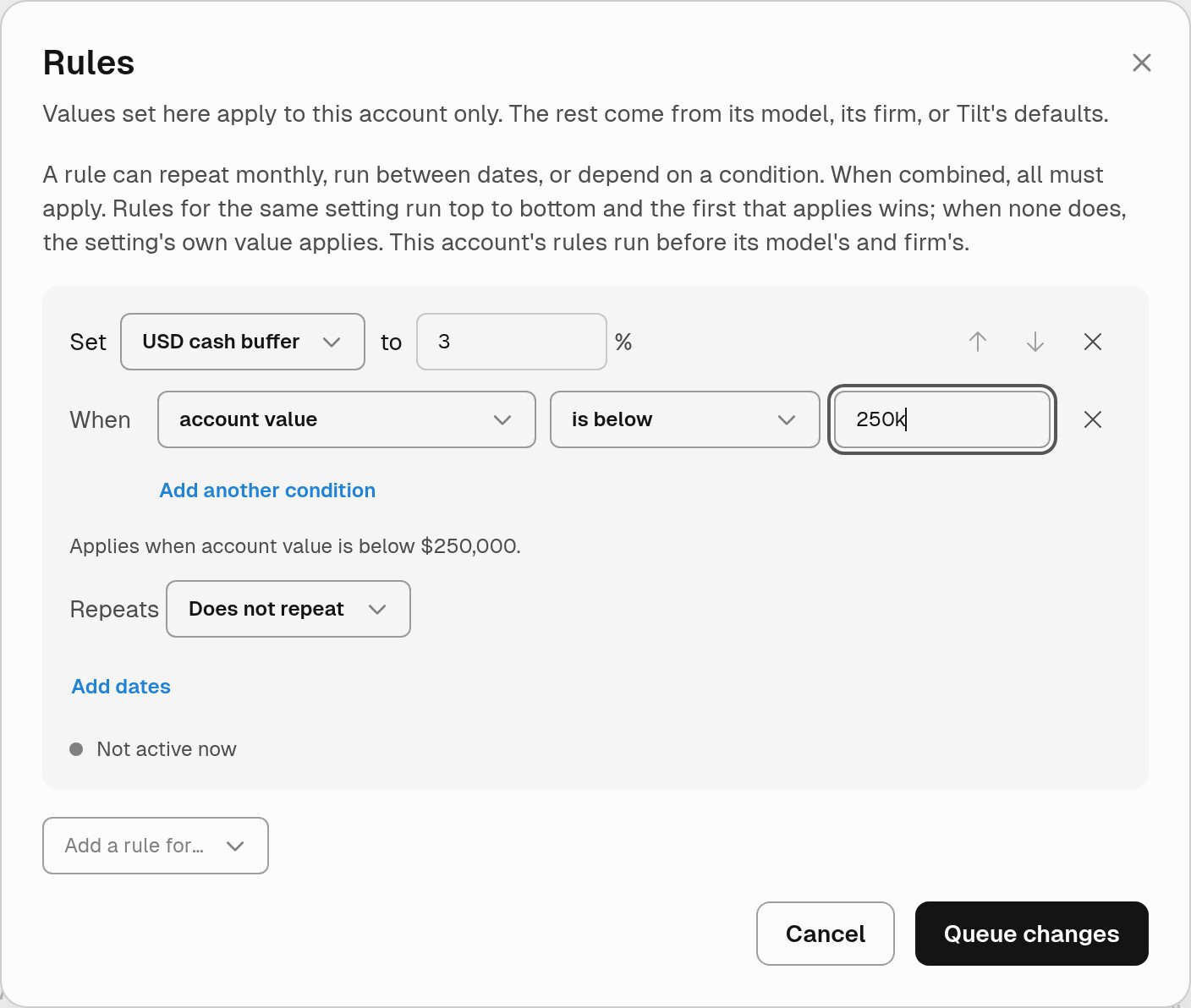
This draft sets a 3% USD cash buffer when account value is below $250,000. It is not active for the example account's current value.
Reserve cash on selected days each month
To keep the regular 0.5% USD cash buffer and require a total minimum of $5,500 from the 25th through the 28th of each month:- Check Setup → Settings → Optimization. Keep USD cash buffer at 0.5%. For this example, leave the saved USD cash amount at 0 so no fixed-dollar minimum applies outside the monthly window. Review any existing rules for both settings.
- Open Rules, click Add a rule for…, and choose USD cash amount.
- Enter 5500 in the value field.
- Set Repeats to Every month.
- Enter 25 in From day and 28 in Through day. Both days are included. You can use days 1–31; days a month does not have are skipped. Through day must be the same as or later than From day.
- To begin in January 2027, click No start date under Starts and select January 1, 2027. Leave Ends as No end date to keep repeating.
- Click Queue changes for an account or model, then review and apply the queued change. Organization edits queue as you make valid changes.
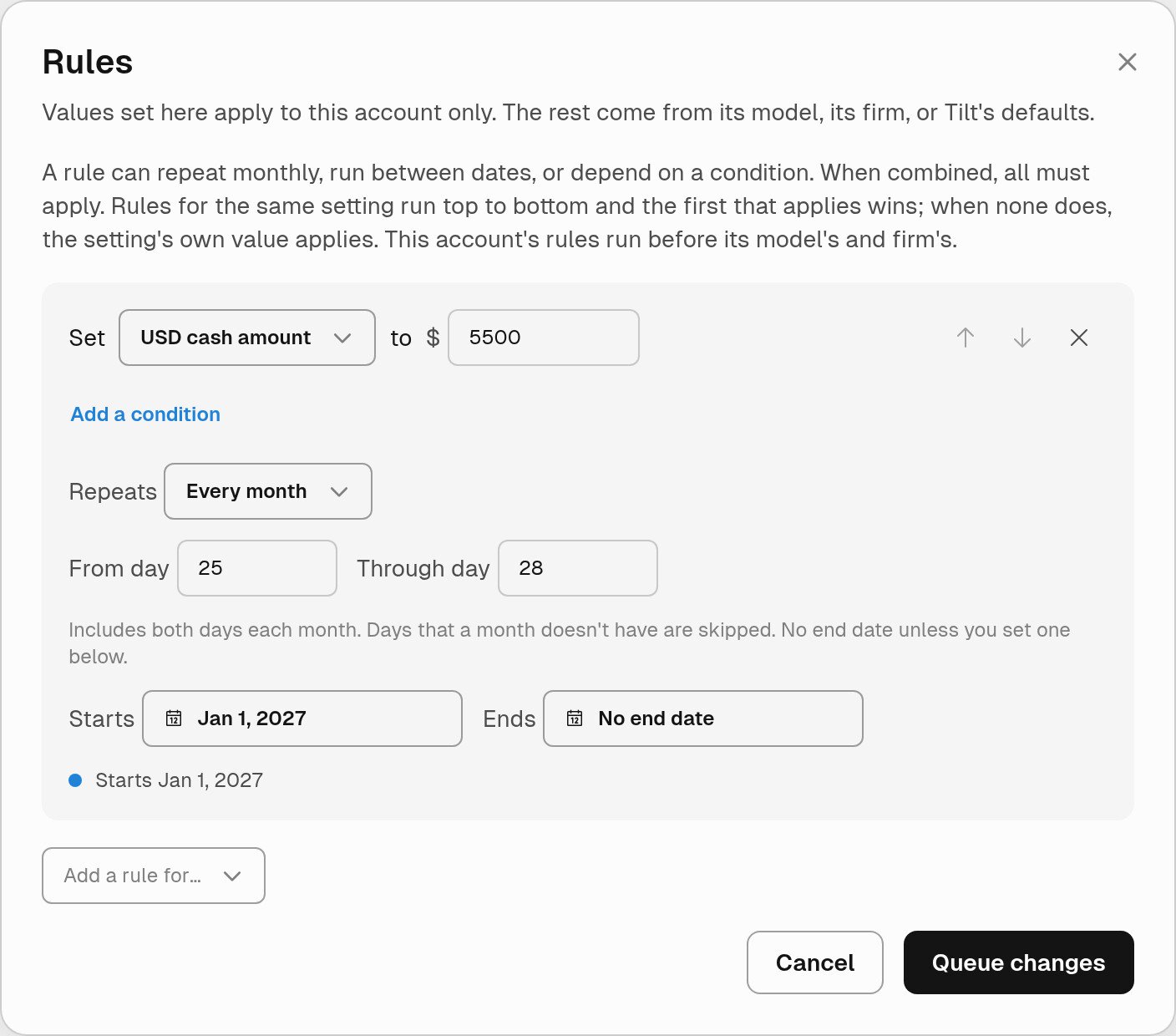
A draft USD cash amount rule repeats on days 25–28 each month, starting January 1, 2027, with no end date.
Set or remove the overall date limits
For a monthly rule, Starts and Ends limit the whole repeating schedule. They are separate from From day and Through day, which select days within each month. Both overall date limits are inclusive. Click No start date, No end date, or an existing date to open its calendar. Opening the calendar leaves the value unchanged; selecting a day sets the limit and closes the calendar. To remove a limit, open its calendar and click Clear date. Leave both limits empty for a monthly rule with no overall date bounds.Check inherited settings and rules
For settings such as cash buffer or turnover limit, an account value takes precedence over the model’s value, which takes precedence over the organization’s value. A missing value inherits; an explicit zero is a value. The assigned model supplies allocation membership and weights when it defines them. Check both the saved value and the effective value when a setting appears not to take effect. Account rules run before model rules, which run before organization rules. An explicit account value for a setting prevents inherited rules for that setting from taking effect. An explicit model value prevents organization rules for that setting from taking effect. Rules at the level that sets the value still apply. The editor shows inherited rules as read-only cards with source badges linking to where you can edit them. Not used identifies an inherited rule blocked by a more specific saved value. A rule outside the sentence editor’s supported shape appears as read-only text; remove it and add a new card to change it in the interface.3. Add conditional restrictions or bounds
Open Constraints for an account, a model, or the firm’s Setup:- Search for NVDA under No-hold tickers and select it.
- Click Add a condition on the NVDA row.
- Choose market cap, is above, and enter the threshold, such as 500M for $500 million.
- Review the sentence and click Queue changes before previewing or applying the account draft.
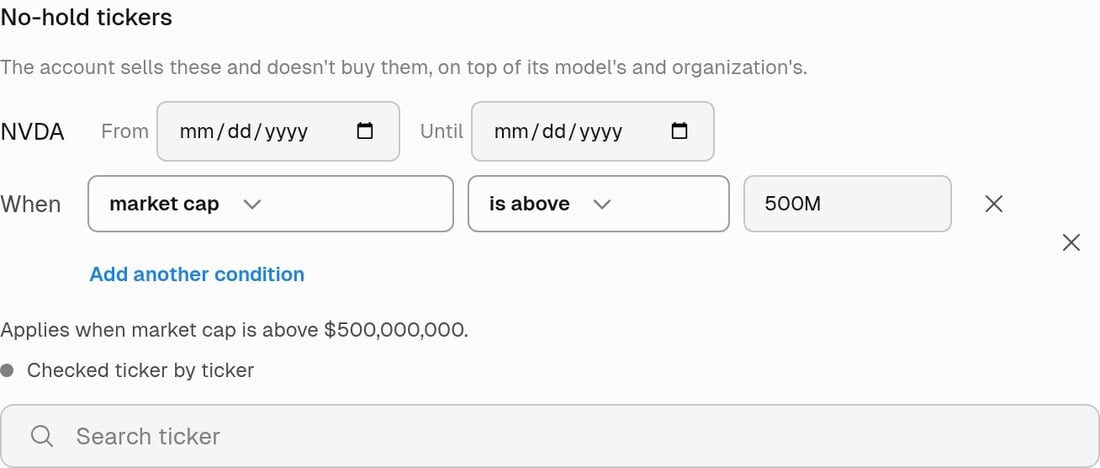
A ticker-specific no-hold condition compares NVDA's market cap with $500 million. Tilt checks the condition ticker by ticker.
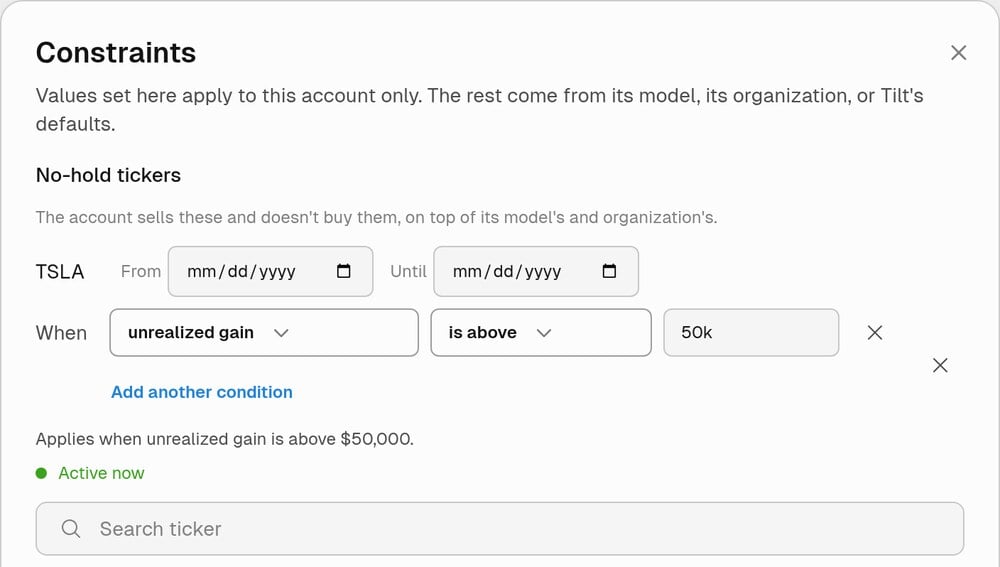
The TSLA no-hold draft applies while unrealized gain is above $50,000. Its date fields are empty, so only the condition limits when it applies.
4. Preview an account draft
Before applying account rules, restrictions, bounds, or allowances:- Close the editor with Queue changes.
- Click the changes queued pill at the bottom of the account page.
- Review the old and new values in Queued changes.
- Click Preview the effect and wait for the optimization results.
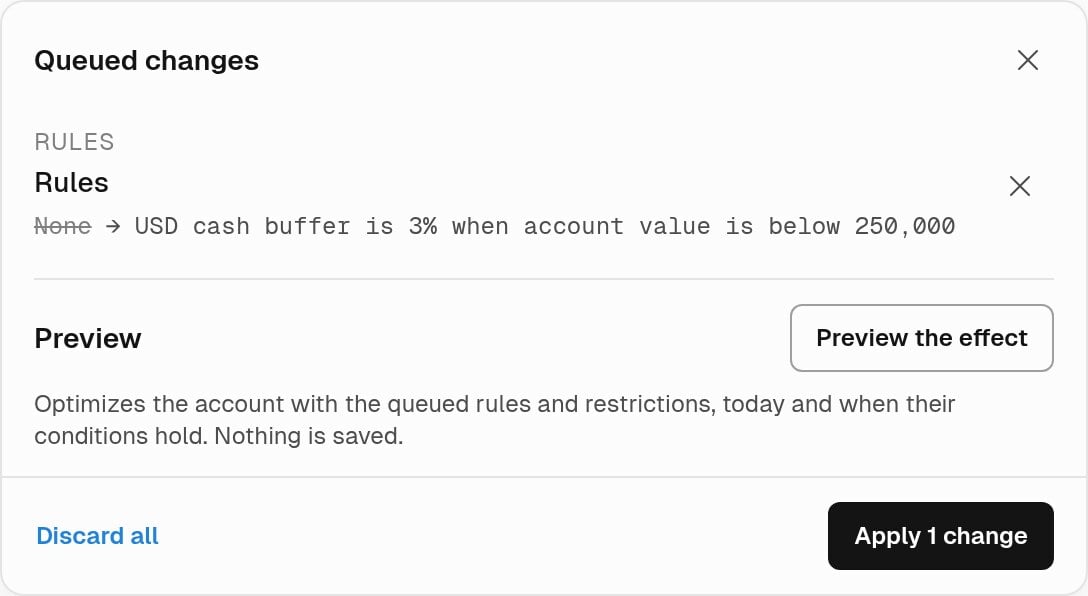
The queued rule is still unsaved. Preview the effect runs the comparison; Apply saves the draft and Discard all removes it.
5. Apply or discard, then verify
In Queued changes, select Discard all to abandon the draft, or Apply to save it. Reopen the same settings page or editor and refresh the page to check that the saved cards, values, and allowance reasons match your intent. Apply or discard account changes before starting an optimization from the Optimization tab. Saving rules changes optimization inputs; it does not place trades. Review a rebalance covers the later trading workflow.Use Tilt Agent
Open Chat in the left navigation and name the client, account, and proposed change. For example:For Maya Patel’s Revocable Trust, set the USD cash buffer to 3% when account value is below $250k. Show the proposed rule and preview its effect. Keep the other rules and wait for my confirmation before saving.For a restriction:
For Maya Patel’s Revocable Trust, don’t hold TSLA while the account’s total unrealized gain is above $50k. Show what you’ll save, keep inherited restrictions, and wait for my confirmation.Review the target account, condition, dates, value, and retained rules before confirming. After the save, ask Tilt Agent to read back the saved configuration and open the account’s Setup through its result link to check the card. You can also ask for a dated simulation without saving a change. For alerts about drift, cash bands, and exposure, manage monitoring policies. For API rule formats, schema, validation, and simulation endpoints, see the Dynamic Rules API guide.