Configure firm rules so Tilt adds restrictions when a relevant corporate action affects your organization. These rules change optimization inputs and do not submit trades. Account and model allowances still apply; see Settings and rules.

1. Open the firm’s restrictions

  1. Click the workspace and email button at the bottom of the left sidebar.
  2. Click Settings.
  3. Under Firm settings, click Restrictions.
  4. Find Automatic corporate-action rules.
Check that you are editing the intended firm’s settings. These rules apply across the organization. Turn on Automatic corporate-action rules. Tilt selects the recommended rules for all supported event types: If both No-hold and No-trade apply to a ticker, No-trade takes precedence.

3. Adjust an event rule

Open Advanced overrides. Clear an event’s checkbox to stop creating new restrictions for that event type. To change an enabled event, click Edit beside it.
  1. Choose Action: Pause trading (No-trade) or Exclude portfolio targets (No-hold).
  2. Choose Start: Immediately or Days before effective date. For days before, enter a whole number of at least 1 in Calendar days before effective date.
  3. Review End. Rules end on the Corporate-action effective date at midnight UTC, at the start of that date. For No-hold, you can choose No end date, which excludes portfolio targets immediately until you remove the restriction.
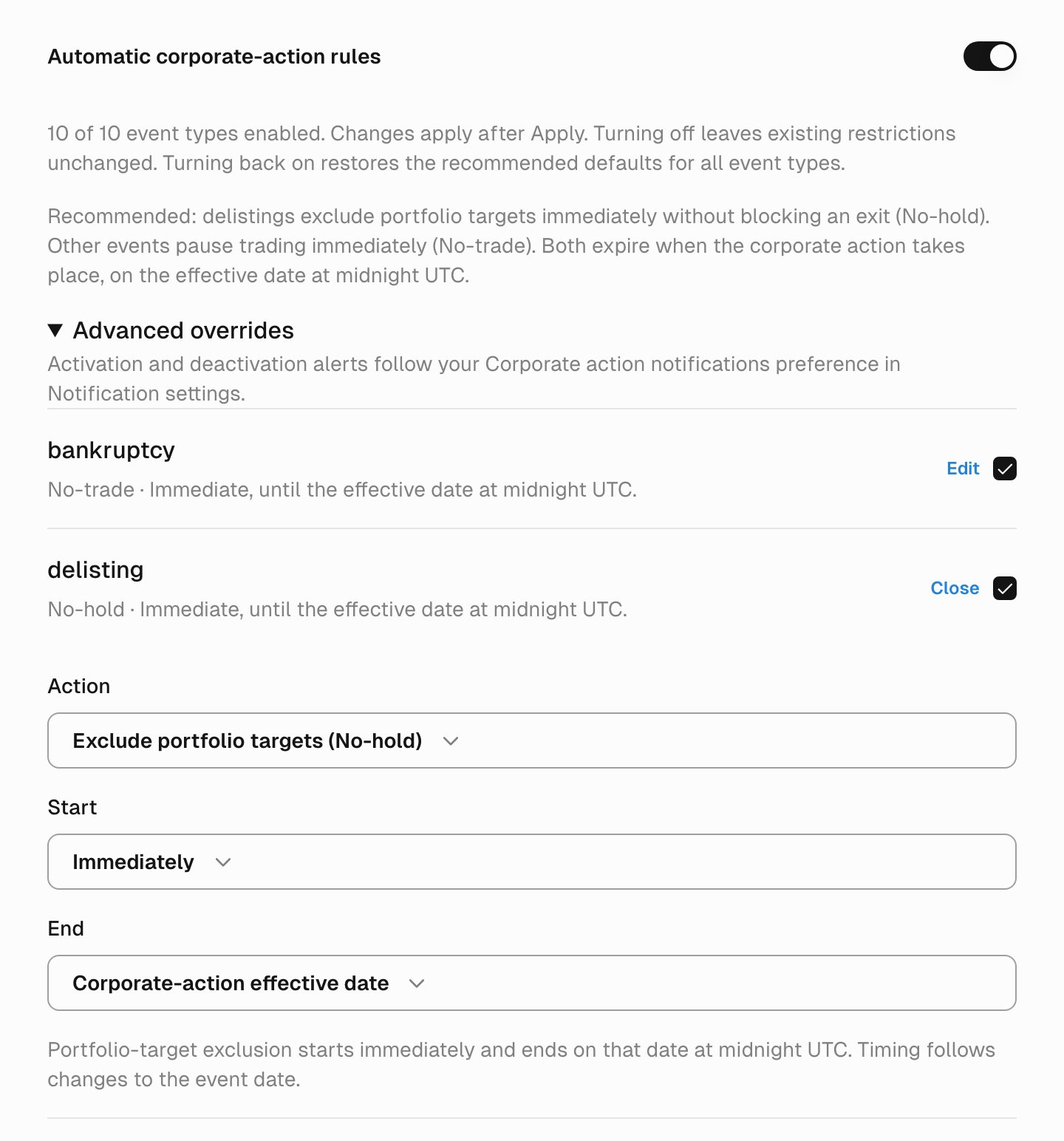
Automatic corporate-action rules enabled, with Advanced overrides open and the delisting editor showing Exclude portfolio targets (No-hold), Immediately, and Corporate-action effective date.

Advanced overrides shows the action, start, and end for each enabled event. This delisting rule uses the recommended immediate No-hold exclusion until the effective date.

Timing follows corrections to the corporate action’s effective date. If a saved No-trade rule shows legacy duration-based timing, choose a Start timing to replace it with a rule that ends on the effective date.

4. Apply and verify

Review the queued firm changes and click Apply firm changes. Reopen Restrictions after refreshing to check the saved event selections, actions, and timing. Changing a default affects new restrictions. Existing restrictions keep their saved terms, including when you turn off an event or the main switch. Turning the main switch back on restores the recommended defaults for all event types; review any overrides before applying. To end an existing automatic restriction, find its Corporate action row under No-hold tickers or No-trade tickers on the same page. Click Remove, then Queue removal, and apply the queued firm change. Tilt preserves manual and overlapping restrictions and will not reapply the removed event’s restriction.

5. Choose notification organizations

Under Personal in Settings, open Alerts. Under Corporate action alerts, select the organizations you want notifications for. Tilt uses this preference for alerts when automatic restrictions activate or end. After changing restrictions, follow the rebalance review workflow when you are ready to review and submit trades.