

1. Open the household
Open Clients in the sidebar, type the household’s name or a member’s name in the “Search households and clients” box, and open the household’s page. A household with one member is listed under that member’s name and opens the member’s page, so open the household from the breadcrumb at the top of that page. The household’s Overview ends with the Household optimization section, which shows the same figures with the setting on or off.
Both tiles leave the budget out, so they can be higher than what Optimize realizes; the note below them says what the budget allows. The gains can take a minute or two to appear, and the budget part of the note a little longer.
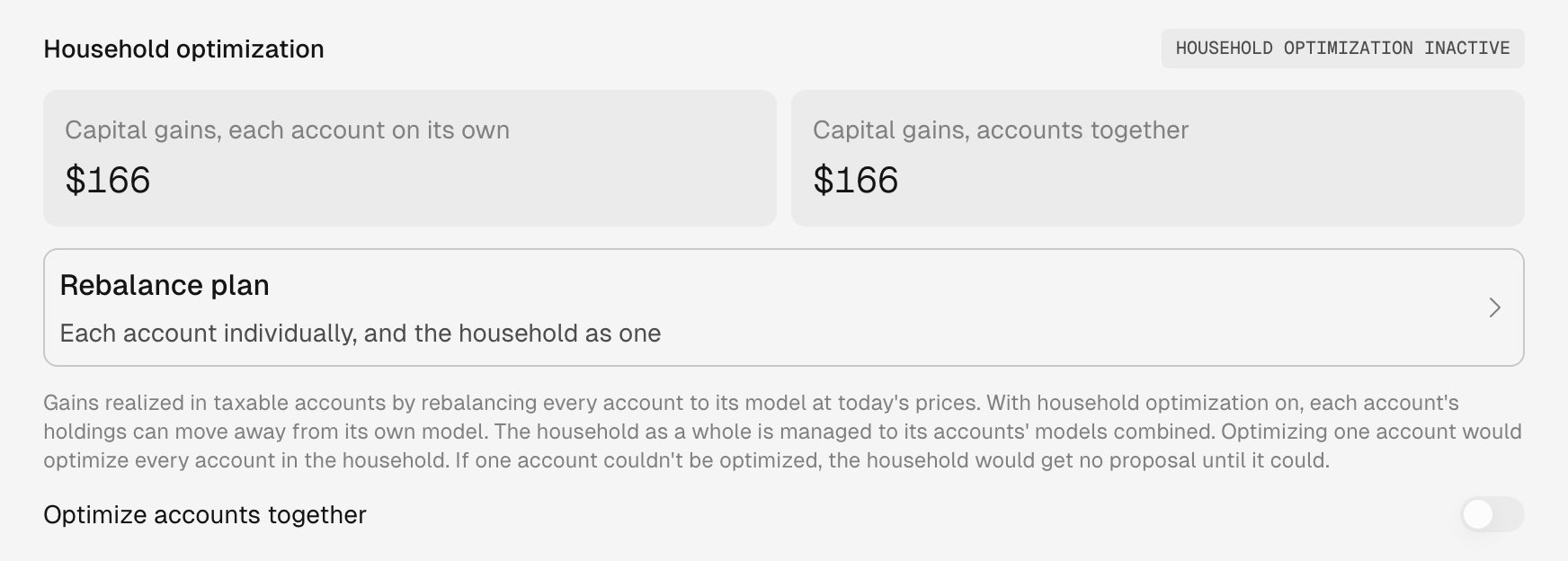
Before it's on, the chip reads Household optimization inactive.
2. Open the Rebalance plan
Select Rebalance plan. The page plans the family both ways as soon as it opens, and again whenever the budget changes. It saves nothing and places no trades. Its figures use the closing prices named at the top, so fills can differ.Current state
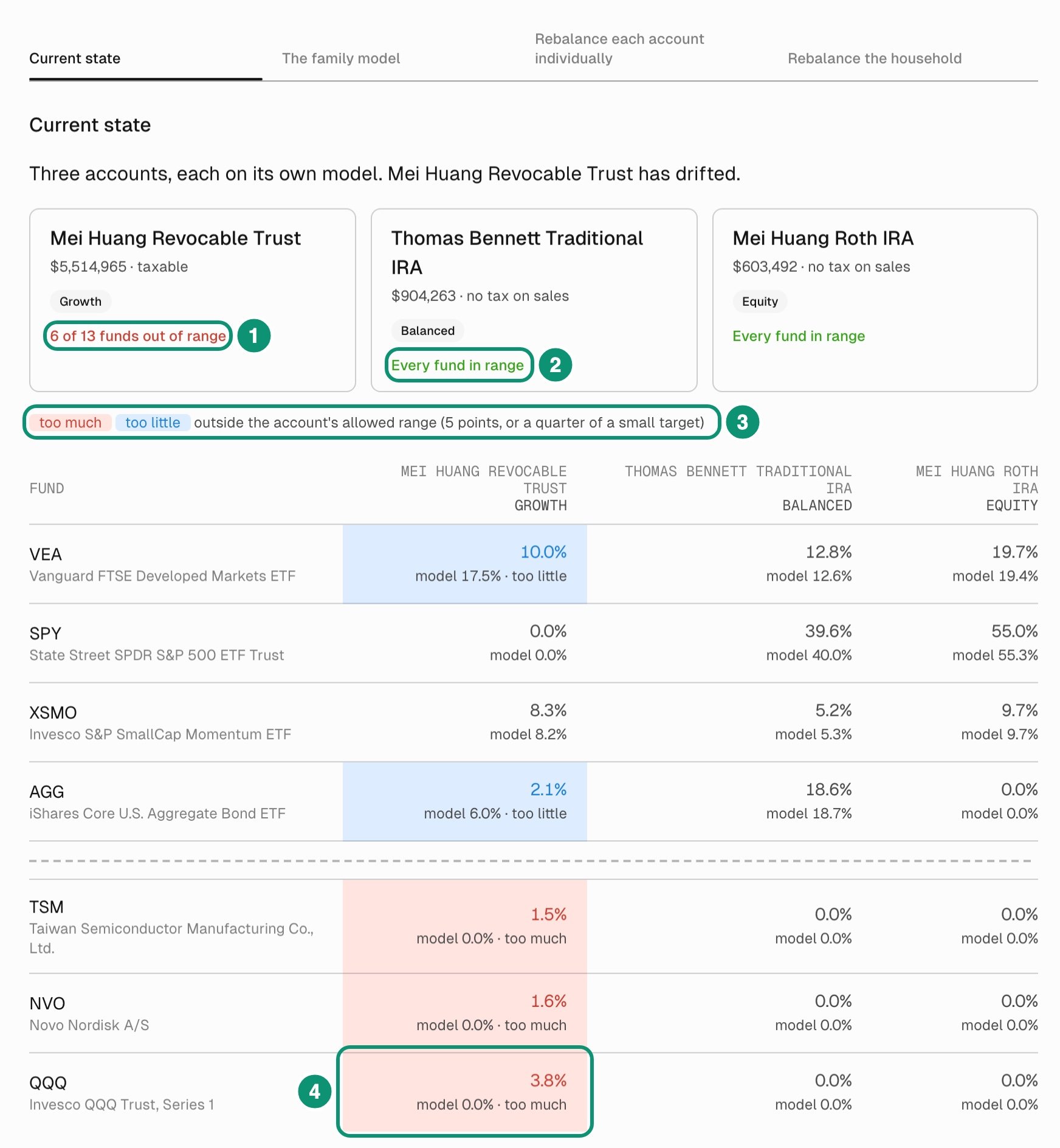
Current state shows each account against its own model.
- 6 of 13 funds out of range: the trust’s funds outside its allowed range.
- Every fund in range: the IRA has none outside.
- too much and too little: outside the allowed range, 5 points either side of the model weight, or a quarter of it if that’s smaller.
- The trust’s QQQ cell: 3.8% today, model 0.0%, too much.
The family model
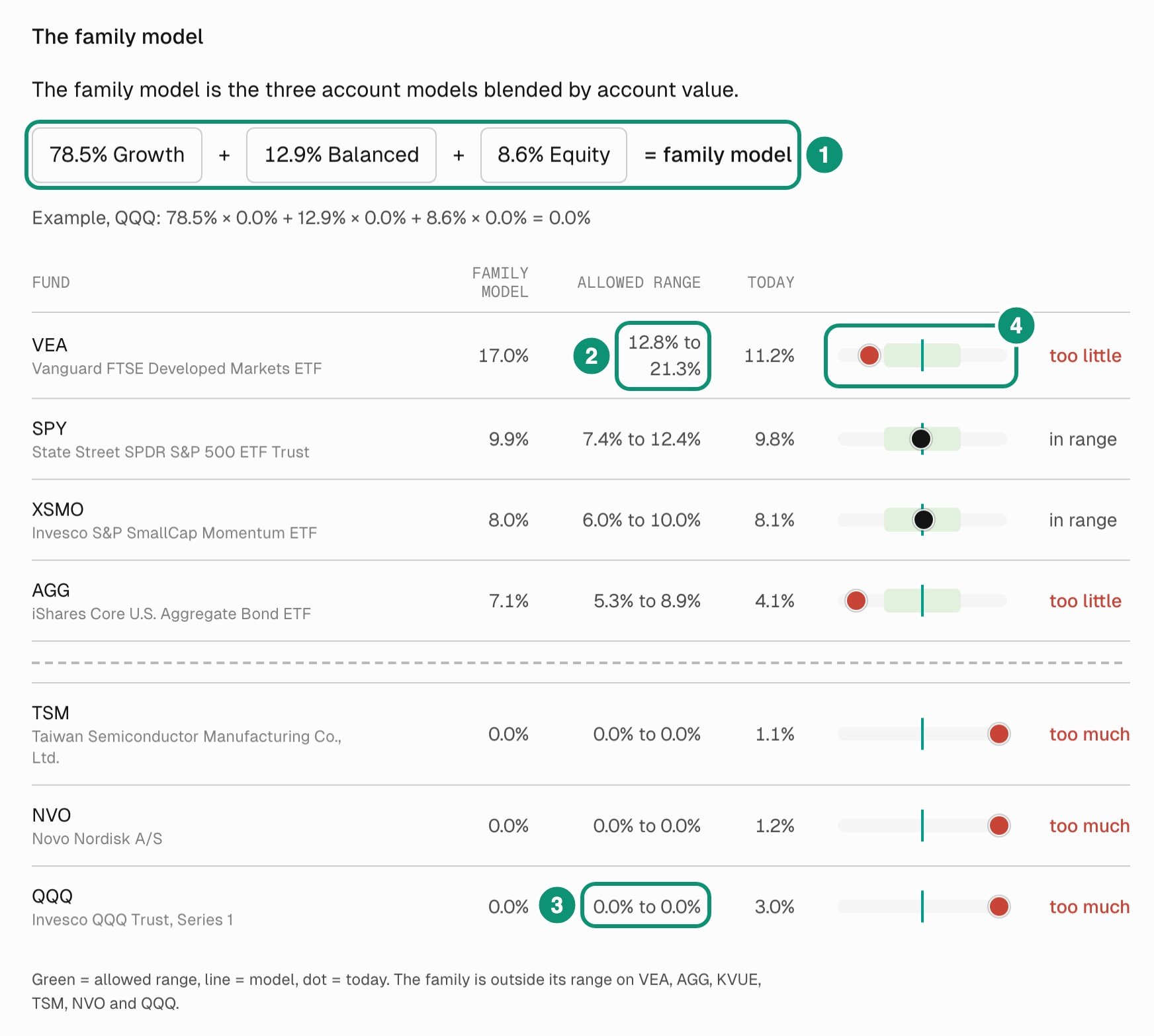
The family model shows the family against the blended model.
- 78.5% Growth + 12.9% Balanced + 8.6% Equity = family model: each model counts by its account’s share of the family.
- VEA’s Allowed range, 12.8% to 21.3%, around its family model of 17.0%.
- QQQ’s Allowed range, 0.0% to 0.0%: no model holds QQQ, so any amount is out of range.
- VEA’s bar: today’s 11.2% sits below the green allowed range, so VEA reads too little.
3. Check the budget
The budget card sits below The family model. Gains budget left this year is the household’s capital gains budget less this year’s realized gains, never below $0: $25,000 here. Select Set budget or Change budget to set it. The plan stays within that one household budget across every account. A budget covers one calendar year, so set the new one each January. A message above the two plans says what the budget allows, as does the note in Household optimization: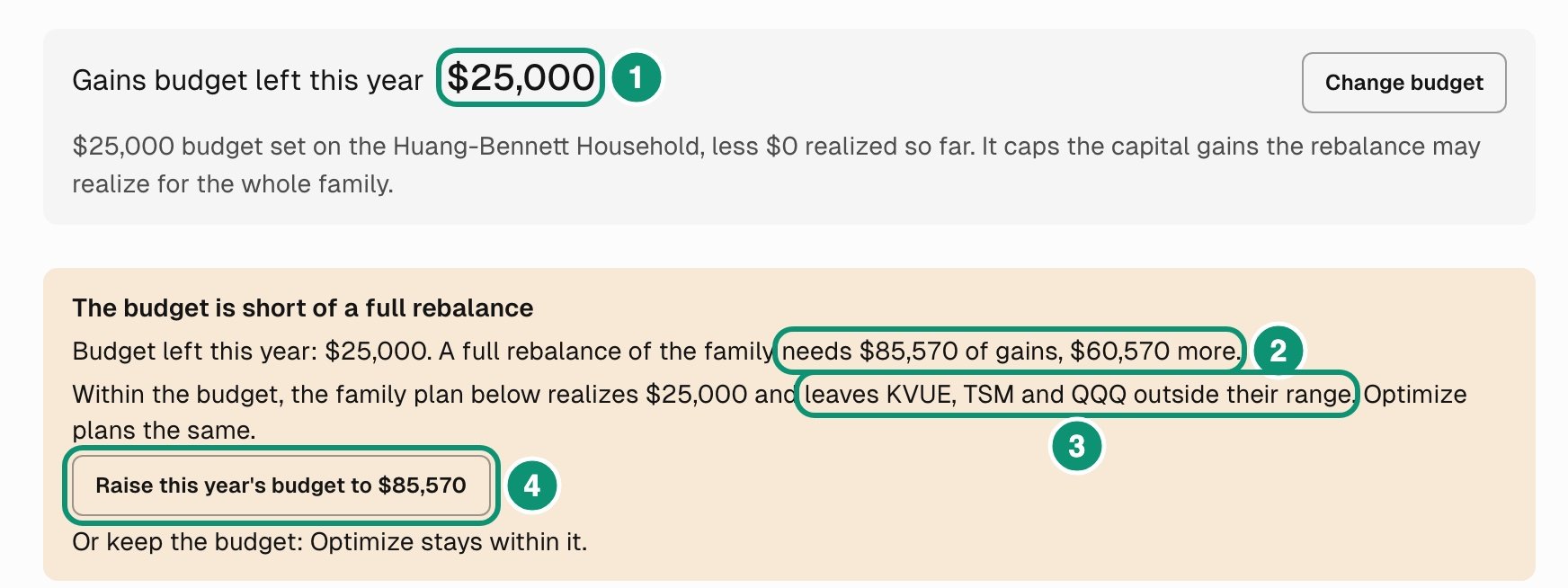
The budget card, and the message above the plans.
- Gains budget left this year: $25,000.
- needs $85,570 of gains, $60,570 more: the least gain that brings every fund with a range inside it.
- leaves KVUE, TSM and QQQ outside their range: what stays out under this plan.
- Raise this year’s budget to $85,570: saving it records the change in History and plans again.
4. Compare the two plans
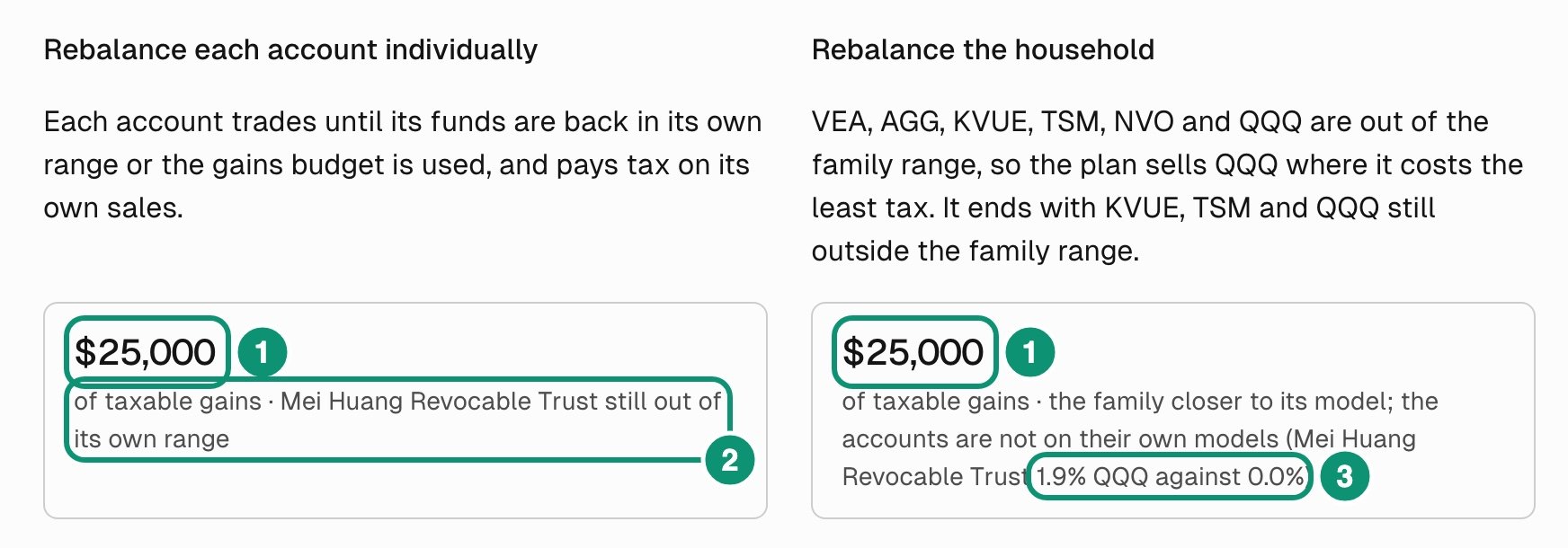
Both plans realize $25,000, and the trust ends with about the same QQQ.
- $25,000: each plan’s taxable gains.
- Mei Huang Revocable Trust still out of its own range: where Rebalance each account individually leaves the accounts.
- 1.9% QQQ against 0.0%: the widest gap between any account and its own model under Rebalance the household.
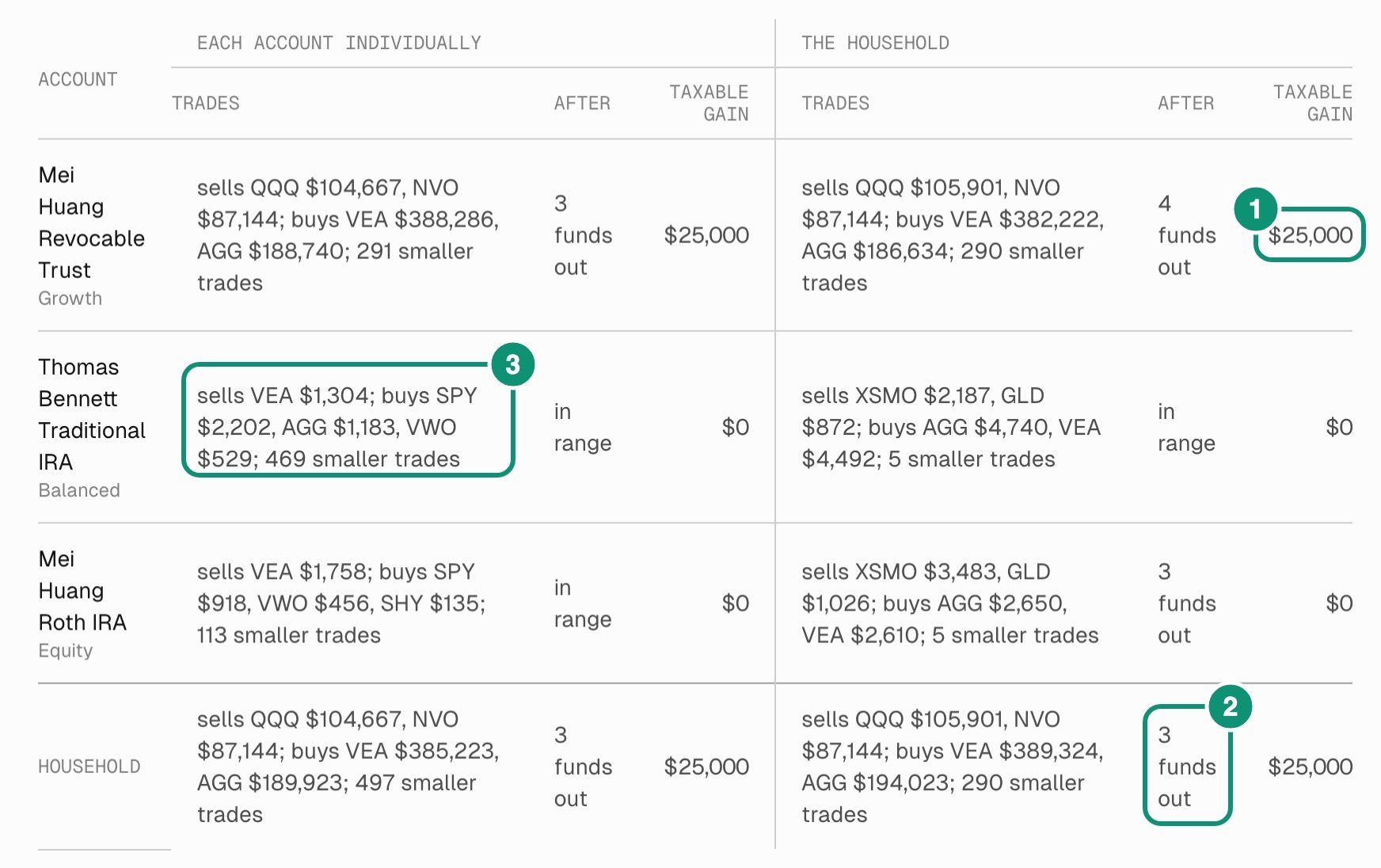
One table lines up both plans, account by account, with the household at the bottom.
- The trust’s Taxable gain under The household: $25,000.
- The Household row’s After under The household: 3 funds out, the ones the budget message names.
- The Bennett IRA’s Trades under Each account individually: four funds, then 469 smaller trades. An account in range can still trade funds with no range.
Trade list
Trade list shows every trade, in an Each account individually block and a The household block.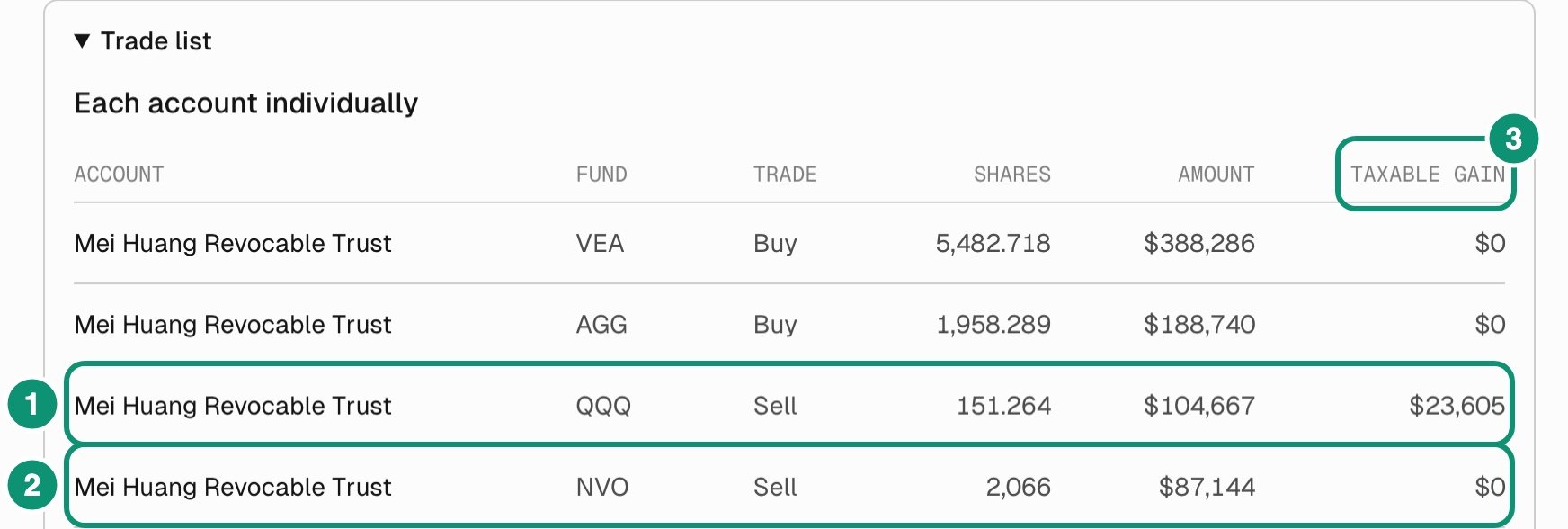
The top of the Each account individually block.
- The QQQ row: Sell, 151.264 shares, $104,667, $23,605 of gain.
- The NVO row: Sell, 2,066 shares, $87,144, $0.
- Taxable gain: the gain on that row’s shares. Losses, purchases and trades in an account with no tax on sales read $0.
5. Turn on Optimize accounts together
Before you turn it on
- Check who pays the tax. The plan treats the family as one, whoever owns each account, so one account can realize more gain to lower the family’s total, as this example shows.
- Confirm realized gains on every taxable account and check each account’s type, because Tilt plans an account with no type as taxable. Clear any member’s own budget, which the plan doesn’t apply.
- Check which settings a family plan uses and what stops one, such as position limits and legacy holdings.
- Check wash-sale exposure: see wash sales in a family plan.
- Expect accounts to end away from their own models, with no setting to limit how far.
- Plan to send the accounts together: approving any account covers every account in the run.
What changes when it is on
Each account makes only the family plan’s trades, so it stops making tax-loss sales of its own. The plan itself can sell a lot at a loss.
To turn it on:
- If Household optimization shows Activate in Firm settings, select it, or open Firm > Setup and select Optimization under Defaults for models and accounts. Turn on Allow accounts to be optimized together, select Done, review the queue, and select Apply firm changes.
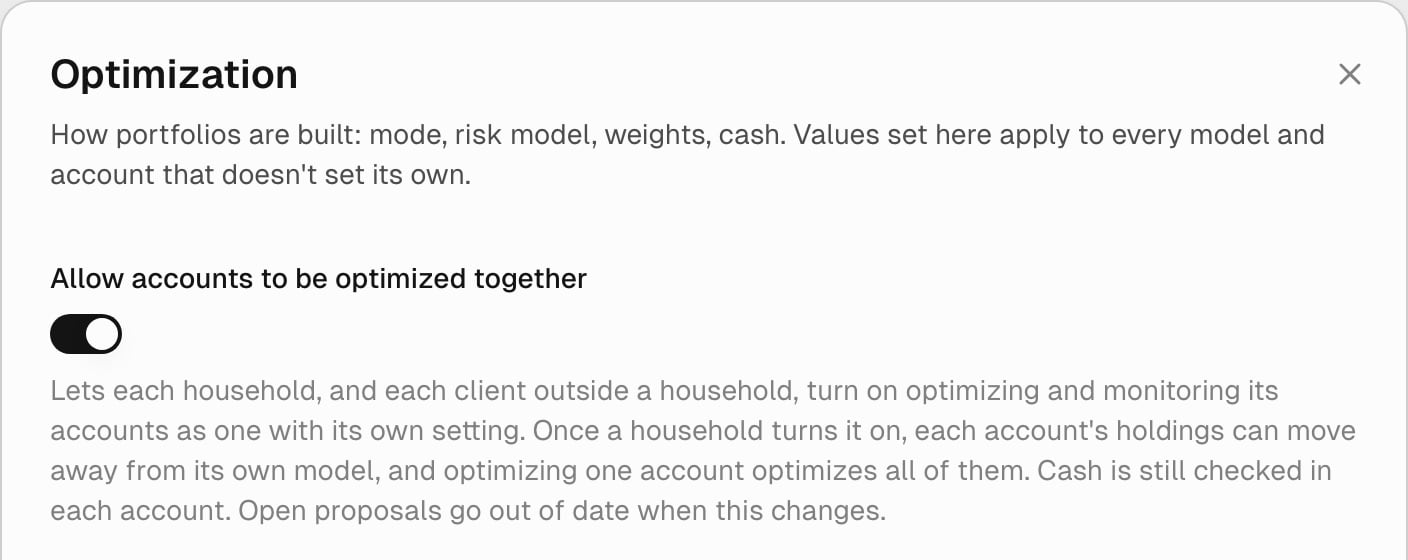
Your firm's setting, turned on, in the Optimization dialog.
- On the household’s Overview, turn on Optimize accounts together in Household optimization. The chip then reads Household optimization active.
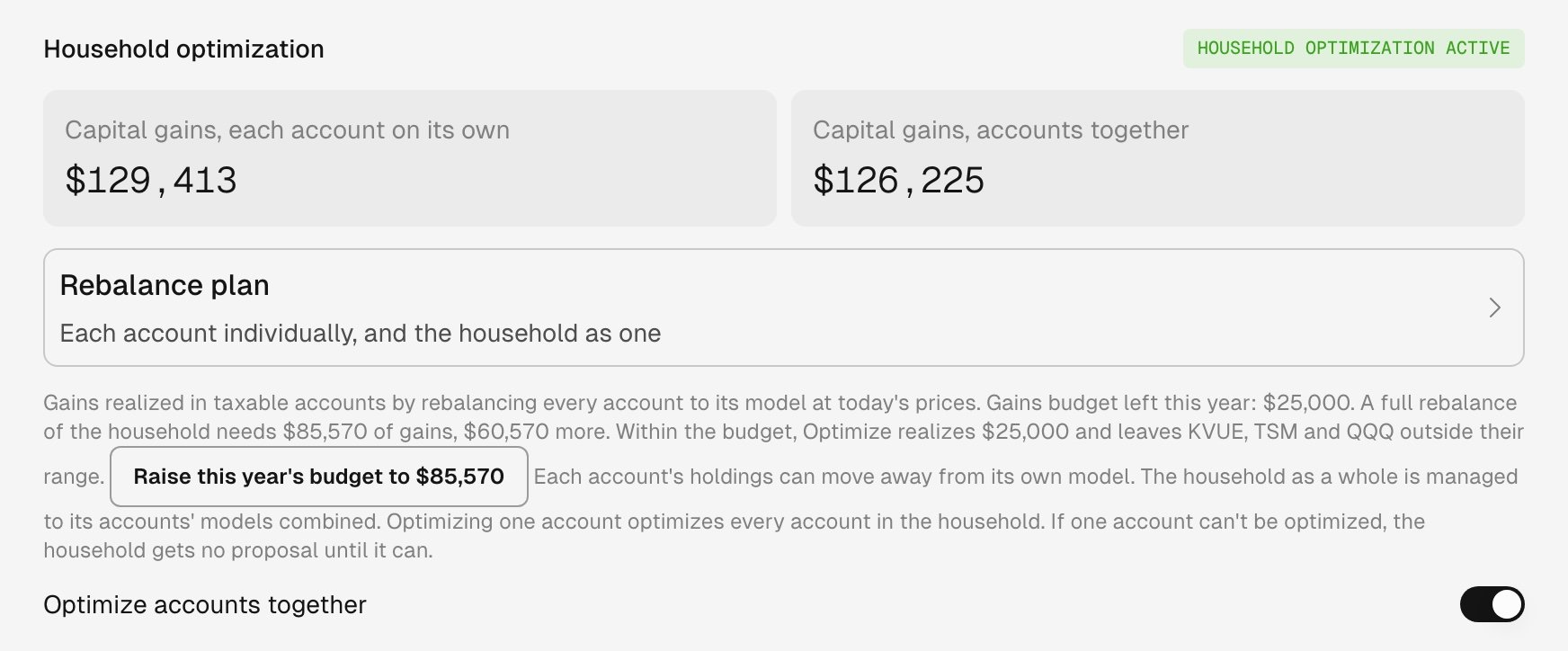
Once it's on, the chip reads Household optimization active.
Turn it off
On the household’s Overview or Optimization tab, turn off Optimize accounts together in Household optimization. The family’s proposal goes out of date, each account optimizes on its own, the Optimization tab disappears, and the daily check returns to each account on its next run. Turning off your firm’s Allow accounts to be optimized together does the same for every household. Each household’s switch keeps its value for when your firm allows it again.Optimize a client in no household
A client with several accounts and no household can have its accounts optimized together, with its own setting, while your firm allows it. The client’s row on Clients then reads “optimized and monitored together”, and each account’s Optimization tab shows Optimize all accounts. The client’s page gets an Optimization tab. Under Combined proposal, Optimize plans every account, and View combined proposal opens the proposal. Household optimization and Monitoring work as they do for a household. Only a budget set on that client limits the plan. To stop, turn off Optimize accounts together on that tab.Tilt provides portfolio technology, not investment, tax or legal advice, and is not a registered investment adviser or broker-dealer. The advisor makes all investment decisions, including whether to accept a proposal and submit trades, directly or through approval rules the advisor configures. Trades are executed through the client’s custodian. Estimates depend on the data and assumptions recorded for the account; confirm the client’s tax treatment with a qualified tax professional.