

Who can do what
Changes need the owner’s own Tilt sign-in. Tilt Agent can read the status and open the card, and it never changes the connection itself. When the card appears in Claude, ChatGPT, or another connected app, it shows the status with Open Tilt to make changes, or Open Tilt to connect before the first connection. Other members see the status read-only, with the note Only firm owners can connect or change the custodian.
Open the custodian card
In your firm’s organization, ask Tilt Agent for it, for example “Open the custodian card so I can replace our keys.” You can also ask Tilt Agent for the Connect brokerage card and choose Alpaca Broker API, which lists your firm’s status.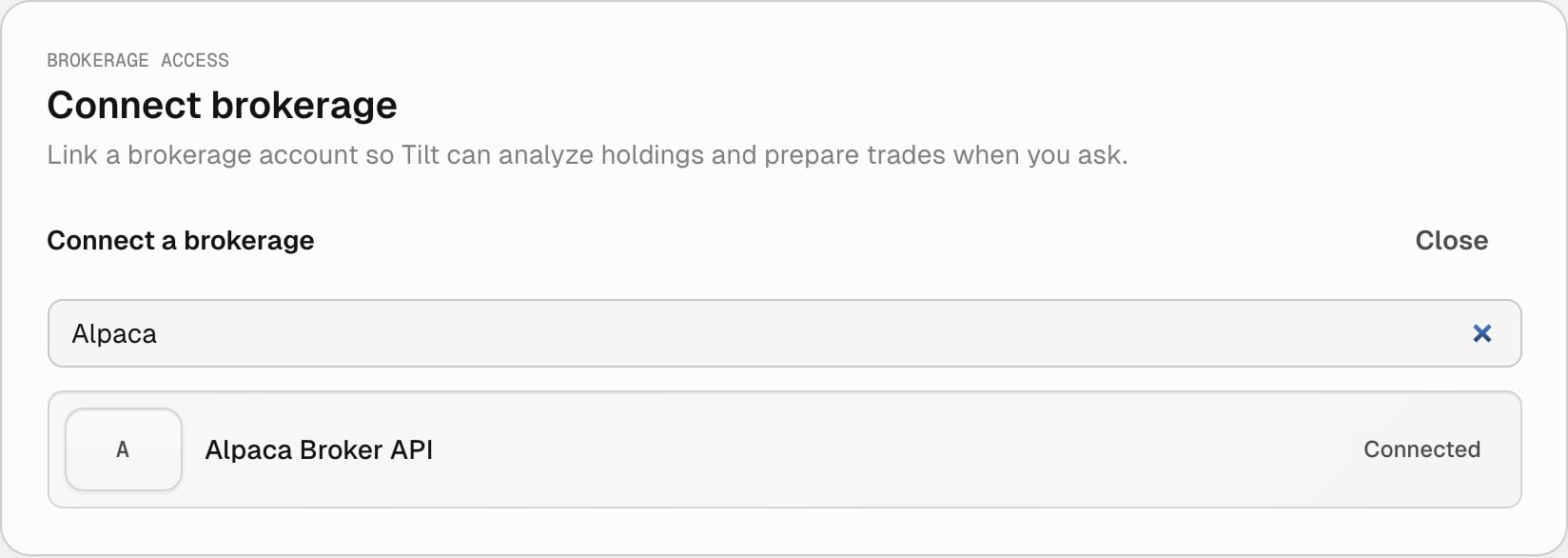
In a firm organization, the Connect brokerage card lists Alpaca Broker API with the firm's status.
Get the keys from Brokerdash
Create the API keys in Alpaca’s Brokerdash before you connect.- Sign in to the Brokerdash of the environment you want to connect: sandbox or live. Keys work only in the environment they were created in.
- Create API credentials that use a client secret.
- Choose custom access: read and write for Accounts and Trading, and read only for Data and Reporting. For sandbox keys, also give Journaling read and write, which Deposit paper funds uses to move practice cash into client accounts. Give no access to the other areas. Tilt can check only what the keys read before it saves them, so keys without write access still connect but fail later, when Tilt sends a trade or deposits paper funds.
- Copy the client ID and the client secret. Brokerdash shows the secret once.
1. Connect the firm
- Choose Sandbox or Live under Environment.
- Enter the Correspondent code, Client ID, Client secret, and Firm sweep account ID.
- Enter Keys expire on if the keys have an expiry date. Enabled account types is optional.
- Select Connect firm.
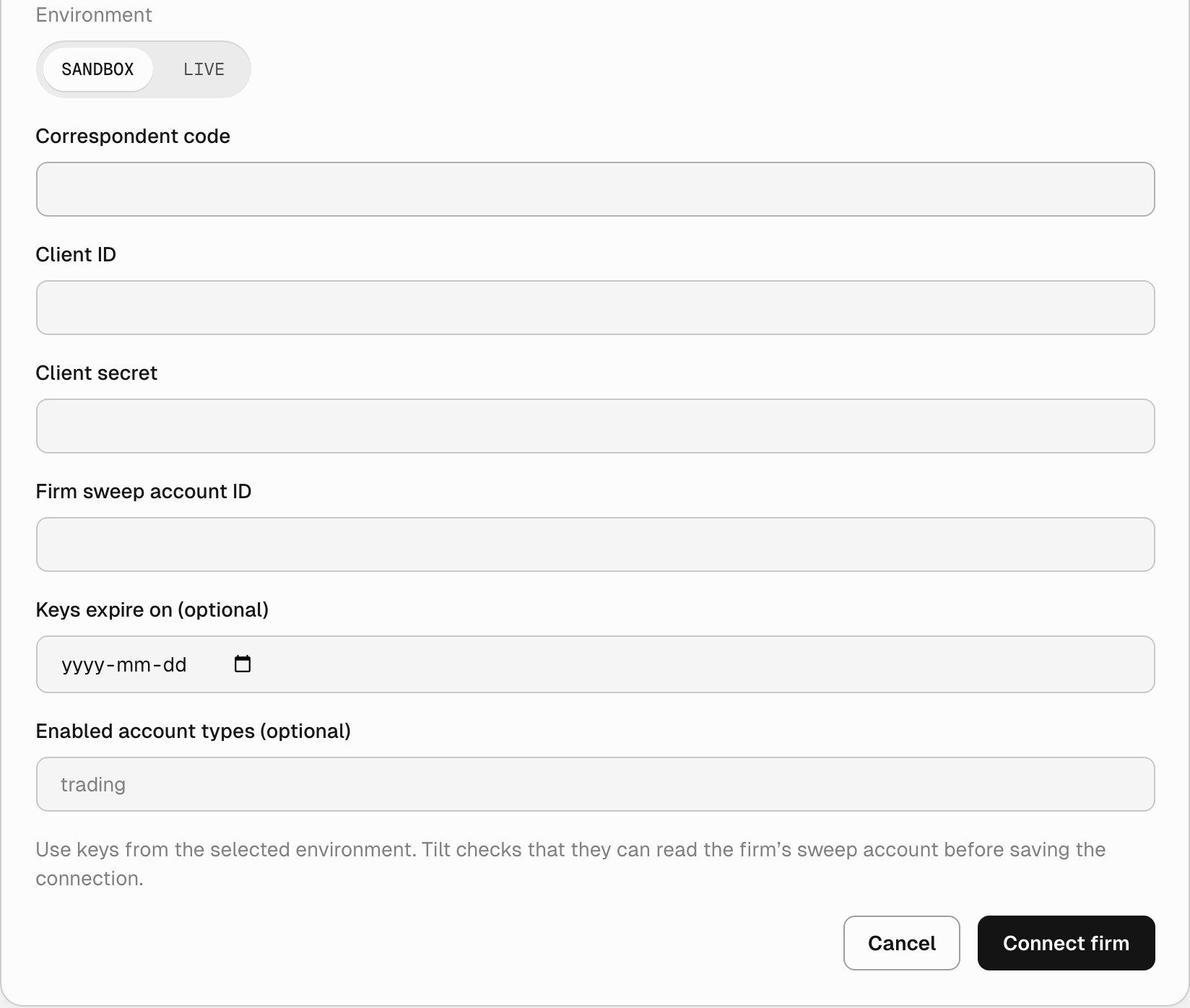
The connect form. The keys go from the card to Tilt and are never added to the chat.
2. Read the connection
Each connection is titled with its correspondent code and environment, with a Connected or Needs attention badge.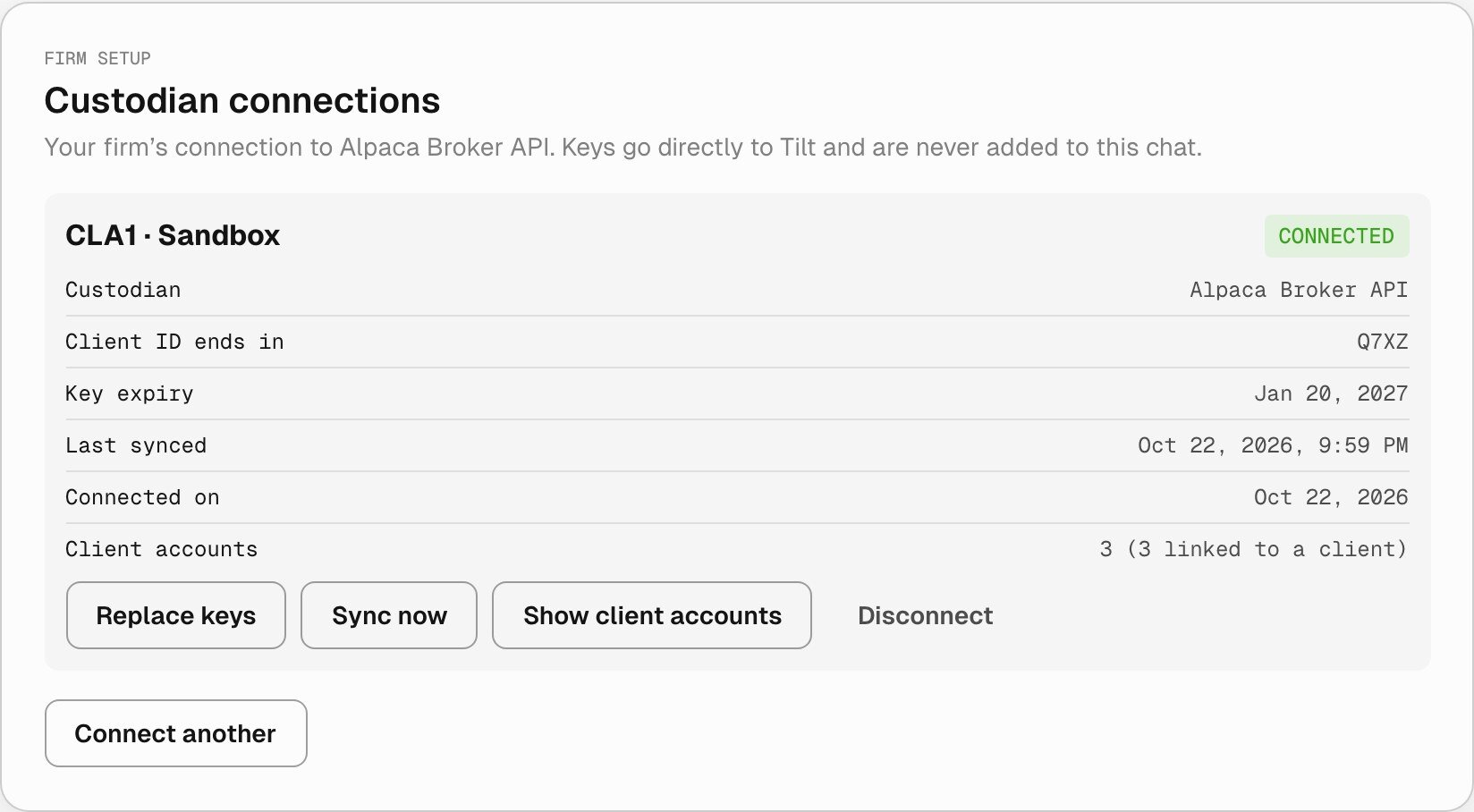
A working sandbox connection for a made-up firm, as a firm owner sees it.
Tilt doesn’t send a reminder before the keys expire. Set your own reminder to replace them ahead of the date.
When a connection needs attention, the card shows This connection stopped working. with the custodian’s message. An owner fixes it with Replace keys in that warning.
3. Replace the keys
Replace the keys before they expire, or when the connection needs attention.- Create new keys in Brokerdash, in the same environment as the connection.
- Select Replace keys.
- Enter the New client ID and New client secret.
- Enter New keys expire on. Leaving it blank clears the current expiry date.
- Select Replace keys.
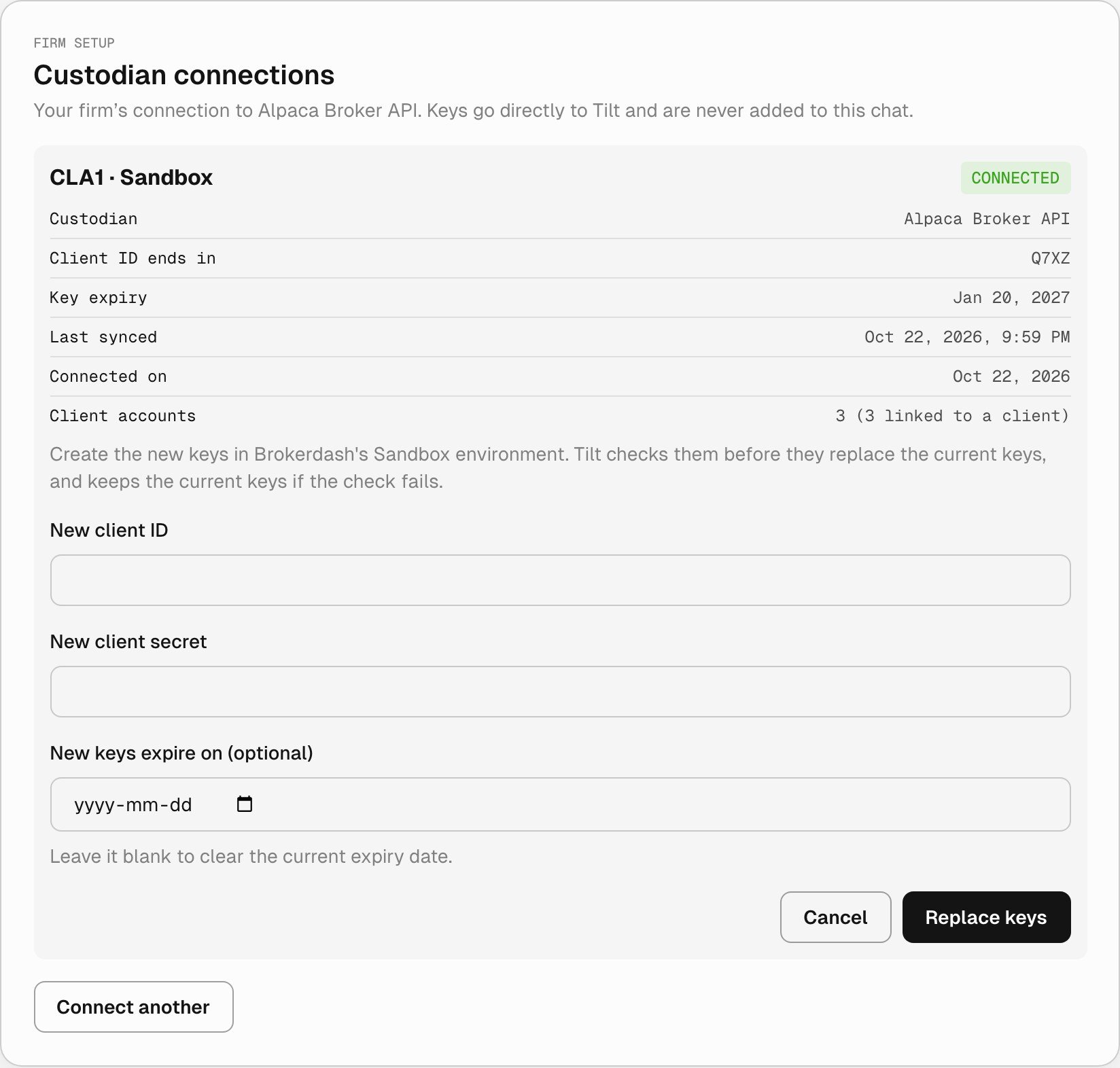
Replacing the keys of the CLA1 Sandbox connection.
4. Sync and review client accounts
Sync now reads the firm’s client accounts from Alpaca. When it finishes, the card says how many client accounts synced, or that the sync was incomplete or failed. Only firm owners can start a sync. Show client accounts lists each client account with its Client column, Linked or Not linked, and a Custodian restriction column that shows why Alpaca limits trading in the account, or None. Every member who can see the connection can open the list. You can also ask Tilt Agent which client accounts a connection holds.5. Disconnect
Select Disconnect to see what disconnecting would do, with your firm’s numbers, before anything changes.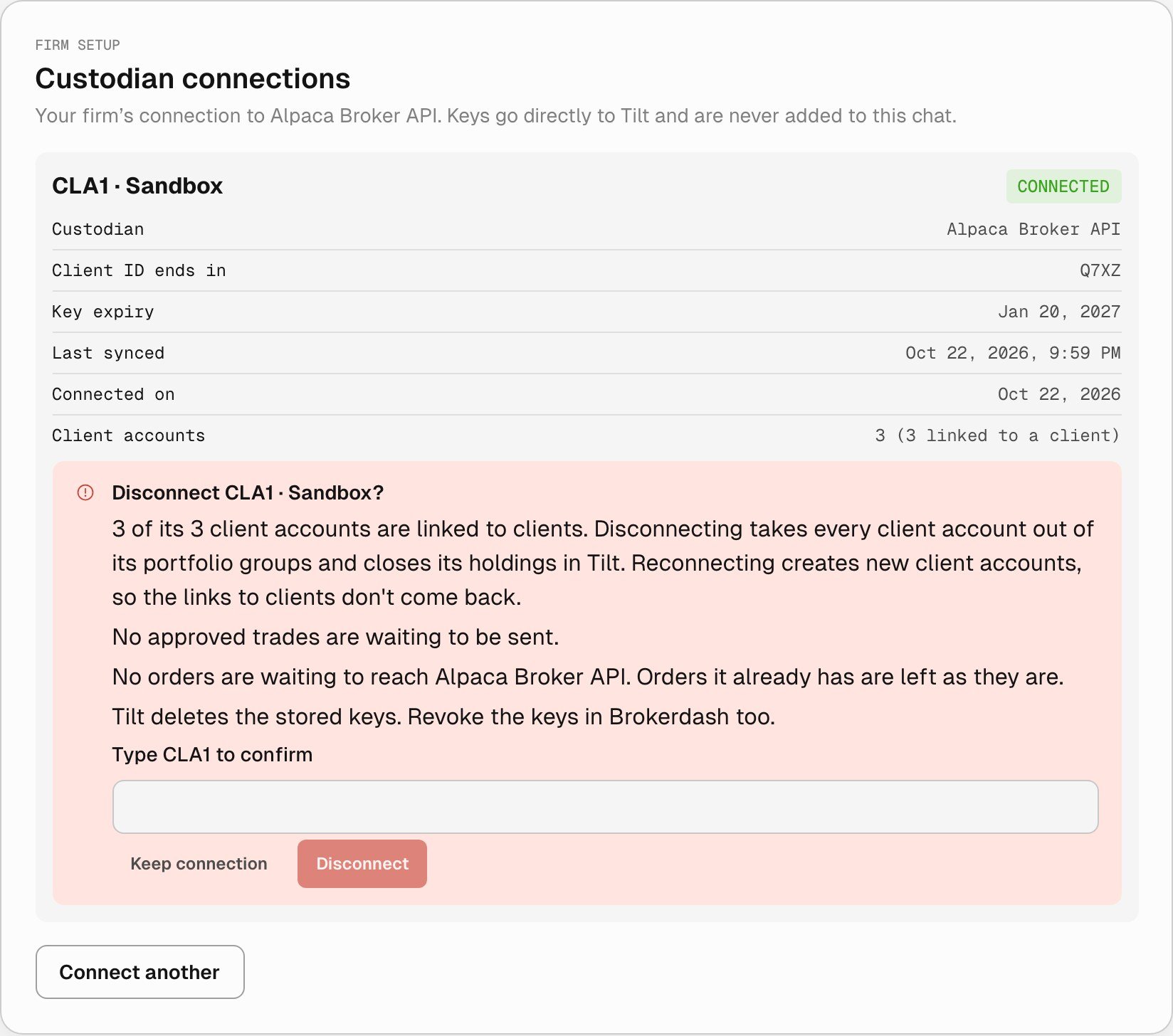
The disconnect warning. Disconnect stays unavailable until the owner types the correspondent code.
- takes every client account out of its portfolio groups and closes its holdings in Tilt. Reconnecting later creates new client accounts, so their links to clients don’t come back.
- leaves approved trades that weren’t sent yet approved, but they can’t be sent.
- marks orders that never reached Alpaca as failed. Orders Alpaca already has are left as they are.
- deletes the keys Tilt stored. Tilt can’t revoke keys at Alpaca, so revoke them in Brokerdash too.