Use Track only to keep a client-directed holding visible in its account and outside model-driven rebalancing. Track only holdings are included in supported whole-account analytics by default. Tilt excludes them from optimization and managed rebalance trades. For eligible ticker holdings, add rules so Tilt checks the daily close and flags conditions that need your attention. For example, a client wants to keep NVIDIA (NVDA) outside rebalancing and hear from you if it falls below $200. Move the holding to Track only if it is off model, then add a price warning. For a sharper drop, add a price breach below $180. Tilt checks the daily close; use a separate trading workflow for instructions that depend on intraday prices.

1. Choose holdings to track

  1. Open the account from Clients and go to Setup → Sleeves.
  2. For the first tracked ticker, find NVIDIA under Off model and select Assign… → Track only…. This opens the ticker’s configuration with Track only selected. Apply or discard queued Setup changes before using Assign….
  3. If the sleeve already exists, select Customize on the Track only row to open Manage holdings. If the row is hidden, turn on Include Track only. Search by ticker or name, or use Show to filter to Managed or Track only. Select Configure beside the holding you want to change and choose Track only if it is currently managed.
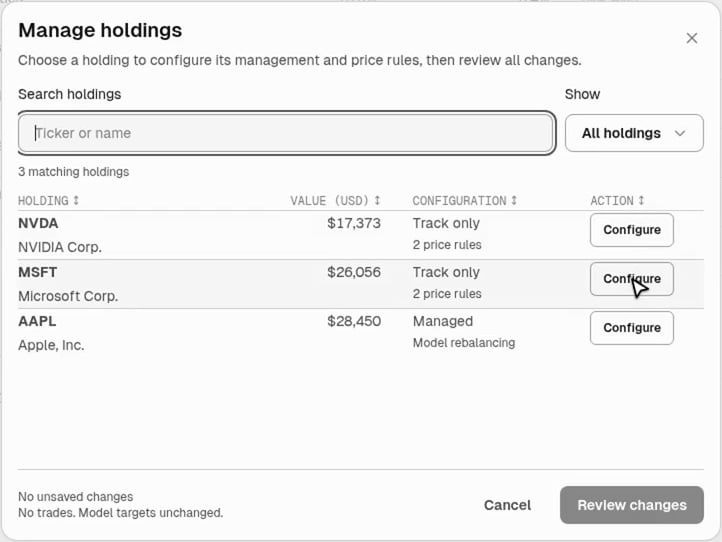
Manage holdings for a demo account, with ticker and name search, a Show filter, and Configure buttons for tracked NVDA and MSFT and managed AAPL.

Manage holdings shows how each holding is managed and how many price rules it has. Select Configure to edit one holding.

A ticker must be outside the model as configured for the account, including its targets and the investments and alternatives used by its sleeves. Tilt must be able to resolve the model before you can classify a ticker. If a model change later brings a tracked ticker into the model, return it to Managed or change the model before optimizing. To keep an on-model position from trading, use a no-trade restriction. Track only applies to all current and future lots of the ticker in this account. You can also track eligible manual or custodian holdings; cash is outside the selection list. If a holding has an active legacy transition, remove that assignment first.

2. Add daily price rules and save

In the holding’s configuration, Price monitoring is optional. You can add rules to an active Track only ticker with an eligible daily quote.
  1. Select Add rule. Choose Warning, then set the price condition to is below 200 USD per unit. Check Rule preview, then select Add rule to add it to the draft.
  2. Add a Price breach for a daily close below 180 USD per unit. For a milestone, choose Target reached. To combine multiple comparisons in one rule, use Add another condition and choose whether all or any must match.
  3. Select Done with NVDA to return to the holdings list. Select Review changes, check the listed holdings and rules, then select Save changes. Classification changes also show their effect on managed capital. Only the listed changes are saved.
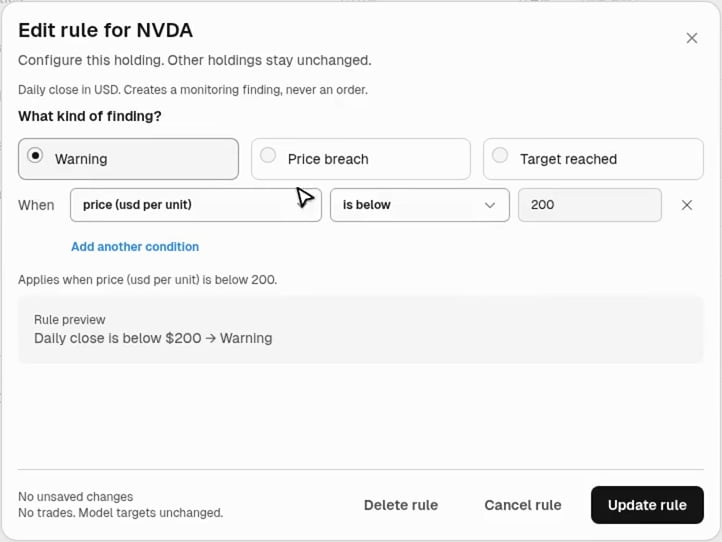
Edit rule for NVDA with Warning selected, a price below 200 USD per unit condition, and the daily close rule preview.

This warning checks whether NVIDIA's daily close is below $200. The preview shows the condition and the resulting signal.

For a percentage move, use price change from saved reference (%). Enter a positive Reference price per unit and confirm the Reference date. Tilt needs a historical quote on that date in the same currency as the daily quote. The comparison accounts for splits and measures price change. Use account reporting for total return or tax-lot gains. To change a saved rule, open the holding and select Edit, then Update rule. To pause it, clear the checkbox beside the rule. To remove it, open it and select Delete rule. Review and save any of these changes. Tilt checks the new or edited rules on the next daily evaluation. Saving places no trades, leaves model targets as they were, and does not create fresh findings. Holding price rules are separate from the firm and model policies shown under Setup → Monitoring.

Prepare rule changes with Tilt Agent

Name the client, account, and ticker. Ask Tilt Agent to prepare the exact condition and signal you want. For a percentage rule, specify the reference price, currency, and date. If the holding is managed, review its proposed move to Track only along with the rule. Approve the reviewed change to save it. Use the account’s History to see who changed a rule and what they changed, including changes made through Tilt Agent.

3. Review findings and follow up

In this demo account, NVDA closed at 173.73 USD, below the 180 USD breach threshold. Use the dated price and the matched rule to decide how to follow up.

The Patel-Lee Household row on Clients shows a Track only monitoring badge under Needs attention.

On Clients, Track only monitoring flags a household under Needs attention. Open the household to find the account.
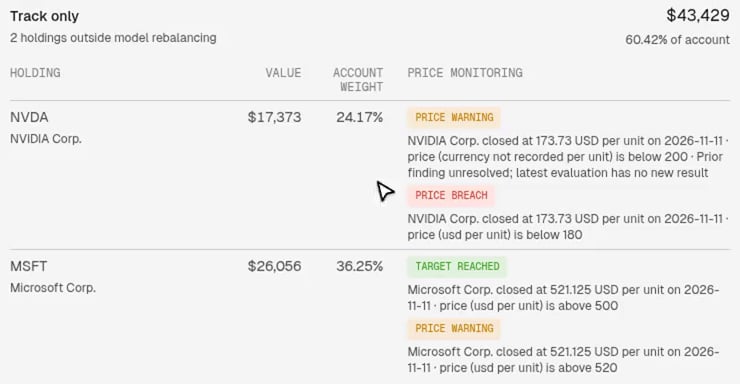
The Track only section shows NVIDIA's price breach below 180 USD, an unresolved earlier warning, and Microsoft's target reached and price warning findings.

In the demo account's Overview, NVIDIA's dated close and threshold explain the price breach. The earlier warning is marked unresolved.

Tilt evaluates enabled rules using the daily close in the ticker’s quote currency. A Price breach takes priority over a Price warning when both match on the same holding. Target reached can appear alongside another finding. If Tilt cannot evaluate a rule, for example because a quote is missing or stale, an earlier finding can remain visible as Prior finding unresolved; latest evaluation has no new result. Check the date before acting. A book-level alert can still reflect the previous evaluation after you change a holding’s classification. The Morning proposal summary, when enabled, includes accounts with active findings or rules Tilt could not evaluate in its attention count. Open the account for the individual findings. These findings prompt a review. They create no trade proposal or order. If the client’s instruction calls for a trade, confirm the quantity and terms in a separate authorized trading workflow.

4. Check the rest of the account

The Track only section on Overview shows the tracked holdings, their values, and their share of the account. NVDA’s value counts toward total assets and supported whole-account analytics. Tilt sizes model targets from managed capital and excludes NVDA from the optimizer’s risk calculations and trades. Under Setup → Sleeves, the Track only row shows its current share of total assets with No target. Expand the row to see the holdings and their values. Tilt does not rebalance NVDA to maintain that share.
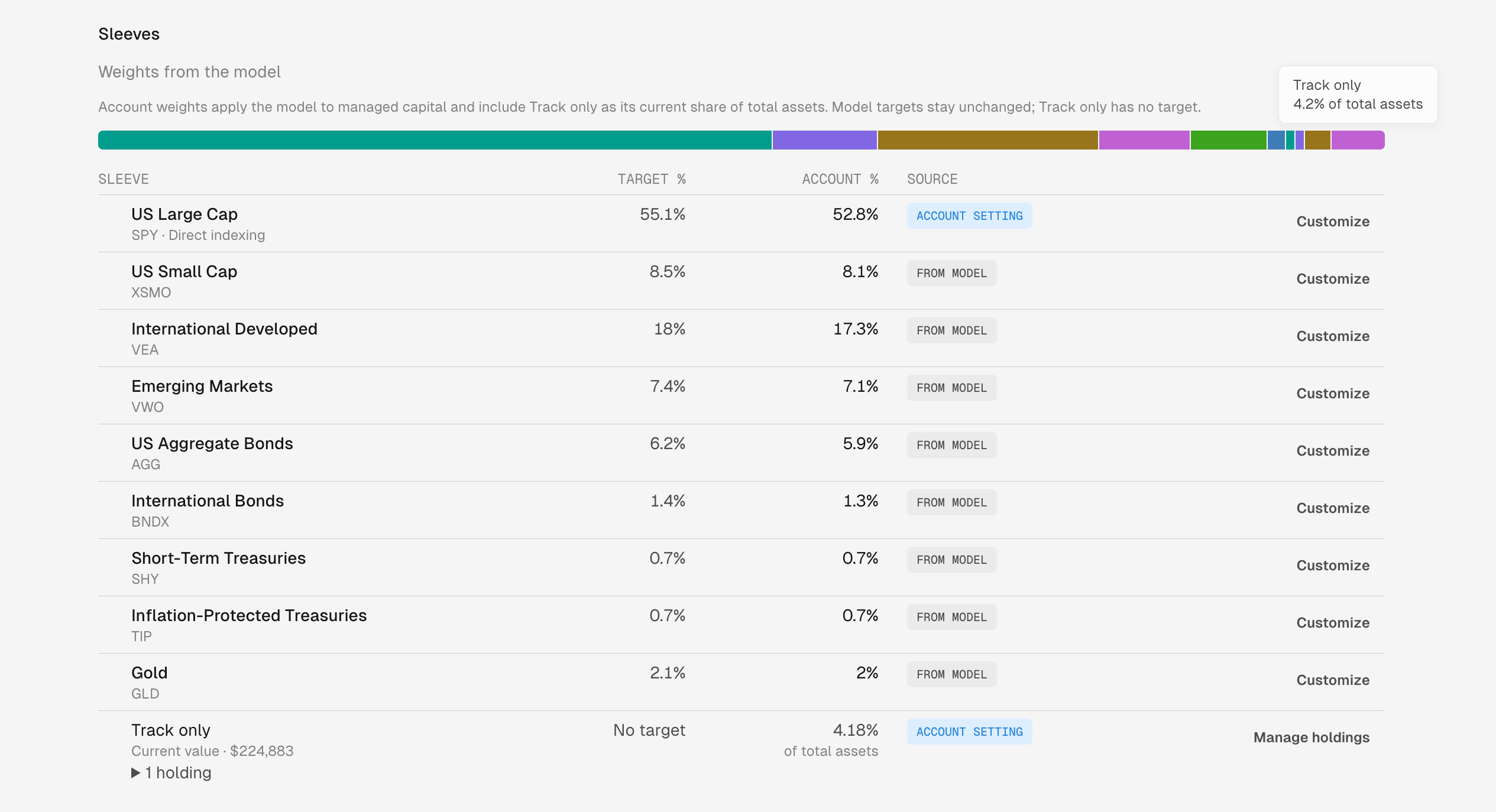
The sleeve allocation bar highlights Track only. The row below the managed sleeves shows No target, one holding, and 4.18% of total assets.

Track only appears alongside the managed sleeves in Setup → Sleeves. It accounts for 4.18% of total assets and shows No target.

Run a new drift check after changing membership. Tilt measures managed rebalance breaches against the managed holdings. If the managed/tracked split is unavailable, review the holding valuations and currency data. A classification cannot supply a missing valuation or reconcile conflicting holding records.

Choose the scope of account analytics

When the account has Track only holdings, Include Track only appears beside its tabs and is on by default. Leave it on to include tracked holdings in supported performance, risk, and exposures. Turn it off to inspect managed risk and exposures and hide Track only holdings and findings in the account view. This changes the view without changing saved classifications, price rules, model targets, or what the optimizer trades. Track only holdings remain in supported whole-account analysis. Classifying a holding does not add missing return history or risk-model coverage. Including manual or non-tradable assets can leave risk measures unavailable. Managed-only performance is unavailable while the account has Track only assignments: Tilt cannot reliably separate the excluded holdings’ historical values and associated money moves. Turn Include Track only on to read supported account performance. See Account and household performance for the return methodology and other coverage limits.

5. Return a holding to managed

Under Setup → Sleeves, select Customize on the Track only row, select Configure beside the holding, and choose Managed. Select Done with NVDA, then Review changes. Check the change in managed capital and select Save changes. Returning the holding to managed removes its monitoring rules. If a tracked position closes and you later hold the ticker again, add a new rule to resume monitoring. The holding returns to managed capital and rebalance checks, subject to existing eligibility and trading restrictions. Returning it does not add it to the model’s targets or place a trade. Run a fresh drift check, then review a rebalance if you want to change the account’s investments. After you return the last tracked holding to managed, the empty sleeve and Include Track only switch disappear. To track another eligible ticker, start from Off model in Setup.