

Before you start
You need access to MCP connections in Tilt and an account with the provider you want to connect. Open Settings > Connections to check whether the MCP section is available to you. Use the provider’s public HTTPS MCP server URL. Tilt supports servers that need no sign-in and servers that advertise compatible OAuth authorization with PKCE. Localhost servers, private network addresses, and URLs containing credentials, query parameters, or fragments are unsupported. Sign in through the provider’s authorization page; keep passwords and API keys out of chat and the URL field. For this walkthrough, use:Connect from Settings
- Open your user menu and select Settings.
- Select Connections, then find MCP connections.
- Select Add, paste the Linear endpoint into MCP server URL, and select Add server. Tilt discovers the server’s authorization requirements.
- On Linear’s authorization page, sign in and review the requested access. Authorize Tilt for the workspace you want to use.
- After authorization, return to Tilt. The server’s row shows a check under Status once it’s connected.
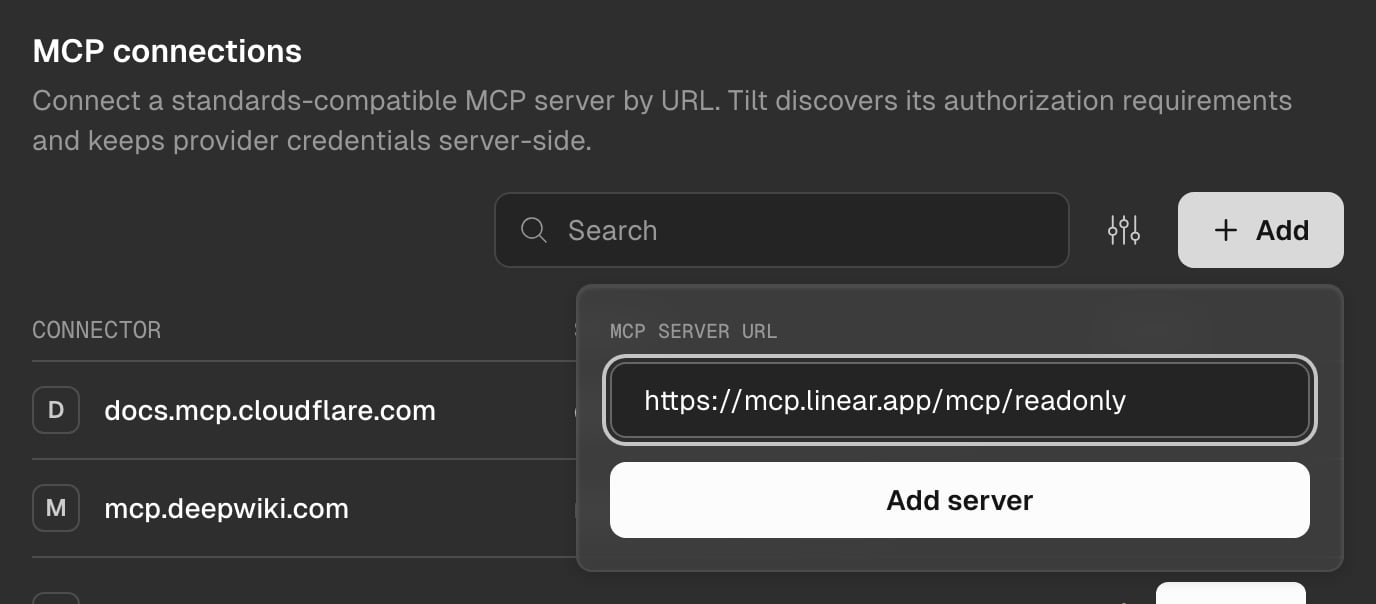
Select Add, then enter the provider's MCP endpoint.
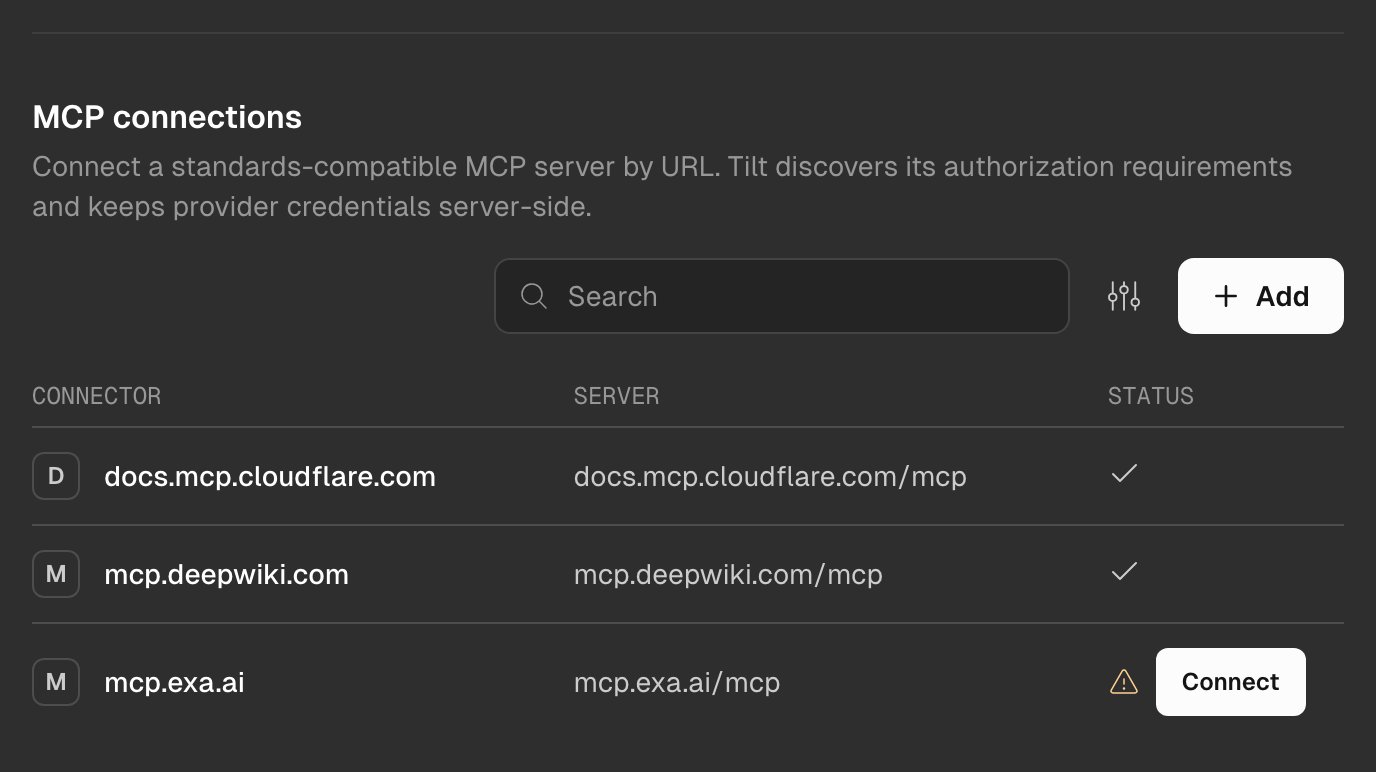
Servers in Settings > Connections: a check means connected, and a warning sign means the server needs you to connect it.
Connect from chat
You can also ask Tilt Agent to prepare a connection:Use the connection
After connecting, ask Tilt Agent for an outcome that uses the provider. For example:Choose what Tilt Agent may do with each tool
Each app labels its own tools: some as tools that only read data, others as tools that can change or delete data. Tilt can’t check those labels. Out of the box, Tilt Agent runs a tool the app labels read-only on its own, and every other tool needs your approval, including a tool the app doesn’t label at all. To change that for one app:- Open Settings > Connections and find the server under MCP connections.
- Select the server’s name. Its page shows the app’s name and its server’s web address, with a button to copy it, then lists the tools the app offers Tilt Agent under Tool permissions.
- Set a tool with the three icons beside it: Always allow (a check in a circle), Needs approval (a raised hand), or Blocked (a circle with a line through it). Point at an icon, or move to it with the keyboard, to see its name.
- To set every tool in a group at once, open the menu beside the group’s name and choose a setting. The menu shows Custom when the group’s tools don’t all have the same setting. Select a group’s name to collapse or expand it.
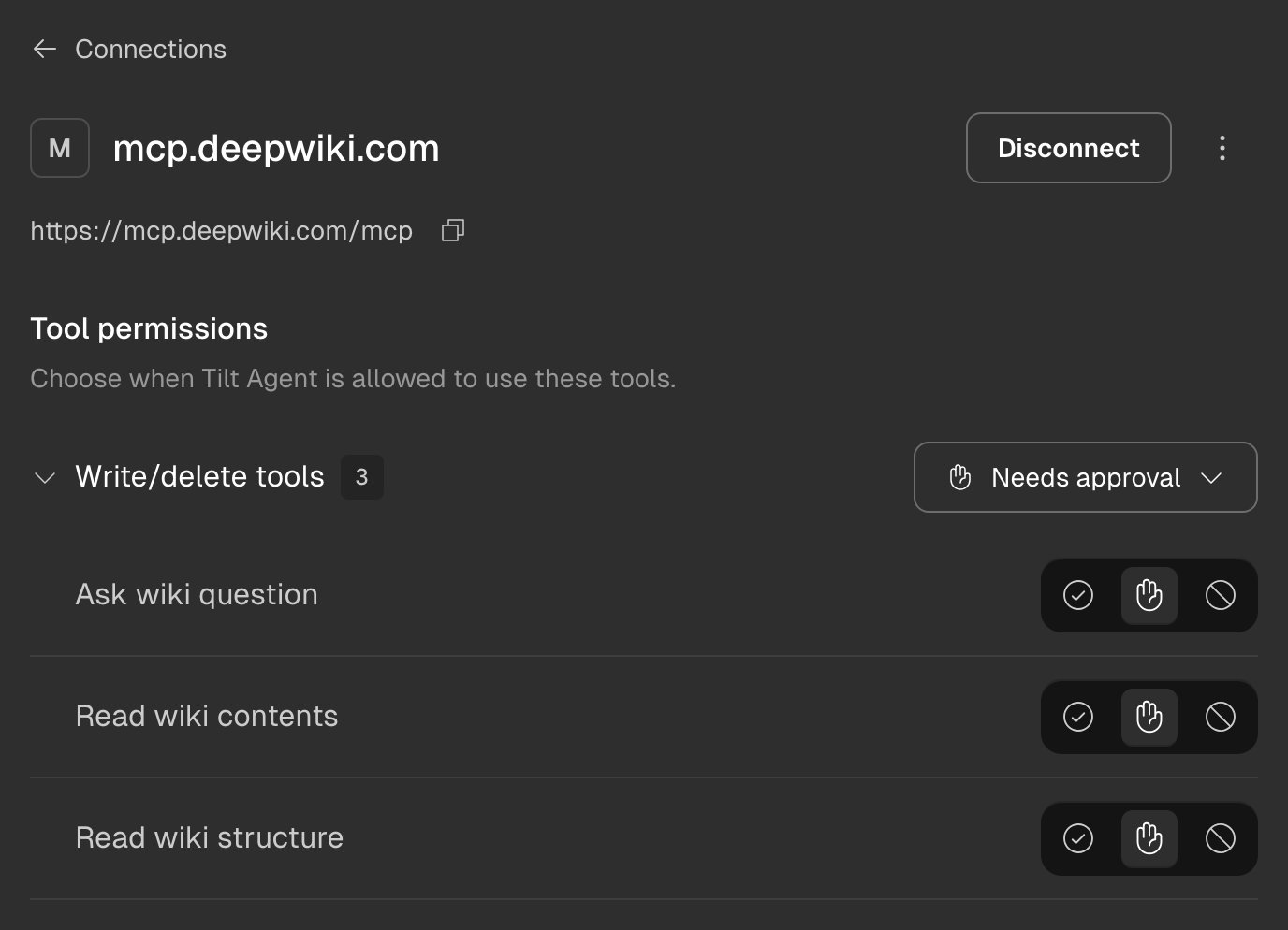
A test server whose tools carry no labels, so every tool is under Write/delete tools and needs approval.
The app’s own views in a chat follow the same choices for these tools. When a view calls a tool that needs your approval, Tilt asks you before the call runs. A tool the app keeps for its view alone isn’t listed here, and Tilt runs it right away when the view asks. See When a view runs a tool.
The page groups tools, with the number of tools beside each group’s name and the tools in each group sorted A to Z. Interactive tools holds the tools that come with the app’s own view (see See an app’s own view). Read-only tools holds the other tools the app labels as ones that only read data. Write/delete tools holds every other tool, including tools the app doesn’t label.
Tilt Agent uses your choices from its next turn. A turn that’s already running can take several minutes to pick them up. A tool the app adds later starts with the default for its label until you choose otherwise. If Tilt can’t reach the app to list its tools, the page says so; select Retry to try again. To list the app’s tools again at any time, open the more actions menu beside Disconnect and select Refresh tools list.
Automations can’t ask you during a run, so a tool that needs approval doesn’t run in an automation. Set a tool to Always allow if an automation has to use it. A background job can’t ask you either: it stops and asks Main chat to check the call with you. Chats started from another app, such as Claude, don’t use the tool either.
Approve or deny a call in the chat
When Tilt Agent wants to use a tool that needs approval, it stops and shows a card in the chat. The card names the app, its real web address, and the tool, and lists every value Tilt Agent wants to send, exactly as it would send them. The app’s name and the tool’s title come from the app.- Allow once sends that exact call to the app, once. Tilt Agent then carries on from the app’s answer. If the tool comes with its own view, such as a chart, Tilt shows the view below the card.
- Always allow sets the tool to Always allow on its Tool permissions page, then sends the call once, like Allow once. From then on Tilt Agent uses the tool without asking. If Tilt can’t save the setting, the call is still allowed once and the card says so. The card offers it only for a tool you haven’t set yourself: a tool you set to Needs approval keeps asking.
- Deny sends nothing, and Tilt Agent is told you declined.
See an app’s own view
Some apps send their own view with a result, such as a chart with buttons. Tilt shows it in the chat inside a card labelled Connected app. Everything inside the card’s frame is the app’s own page. Tilt draws the frame around it: the app’s name and web address, and a line for each action the view runs that can change something in the app. When the view uses one of the tools the app also offers Tilt Agent, Tilt follows your choices on the app’s Tool permissions page and asks you first when a tool needs your approval. For what each part of the card means, what a view can and can’t do, and what Tilt Agent sees, read Connected app views.Reconnect or disconnect
Open Settings > Connections, find the server under MCP connections, and select its name to open its page.
You can also ask Tilt Agent to reconnect or disconnect a server in chat. Review the confirmation card and select the matching action. A request to disconnect prepares a confirmation; Tilt applies it when you select Disconnect.
Resolve a connection problem
A server that isn’t connected shows a warning sign and a Connect or Retry discovery button on its row in Settings > Connections. Point at the button to see why, or open the server’s page, which names its status.
For an integration that sends tasks to Tilt Agent from another application, see Delegate to Tilt Agent from your application.