Tilt sends you a notification when something needs you: a brokerage connection stopped working, an automation posted a result, or trades you sent finished. Each one names what happened and opens the page where you can act on it.

Check your notifications

On a computer, the bell sits above your account button at the bottom of the left navigation. A dot on the bell means at least one notification is unread. Select the bell to see your notifications without leaving the page you are on. The newest is at the top.
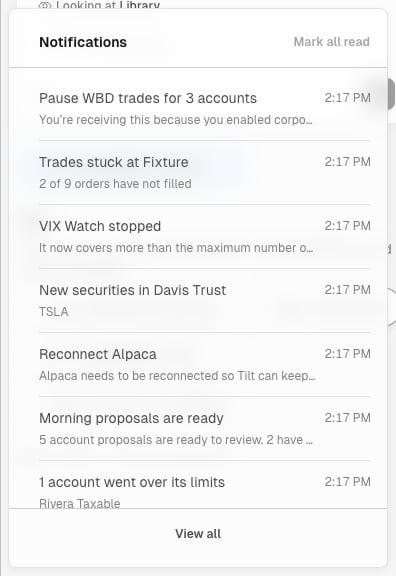
Notifications list opened from the bell, showing notifications such as Trades stuck at Fixture and Morning proposals are ready, each with a time, above a View all button

The bell's list of notifications, newest first, with Mark all read and View all.

Select View all to open the Notifications page, which lists every notification and filters them with All and Unread. On a phone, open Notifications from the tab bar.

Open a notification

Select a notification to open what it is about, such as a client, the Trading page, or Settings. An automation’s result opens its chat at that result. Opening a notification marks it read, and it stays in the list.

Email

Some notifications also arrive by email a few minutes later if you haven’t looked at them in Tilt by then. Opening the bell or the Notifications page counts as looking.

Choose which notifications you get

Open Settings, then Notifications under Personal. Most kinds of notification have a switch there. Turning one off stops it in Tilt and by email. Tilt for Mac can also show notifications on your Mac while it is running. Advisors also get notifications about their firm, listed in Advisor notifications.