Tilt Capture brings the window in front of you into a chat in Tilt for Mac. While you read a filing, a news story, or a statement in another app, press the shortcut, and Tilt adds a screenshot of that window to a chat, ready for your question.

Turn it on

  1. In Tilt for Mac, open Settings (⌘,) and select Tilt Capture.
  2. Turn on Tilt Capture beside This Mac.
  3. Allow the two macOS permissions Tilt Capture needs. For each, select Allow: System Settings opens the matching pane beside a small Tilt Capture tile. Drag the tile into the list, and the row in Tilt shows Allowed.
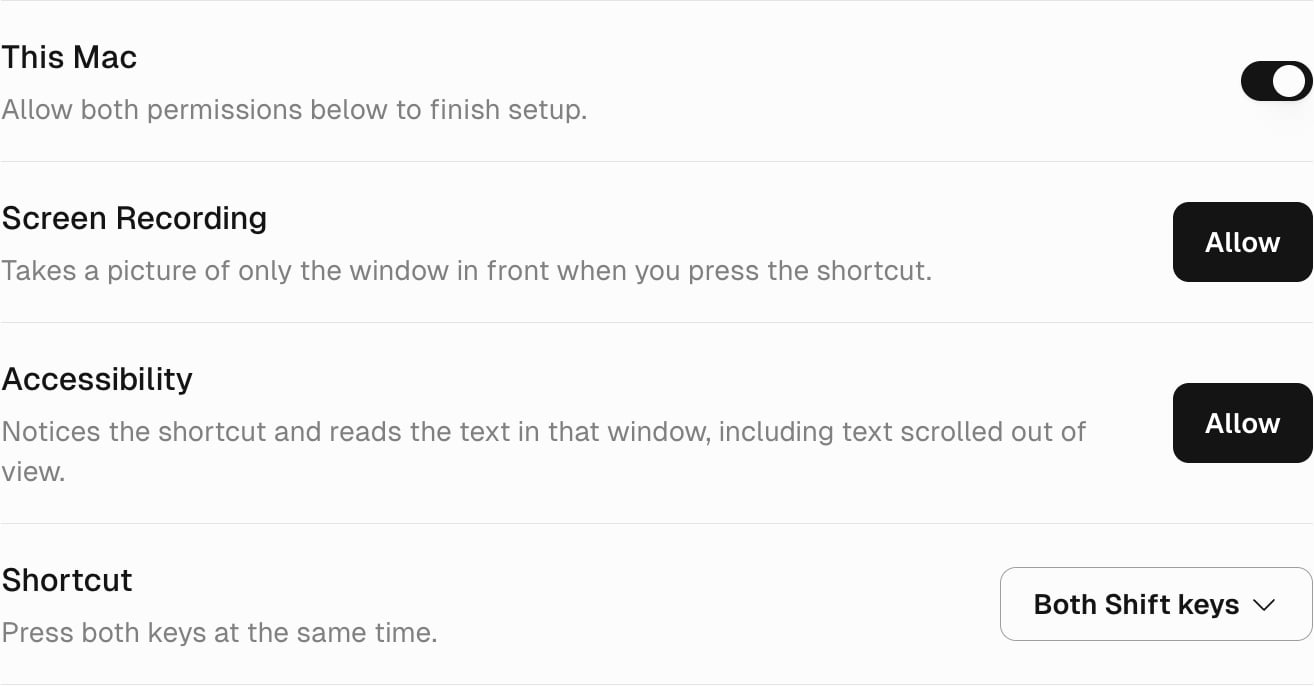
Tilt Capture settings showing This Mac turned on with Allow both permissions below to finish setup, Allow buttons for Screen Recording and Accessibility, and Shortcut set to Both Shift keys

Tilt Capture turned on, waiting for both permissions.

When both are allowed, the setting reads Ready. Choose a different Shortcut there if you like: Both Shift keys (the default), Both Option keys, or Both Command keys.

Capture a window

  1. Bring the window you want to ask about to the front.
  2. Press both Shift keys, or the shortcut you chose.
  3. Tilt opens a chat with the screenshot attached. If the message input is empty, Tilt fills in “What does this mean for my portfolio?” Edit the question, then send it.
Tilt adds the capture to the chat you used in the last minute. Otherwise it opens a new chat. Pressing the shortcut while Tilt is in front puts the cursor in the chat’s message input. Tilt Capture never captures Tilt’s own windows. If a permission is missing, the shortcut opens the Tilt Capture settings.

What Tilt receives

A capture holds the screenshot of that one window, the text the window contains, and, when the app exposes it, the address of the page shown. Other windows and the rest of your screen are left out. Tilt uploads the capture as it adds it to the message input, as it does any image you attach, and Tilt Agent reads it when you send the message. To leave it out, remove the attachment before you send. To stop capturing, turn off Tilt Capture in Settings. To remove the permissions, open System Settings > Privacy & Security and turn off Tilt Capture under Screen Recording and Accessibility.