> ## Documentation Index
> Fetch the complete documentation index at: https://docs.tilt.now/llms.txt
> Use this file to discover all available pages before exploring further.
# Background jobs
> Hand longer work to Tilt Agent and keep talking in the same chat.
A background job is work Tilt Agent does on its own while you keep using the chat. When the job ends, its result comes back to the chat that started it.
 ## Start a job
Ask for the work to run in the background, and name each job so you can tell them apart:
> In the background, start three jobs for AAPL, JPM, XOM, JNJ and NEE: earnings check finds each one's latest quarterly results, news check finds the most recent headline for each, and analyst check finds the current consensus rating. Each reports back with a short table.
When you ask for background work, Tilt Agent starts a job. It can also start one on its own for a long task. Jobs run side by side, and you can keep asking questions while they work. A job keeps working after you close Tilt.
## Follow a job
| Where | What you see |
| - | - |
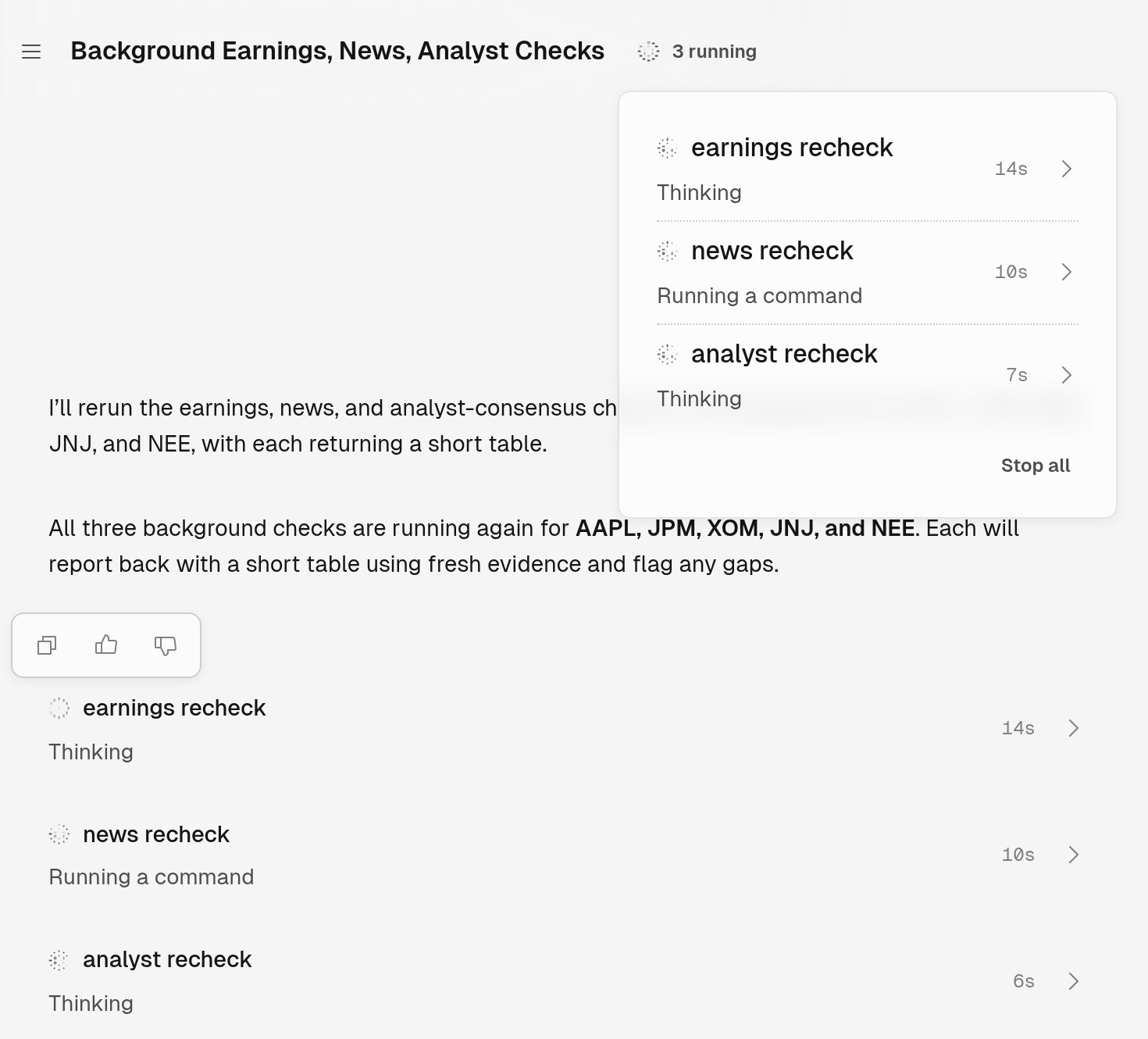
| The chat | A row with the job's name, what it is doing, and how long it has worked. |
| The title bar | The job's name. With several jobs, the count, such as **2 running**, which opens a list of them. |
Select the row, the name in the title bar, or a job in the list to open the job's page. The page shows the instructions Tilt Agent gave the job and the job's work as it happens. It has no message box: you talk to a job through the chat that started it.
## Add work or stop a job
| To | Do this |
| - | - |
| Give a running job more to do | Ask in the chat: "Tell news check to add MSFT." |
| Stop one job | Select Stop at the top of the job's page, or ask in the chat. |
| Stop every job | Open the list from the title bar, select **Stop all**, then select **Stop all jobs?** to confirm. |
| Stop Tilt Agent's reply | Select Stop in the message box. Your background jobs keep running. |
## Read the result
When a job ends, the chat shows a note: **news check finished**, followed by the start of its answer, or **news check failed** with the reason. Select the note to open the job's page and read the full answer. Tilt Agent can follow the note with a reply of its own, such as a summary table.
## Choose a job, another chat, or an automation
| Use | When you want |
| - | - |
| A background job | One piece of work done now, with the result back in this chat. |
| Another chat | Tilt Agent to hand work to a chat that keeps its own history. See [Work across chats](/tilt-agent/overview#work-across-chats). |
| An automation | The same assignment repeated on a schedule. See [Create an automation](/tilt-agent/create-automation). |
This documentation is built and hosted on [Mintlify](https://mintlify.com), a developer documentation platform.
## Start a job
Ask for the work to run in the background, and name each job so you can tell them apart:
> In the background, start three jobs for AAPL, JPM, XOM, JNJ and NEE: earnings check finds each one's latest quarterly results, news check finds the most recent headline for each, and analyst check finds the current consensus rating. Each reports back with a short table.
When you ask for background work, Tilt Agent starts a job. It can also start one on its own for a long task. Jobs run side by side, and you can keep asking questions while they work. A job keeps working after you close Tilt.
## Follow a job
| Where | What you see |
| - | - |
| The chat | A row with the job's name, what it is doing, and how long it has worked. |
| The title bar | The job's name. With several jobs, the count, such as **2 running**, which opens a list of them. |
Select the row, the name in the title bar, or a job in the list to open the job's page. The page shows the instructions Tilt Agent gave the job and the job's work as it happens. It has no message box: you talk to a job through the chat that started it.
## Add work or stop a job
| To | Do this |
| - | - |
| Give a running job more to do | Ask in the chat: "Tell news check to add MSFT." |
| Stop one job | Select Stop at the top of the job's page, or ask in the chat. |
| Stop every job | Open the list from the title bar, select **Stop all**, then select **Stop all jobs?** to confirm. |
| Stop Tilt Agent's reply | Select Stop in the message box. Your background jobs keep running. |
## Read the result
When a job ends, the chat shows a note: **news check finished**, followed by the start of its answer, or **news check failed** with the reason. Select the note to open the job's page and read the full answer. Tilt Agent can follow the note with a reply of its own, such as a summary table.
## Choose a job, another chat, or an automation
| Use | When you want |
| - | - |
| A background job | One piece of work done now, with the result back in this chat. |
| Another chat | Tilt Agent to hand work to a chat that keeps its own history. See [Work across chats](/tilt-agent/overview#work-across-chats). |
| An automation | The same assignment repeated on a schedule. See [Create an automation](/tilt-agent/create-automation). |
This documentation is built and hosted on [Mintlify](https://mintlify.com), a developer documentation platform.