> ## Documentation Index
> Fetch the complete documentation index at: https://docs.tilt.now/llms.txt
> Use this file to discover all available pages before exploring further.
# Index construction
> How a Tilt turns construction rules into a rules-based portfolio: universe, selection, sizing, and rebalancing.
A Tilt is a rules-based portfolio: a set of construction rules and the constituents they produce. Tilt applies the rules to a universe of securities, ranks the securities that pass, sizes the positions, and returns the constituents. Each rebalance runs the same rules on fresh data. Publishing a Tilt through Tilt's review process makes it an index.
You can write the rules yourself or describe the Tilt to Tilt Agent, which writes them for you. You can read and edit every rule either way.
## The construction pipeline
 Each stage is a section on a Tilt's **Methodology** tab:
| Stage | What it does | Index-methodology term |
| - | - | - |
| Universe | Sets the eligible starting securities, such as US-listed investable equities. | Parent index or eligible universe |
| Derived fields | Names values for later stages to reuse, such as a quality composite. | Factor definitions |
| Selection rules | The filter expression removes ineligible securities. The score expression ranks the rest, and a maximum keeps the top N. | Eligibility criteria, screens, and selection |
| Position sizing | The weight expression sets each selected security's weight. Without one, Tilt sizes by score. | Weighting scheme |
| Ticker overrides | Forces specific securities in or out. | Discretionary inclusions and exclusions |
| Rebalance and concentration | Sets the rebalance schedule and caps position weights. | Rebalance schedule and capping |
The result is the Tilt's constituents: the selected securities and their weights on the evaluation date.
## Find your way around
Select a Tilt in Library to open its Tilt view. In chat, select **View details** on a Tilt card or select a Tilt reference in a sent message to open the same view without losing your place in the chat.
Each stage is a section on a Tilt's **Methodology** tab:
| Stage | What it does | Index-methodology term |
| - | - | - |
| Universe | Sets the eligible starting securities, such as US-listed investable equities. | Parent index or eligible universe |
| Derived fields | Names values for later stages to reuse, such as a quality composite. | Factor definitions |
| Selection rules | The filter expression removes ineligible securities. The score expression ranks the rest, and a maximum keeps the top N. | Eligibility criteria, screens, and selection |
| Position sizing | The weight expression sets each selected security's weight. Without one, Tilt sizes by score. | Weighting scheme |
| Ticker overrides | Forces specific securities in or out. | Discretionary inclusions and exclusions |
| Rebalance and concentration | Sets the rebalance schedule and caps position weights. | Rebalance schedule and capping |
The result is the Tilt's constituents: the selected securities and their weights on the evaluation date.
## Find your way around
Select a Tilt in Library to open its Tilt view. In chat, select **View details** on a Tilt card or select a Tilt reference in a sent message to open the same view without losing your place in the chat.
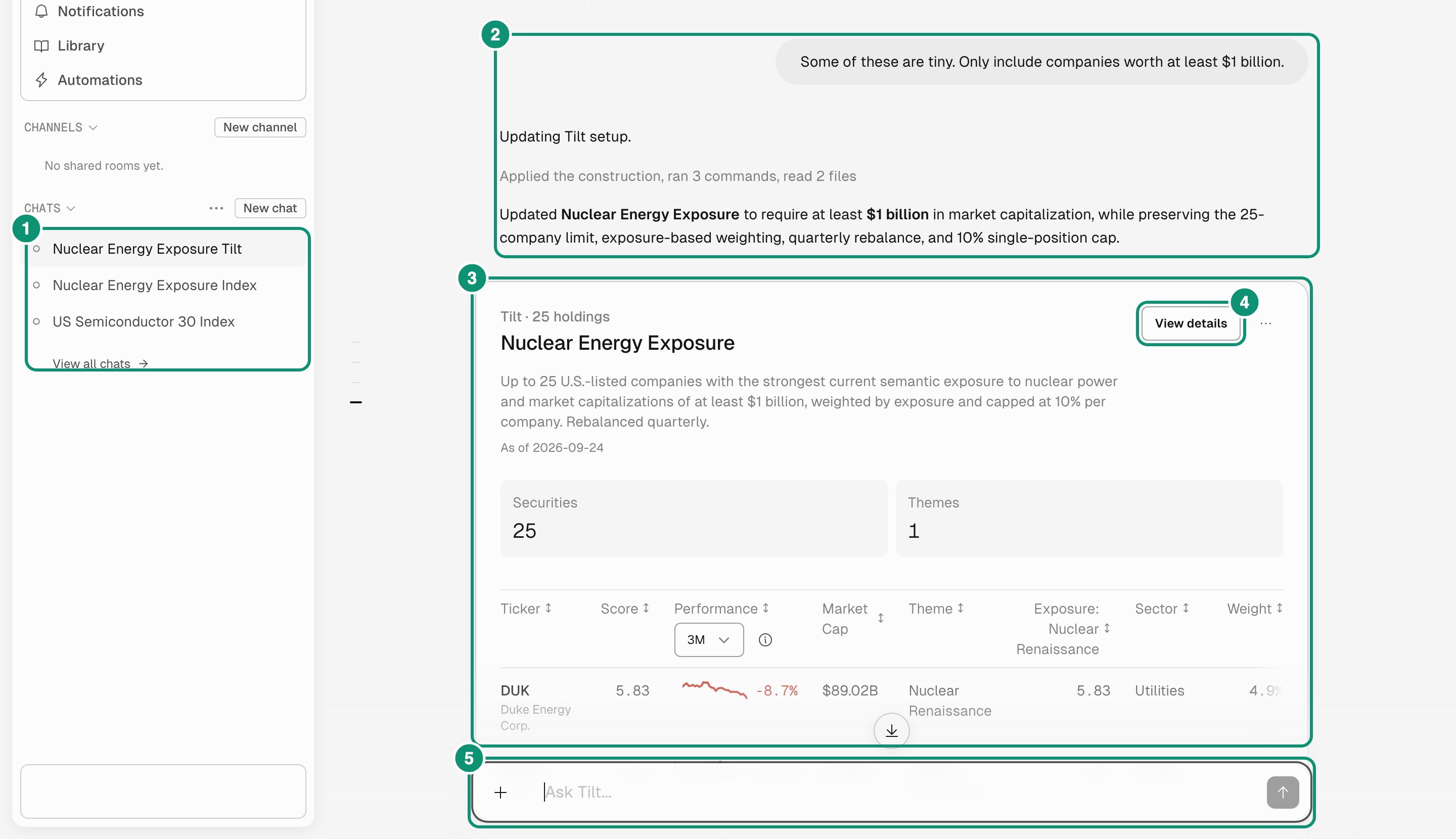 1. **Chats** lists your conversations with Tilt Agent.
2. The conversation shows your requests and Tilt Agent's replies.
3. The **Tilt card** summarizes a Tilt that Tilt Agent created or changed.
4. **View details** opens the Tilt view.
5. The message box takes your next request, such as a new Tilt or a change to its rules.
1. **Chats** lists your conversations with Tilt Agent.
2. The conversation shows your requests and Tilt Agent's replies.
3. The **Tilt card** summarizes a Tilt that Tilt Agent created or changed.
4. **View details** opens the Tilt view.
5. The message box takes your next request, such as a new Tilt or a change to its rules.
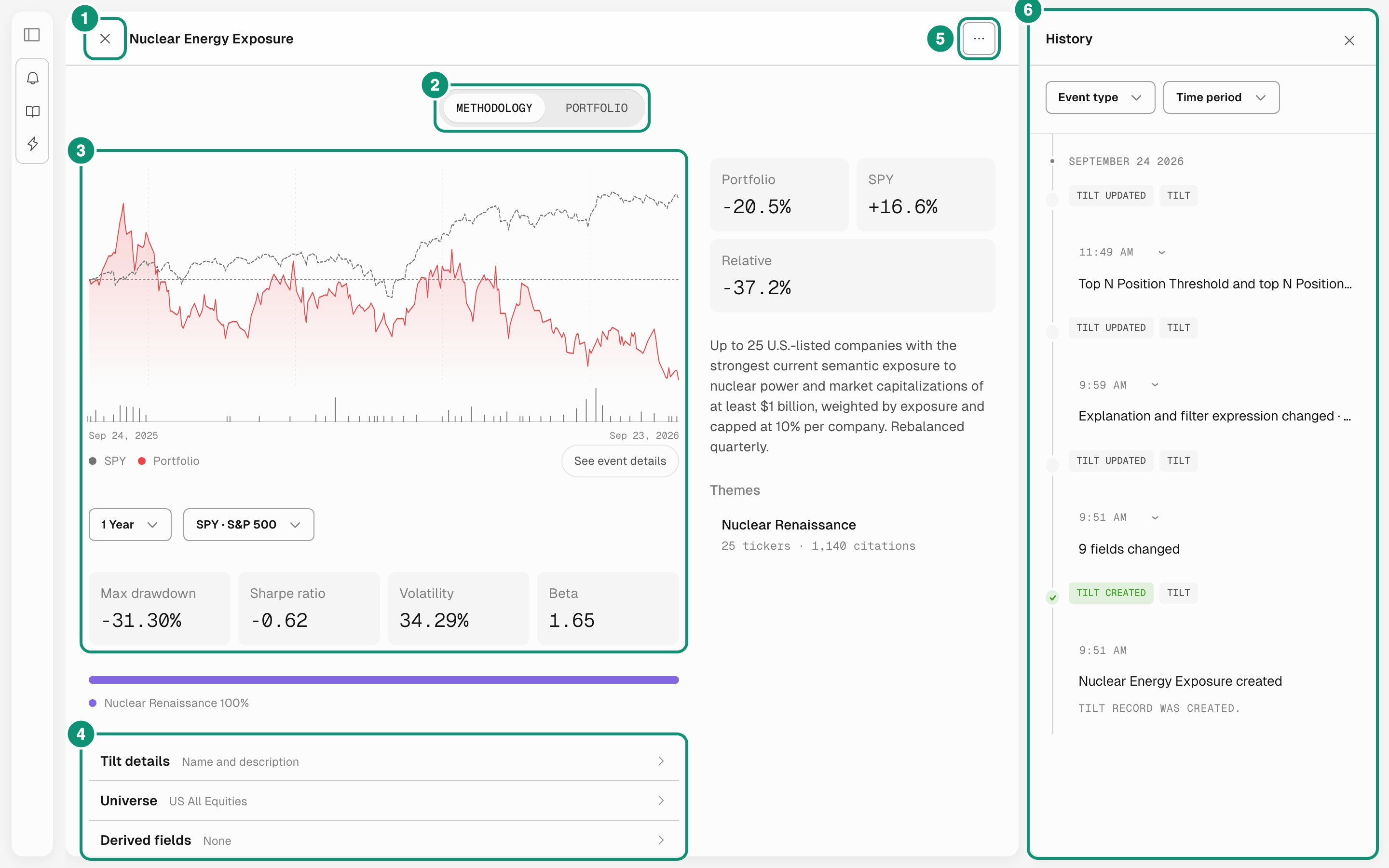 1. **Close** returns to the chat. A Tilt opened from Library shows **Back to Library** instead.
2. **Methodology** shows the rules and a backtest. **Portfolio** lists the constituents and weights.
3. The backtest compares the Tilt with a benchmark over a period you choose, with risk statistics.
4. The methodology sections hold the construction rules, one section per stage. Open a section and edit it. Each edit joins the change queue at the bottom of the Tilt view. Open the queue and select **Apply** to save the changes and re-evaluate the Tilt.
5. The actions menu has **History**, **Export to Excel**, and **Publish to Marketplace**.
6. **History** lists every methodology change, with who made it and when.
After opening a Tilt from Library, select **Explore in chat** and choose a suggested question or **Ask anything**. New Chat opens with an editable draft and the Tilt attached. Nothing is sent until you select **Send**.
When you ask Tilt Agent for a change in the chat, it edits the same rules you see in the Tilt view.
## A first example
This Tilt takes US companies worth more than \$5 billion with strong free-cash-flow margins, ranks them by revenue growth and return on equity, and holds the top 20 by free-float market cap:
| Rule | Value |
| - | - |
| Universe | US Investable Equities |
| Filter expression | `market_cap > 5000 and fcf_margin > 0.08` |
| Score expression | `2 * revenue_growth_3y + roe` |
| Maximum constituents | `20` |
| Weight expression | `free_float_market_cap` |
| Rebalance | Quarterly |
`market_cap` is in millions of US dollars.
## Next steps
Fields, operators, and functions for each rule.
How filters, scores, limits, weights, and caps combine.
Build and refine a nuclear energy Tilt with Tilt Agent.
Compare Tilt's interface, Tilt Agent over MCP, and the REST API design preview.
This documentation is built and hosted on [Mintlify](https://mintlify.com), a developer documentation platform.
1. **Close** returns to the chat. A Tilt opened from Library shows **Back to Library** instead.
2. **Methodology** shows the rules and a backtest. **Portfolio** lists the constituents and weights.
3. The backtest compares the Tilt with a benchmark over a period you choose, with risk statistics.
4. The methodology sections hold the construction rules, one section per stage. Open a section and edit it. Each edit joins the change queue at the bottom of the Tilt view. Open the queue and select **Apply** to save the changes and re-evaluate the Tilt.
5. The actions menu has **History**, **Export to Excel**, and **Publish to Marketplace**.
6. **History** lists every methodology change, with who made it and when.
After opening a Tilt from Library, select **Explore in chat** and choose a suggested question or **Ask anything**. New Chat opens with an editable draft and the Tilt attached. Nothing is sent until you select **Send**.
When you ask Tilt Agent for a change in the chat, it edits the same rules you see in the Tilt view.
## A first example
This Tilt takes US companies worth more than \$5 billion with strong free-cash-flow margins, ranks them by revenue growth and return on equity, and holds the top 20 by free-float market cap:
| Rule | Value |
| - | - |
| Universe | US Investable Equities |
| Filter expression | `market_cap > 5000 and fcf_margin > 0.08` |
| Score expression | `2 * revenue_growth_3y + roe` |
| Maximum constituents | `20` |
| Weight expression | `free_float_market_cap` |
| Rebalance | Quarterly |
`market_cap` is in millions of US dollars.
## Next steps
Fields, operators, and functions for each rule.
How filters, scores, limits, weights, and caps combine.
Build and refine a nuclear energy Tilt with Tilt Agent.
Compare Tilt's interface, Tilt Agent over MCP, and the REST API design preview.
This documentation is built and hosted on [Mintlify](https://mintlify.com), a developer documentation platform.